

I built Debmedia School ERP so that a school office can run admissions, fees, attendance, exams, accounts and payroll from one program, on one Windows PC, with no monthly subscription and no internet needed for daily work. This post lists what is in it, module by module, and what is not. I own the product, so read it with that in mind. I have only described what is built and tested in the current release.
In one line: an offline Windows school ERP with 16 modules, 88 screens and more than 40 built-in reports. It has no parent or student app, no online fee payment and no GPS tracking.
Why I built it as an offline program
Many schools do not need a cloud system. They need the fee desk, the attendance register, the exam office and the accounts room to stop working from separate notebooks and spreadsheets. They also want their data on their own computer, and software that does not stop working if a monthly payment is missed.
The program runs on Windows 10 or 11 (64-bit) and keeps everything in one local database file. You buy a licence once. I offer three: Lifetime, White Label (you sell it under your own name) and Source Code. There is no monthly or yearly plan.
Getting started and everyday use
- Sign-in: every person has their own user name. The first user is admin, and the program makes you choose a new password straight away. Passwords are stored as salted hashes, an account locks after repeated wrong passwords, and the screen signs out after the idle time you set.
- First-run set-up: a set-up wizard on the first start takes you through the basic set-up, and the school profile (name, address, board, affiliation number and logo) then appears on receipts, report cards, certificates and letters.
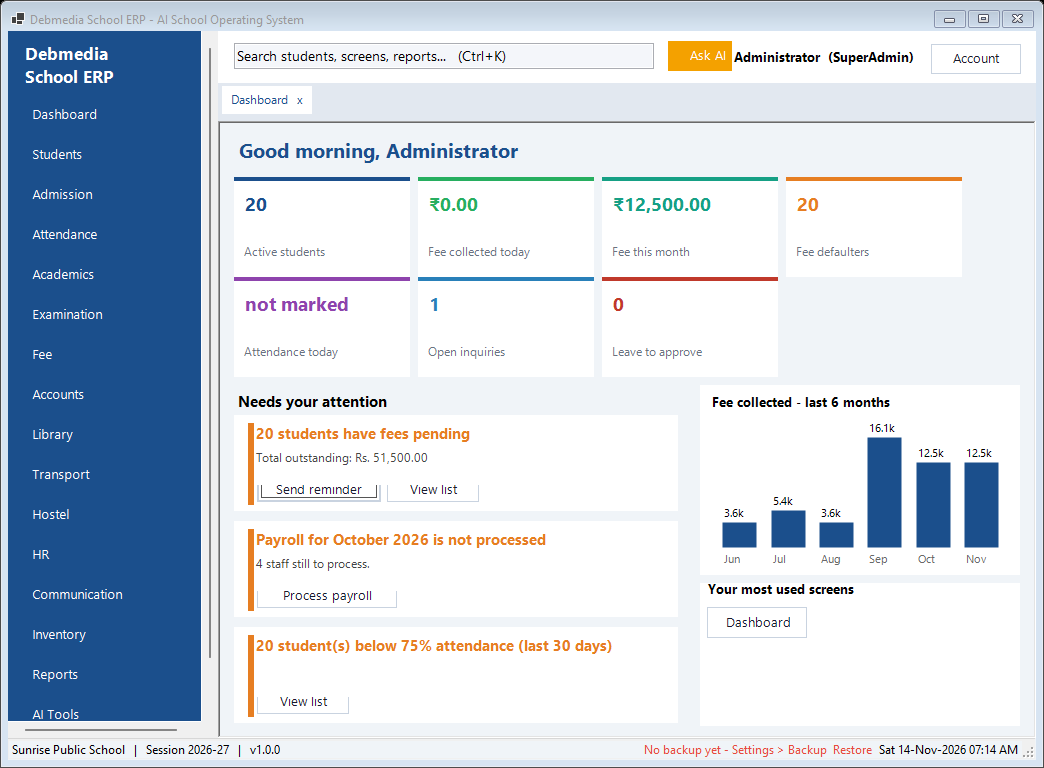
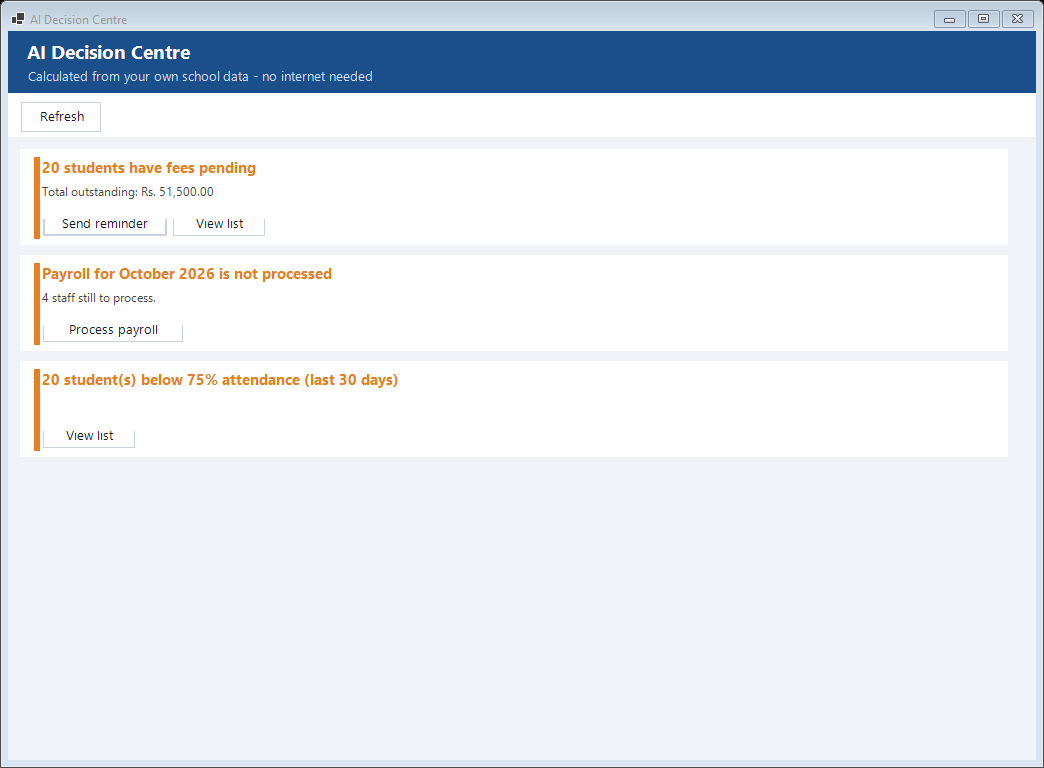
- Dashboard: active students, fees collected today and this month, fee defaulters, attendance today, open inquiries and leave waiting for approval, a chart of fees collected over the last six months, and a list of things that need attention (fees pending, payroll not processed, students below 75 percent attendance) with a button to act on each.
- Search everything (Ctrl+K): type a few letters to jump to any screen, report, student or action. Recent and suggested screens are shown first, and each user only sees what their role allows.
- Tabs: every screen opens in its own tab, so you can keep the fee counter and a student profile open together.
- Export: list screens export to Excel, and reports export to Excel and PDF.
Students and admissions
Admissions run as a pipeline. An inquiry comes in, follow-up calls are logged, the form is received, documents are checked, there is an interview, the fee is paid and the student is registered. The steps are done in order, so nothing is missed.
- Inquiries: shown as a board by stage, with a chance-of-admission score, follow-up dates, overdue follow-ups, and a follow-up screen with WhatsApp links for calling parents back.
- Registration: one form for personal details, father, mother and guardian (names, phones, e-mail, occupation, qualification, income), present and permanent address, academic details, previous school, house, category, transport and hostel, and photo. The admission number is generated by the program.
- Student list: find a student by name, admission number or phone, and filter by class, section, status and gender. From the list you can open the profile, print an ID card, collect fees or export to Excel.
- Student profile: everything about one student on tabs: personal details, parents, fees with receipts and dues, attendance percentage, exam results, a timeline of events, documents checklist, messages, transport and hostel.
- ID cards: choose the students, choose which details appear and whether a QR code or barcode is printed. A queue shows who is waiting and who has been printed.
- Certificates and letters: bonafide, character, study and date-of-birth certificates, an alumni certificate, and salary, appointment and experience letters for staff, filled in from the records and saved as PDF.
- Transfer certificates: issued from the records, with the student’s status updated.
- Year-end promotion: move a whole class to the next class and session. Results decide who is promoted or detained, passing-out students move to alumni, and a promotion can be rolled back within seven days.
- Alumni: a list of students who have passed out.
The admission form is filled in at the school office. There is no public online admission form on a website.
Classes, subjects and the timetable
- Set-up: academic sessions, classes (nursery to Class 12) with display order, sections with capacity, and subjects with code, type (theory or practical), maximum marks and pass marks. Each class gets its subjects, periods per week and teacher.
- Periods: define the school day, with breaks.
- Manual timetable: a class grid where you double-click a cell to assign subject, teacher and room, plus a teacher-wise view showing one teacher’s full week across classes.
- Substitute teachers: cover for an absent teacher on a given day.
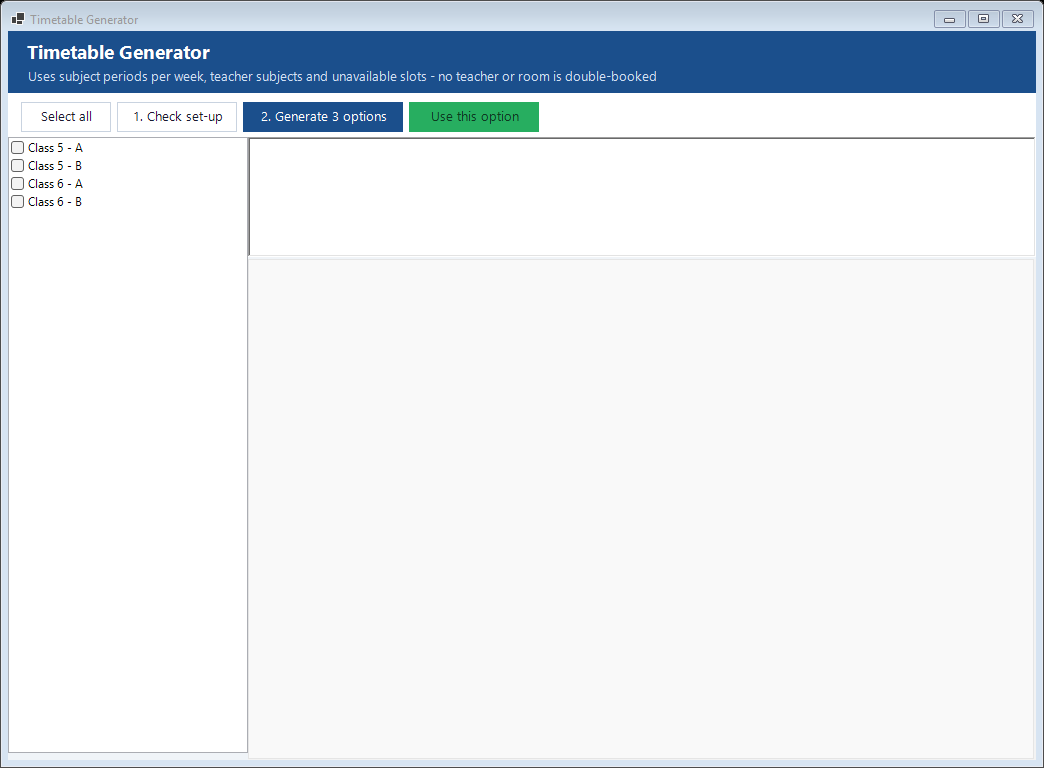
One-click Timetable Generator. Tick the classes and press generate. It builds up to three timetable options and scores each one. It never puts a teacher in two classes at the same moment, respects slots where a teacher is unavailable, avoids double-booking a room and spreads each subject across the week. Before it starts, it checks your set-up and tells you what is missing, for example a class that needs more periods than the week has, or a subject with no teacher. You pick an option, confirm, and it replaces the saved timetable of the ticked classes. You can then adjust any cell by hand.
Attendance
- Student attendance: mark a class present, absent, late or on leave, with remarks.
- Register and reports: a monthly attendance register, a daily register, class-wise attendance percentage, a monthly summary, an absentee report and a list of students below your attendance limit.
- Staff attendance: mark each teacher and staff member present, absent, late, half day or on leave, with check-in and check-out times and overtime. A monthly summary feeds the payroll.
- Absence alerts: parents of absent students can be notified, through the Message Centre.
Examinations and report cards
- Exam planning: create an exam for a class, add the subject papers with date, time, room, maximum and pass marks, and publish the schedule.
- Grade system: define your own grade bands.
- Marks entry: enter marks subject by subject for a class.
- Result processing: totals, percentages, grades, pass or fail and ranks.
- Report cards: printable or saved as PDF, with the school profile on top.
- Co-curricular and discipline records: sports and activities, and behaviour entries, kept per student.
- Exam reports: subject-wise marks sheet, merit list, failed students and a comparison of one exam against another.
One-click Exam Routine Generator. Give it the exams, the first and last day, the holidays, the start time, the paper length and the gap you want. It lays out three date sheets. It skips Sundays and holidays (Saturdays too, if you wish), never gives a class two papers on one day and keeps heavy subjects apart. If the window is too short it says so, or shortens the gap with a note. A routine cannot be replaced once marks have been entered.
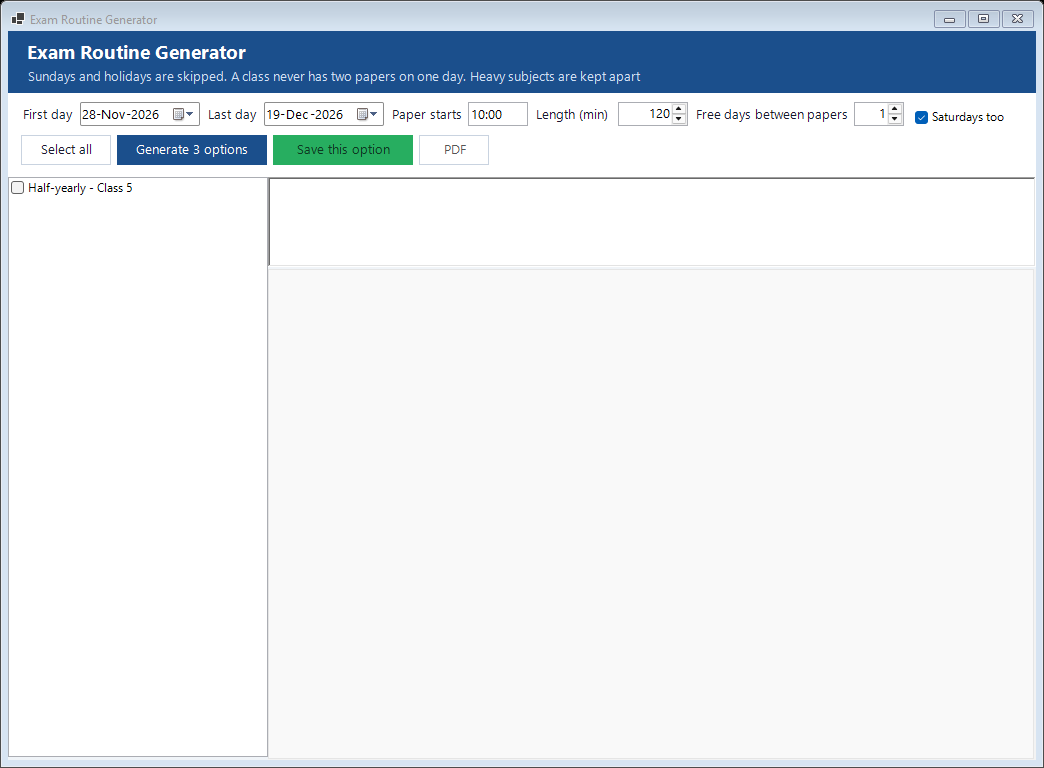
I have tested both generators on sample schools. I have not yet tried them on a very large school with very tight constraints, so test them on your own data during the trial.
Fees
- Fee structure: fee groups and fee types (tuition, lab, annual charges and so on) with the amount and due date for each class. Mark a fee as monthly or optional. Copy last year’s structure with a percentage increase.
- Assigning fees: fees are assigned to each student from the structure, one student or a whole class at a time.
- Fee counter: find the student, tick what is being paid and print a numbered receipt. Part payments are supported. Payment modes include cash, cheque, DD and online transfer, with cheque number, bank and transaction reference recorded.
- Receipts: numbered, showing the heads paid, any fine and discount, the mode of payment and the amount in words, on A4 or as a small thermal-printer slip. A receipt can be reprinted as a duplicate. A cancelled receipt needs a reason and restores the due.
- Concessions and scholarships: percentage or fixed-amount concessions, for one fee type or all, in categories such as general, sibling, staff ward and scholarship (with the provider named). A sibling discount can be applied to every family in one go.
- Late fines: a per-day late fine worked out for overdue fees, never more than the unpaid amount, with manual fines and a waiver that needs a reason.
- Dues and defaulters: who owes how much, by class and section, colour coded: red for overdue, orange for due this month, green for paid in advance. Tick students and send reminders, print demand letters or export to Excel, or go straight to collecting the fee.
- Fee reports: collection by day, month, fee type, class and payment mode, fee due class-wise, defaulter list, concession and scholarship report, fine report and a monthly fee income summary.
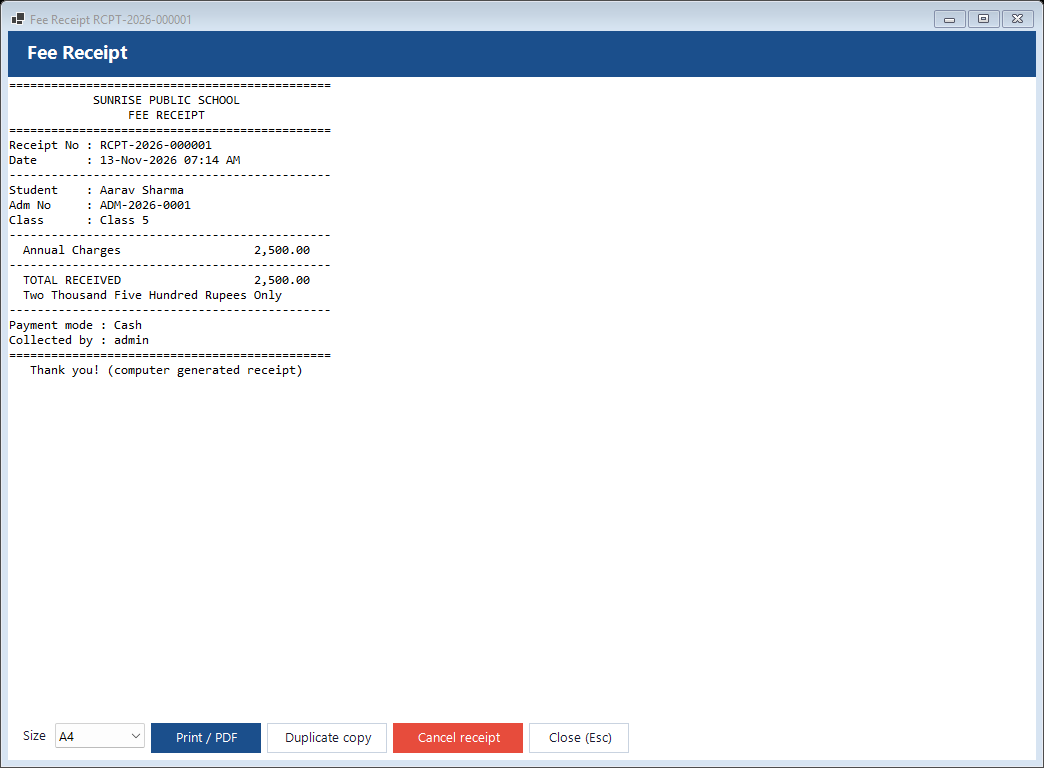
Fees are collected at the school and recorded. The program does not take online payments and has no payment gateway.
School accounts
Many school programs stop at fee receipts. This one has real accounts behind the fee desk.
- Chart of accounts: accounts in groups (assets, liabilities, income, expenses), with opening balances. Vouchers and fees post to these accounts.
- Income: fee receipts appear here automatically. Other income such as donations, rent and grants is entered with its account and payment mode.
- Expenses and vouchers: expense entries and journal vouchers with narration.
- Bank accounts and reconciliation: bank accounts, import of a bank statement and matching against your entries.
- Reports: cash book, day book, income and expenditure, trial balance, balance sheet and profit and loss.
HR and payroll
- Employees: teachers and staff with department, designation, joining date, employment type, qualification, bank details and documents.
- Salary structures: set by designation or per person, with effective dates so the history is kept, and a salary increment screen that records each revision.
- Leave: leave types with yearly quotas (casual, sick, earned, maternity and leave without pay come ready-made), apply and approve screens, and leave balances.
- Payroll: basic pay, HRA, DA, TA, medical and other allowances, loss-of-pay deduction worked out from staff attendance, and deductions for PF, ESI, TDS, professional tax and loan EMI. Payslips are generated per employee, and a salary register is available.
One limit to know: PF, ESI, TDS and professional tax are amounts you set in the salary structure. The program does not apply statutory rates for you, so check the payroll with your accountant.
Library
- Book catalog: title, author, publisher, ISBN, edition, year, subject, class, language, total and available copies, price, purchase date, vendor, barcode and cover image.
- Members: students and staff, each with a membership number and a limit on books.
- Issue and return: due dates, and a fine for late returns.
- Reports: overdue books, the issue and return register, most borrowed books and books by subject.
Transport
- Vehicles: type, seats, model, year, driver, route, and insurance, PUC and fitness expiry dates.
- Drivers: licence number and licence expiry.
- Routes and stops: ordered stops with pickup time, distance and a monthly fee per stop, which is added to the student’s fees when they are allocated.
- Student allocation: allocate a student to a route and stop, with a seat-capacity check and a history of changes.
- Alerts and reports: vehicle and driver documents expiring in the next 60 days appear on the dashboard and in a report, plus a route-wise student list and vehicle load.
Hostel
- Hostel blocks, rooms and beds.
- Allocation of a student to a bed with a monthly fee, and vacating.
- Occupancy, vacancy and room-wise student reports.
Inventory, purchases and assets
- Items and stock: opening stock, direct purchase, issue to a department, a stock ledger per item, and a reorder alert for low stock.
- Purchasing: vendors, purchase orders, goods received notes with invoice number, and vendor payments with vendor balances.
- Assets: an asset register with purchase date, cost, depreciation (reducing balance), maintenance dates and a QR tag.
Messages to parents and staff
- Templates: ready-made wording for welcome, fee due, fee overdue, absent today, result published, transfer certificate issued, birthday and general notices, which you can edit.
- Channels: SMS, WhatsApp and e-mail. You connect your own SMS gateway, mail server or WhatsApp account.
- Bulk messages: to the parents of a class or section, to all staff, or to a list of numbers you type or paste. Messages can be sent now or scheduled.
- Outbox: every message is listed with its status, failed ones can be retried, and a batch report shows how many were sent, failed or are waiting.
- Automatic messages: fee reminders, absence alerts and birthday wishes can be queued automatically each day, and a repeat of the same message is not queued twice.
- Notice board: notices that appear on the dashboard and in the Message Centre.
I built and tested the queue and the sending logic, but I have not tried it with a live account for every provider. Messages for a channel you have not set up stay in the outbox and can be sent by hand with a link.
Decision tools that need no internet
- Decision Centre: cards that say what needs attention today, worked out from your own data: fees pending, payroll not processed, students at risk of low attendance, admissions this month, with a button to act. These are calculated rules, not a cloud service.
- Ask a Question: a question box for the principal that answers from the school’s data, for example this month’s fee collection or the students at risk. It answers a fixed set of kinds of question. A connection to an outside AI service can be set up in the settings, but I have not tried that with a live account.
- Teacher Assistant and Question Bank: build a worksheet, an MCQ set or a question paper by picking from the school’s own question bank by subject, topic, class and difficulty.
Reports: 41 built in
- Students (5): student list class-wise, strength by class, section, gender and category, new admissions, TC issued, birthday list.
- Attendance (5): daily register, monthly summary, class-wise percentage, absentees, low attendance list.
- Fees (7): fee collection, collection by fee type, fee due class-wise, defaulters, concessions and scholarships, fines, monthly fee income summary.
- Exams (4): marks sheet, merit list, failed students, comparison of two exams.
- Accounts (4): cash book, day book, income and expenditure, trial balance.
- HR (4): staff list, staff attendance summary, leave report, salary register.
- Library (4): overdue books, issue and return register, most borrowed, books by subject.
- Inventory (4): stock report, reorder alert, asset register, vendor balances.
- Transport (2) and hostel (3): route-wise students, expiring vehicle and driver documents, occupancy, vacancy, room-wise list.
Every report can be printed, saved as PDF or exported to Excel from one Report Centre.
Security, roles and backups
- Roles: ready-made roles for super admin, principal, vice principal, accountant, teacher, librarian, receptionist, HR manager, transport manager, hostel warden and data entry operator.
- Permissions: each role has view, add, edit, delete, print and export rights for every screen, so a teacher cannot open the accounts and a clerk cannot change fees.
- Audit log: records who changed what and when, and can be searched by date, user and action.
- Backup and restore: backups can be password-protected, checked for errors, taken automatically on a schedule, and old ones pruned. A restore takes a safety copy of the current data first, and the program reminds you when a backup has not been verified recently.
- Personal data: Aadhaar-type numbers are stored encrypted. That only protects against casual browsing of the database file, so keep the PC itself secure.
What it does not have
I would rather you know before you decide:
- No parent, student or teacher app or login portal.
- No online fee payment and no payment gateway.
- No GPS tracking of school buses.
- No cloud sync, and no use by several computers at once. A licence is for one PC, and a network edition is not built.
- No separate branches with isolated data.
- No direct connection to biometric machines in the current download.
- English screens and receipts, with the rupee as the default currency. There is no full Arabic or other-language edition yet.
- Statutory payroll rates are not calculated for you.
- Printing has not been tested on every printer model.
If these are essential for you, an online school ERP will serve you better today. I can scope some of them as custom work, but they are not in the product now. See the full list of features I build to order, tick what you need, and I will reply within 24 hours on working days with the cost and the days needed.
Coming in the next update
I have just finished and tested the next set of features. They will be in the next installer and are not in the current download:
- Fee installment plans: split what a student owes into 2 to 24 dated parts. Payments at the fee counter are matched to the oldest unpaid part automatically, a cancelled receipt reverses it, and reminders for due and overdue parts go to the Message Centre.
- Homework and assignment diary: set homework, assignments or projects for a class or section, track who has handed in, record marks, and tell the parents.
- Syllabus tracking: chapters per class and subject, status, and a progress summary showing percent covered and chapters behind schedule.
- Visitor log: sign visitors in and out at the gate, print a visitor pass and see who is still inside.
- Parent-teacher meeting record: what was discussed, what was agreed and when to follow up, with a list of follow-ups that are due.
- Attendance import from a machine: load the export file of a biometric, RFID or QR attendance machine, match codes to students, mark late arrivals, and optionally mark everyone with no punch as absent.
Who it suits
It suits a school that wants to replace registers and spreadsheets with one program, wants to own its data, and prefers to pay once. It fits a small or medium school with one office. It is a poor fit if you need parents to log in, collect fees online or run several campuses from one account.
The source is VB.NET. I can also supply it in C#, and I can discuss cloud versions for schools that need them. The same engine can be adapted for colleges, coaching and tuition centres and similar institutes.
Try it first
The program has a built-in trial, so you can load your own classes and students and try the timetable generator on your real data before you pay. The full documentation, a guide with screenshots and the pricing are on the product page.
See Debmedia School ERP · All features · Guide with screenshots · Pricing · Book a demo
Questions people ask
Does it need internet? No, not for daily work. It runs on a Windows PC and stores data locally. Sending SMS, WhatsApp or e-mail naturally needs a connection.
Can parents see their child’s results online? No. Results and report cards are printed or exported, and parents can be notified by message.
Can it collect fees online? No. Fees are collected at the school and recorded.
Can two computers use it at the same time? Not yet. One licence covers one PC.
Can I load my existing students? I can load a student list for you on request. Tell me the format you have, for example an Excel sheet.
Do I pay monthly? No. There are three one-time licences: Lifetime, White Label and Source Code.
Is my data safe? It stays on your computer, protected by user accounts and roles, with an audit log and backups. Keep the PC itself secure and keep backups on another drive.
Is it just for schools? The same engine can be adapted for colleges, coaching and tuition centres. Ask me if you want an edition for one of them.
Screenshots show demo data. Last checked against the current release on 15 November 2026.