Overview
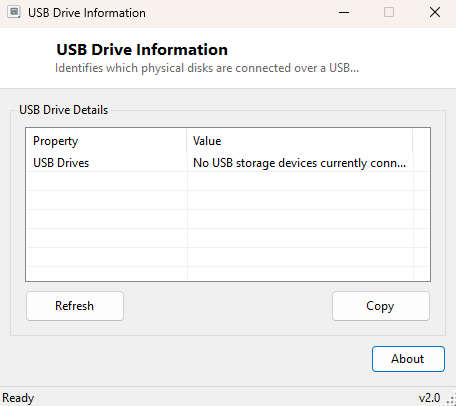
USB Drive Information filters your system's physical disks down to exactly the ones connected over a USB interface, showing model name and capacity for each. On a system with multiple internal drives plus one or more external USB drives plugged in, Windows' own tools do not make it especially easy to answer "which of these disks is actually the USB one" at a glance — Disk Management shows everything mixed together, and File Explorer only shows drive letters, not the underlying physical disk and its connection type. This tool answers that specific question directly.
It complements rather than duplicates USB Device History Viewer — that tool covers all USB devices, present and historical; this one is scoped specifically and only to currently-connected USB storage.
Key Features
- Filters physical disks down to those connected via USB specifically
- Shows each USB drive's model name as reported by its controller
- Reports capacity in gigabytes for each detected USB drive
- Clearly states when no USB storage is currently connected
- One-click Refresh after plugging or unplugging a drive
- Read-only — makes no changes to any connected drive
Why You Might Need This Tool
The most common use case is straightforward confirmation before a risky operation — before formatting or writing a disk image, you want absolute certainty that the drive you are about to target is the external USB stick and not an internal drive that happens to share a similar-looking model name. It is also useful for quick inventory purposes: plugging in several external drives at once (a common scenario when consolidating backups or archiving old data) and wanting a clean list of exactly what Windows currently sees connected over USB, without internal drives cluttering the view.
How It Works
The tool runs a targeted WMI query against Win32_DiskDrive with a
filter clause of WHERE InterfaceType='USB', which restricts results at
the query level to physical disks Windows has classified as USB-attached, rather than
retrieving every disk and filtering client-side. For each matching disk it reads
Model and Size, converting the raw byte count to gigabytes
for readability. If no disks match the USB interface filter, the tool reports plainly
that no USB storage devices are currently connected rather than showing an empty,
unexplained table.
How to Use It
Plug in your USB drive(s) and launch the tool, or launch it first and click Refresh after connecting a drive. Each detected USB disk appears with its model and capacity; use this to confirm you have identified the correct physical device before performing any operation elsewhere that depends on getting the right drive.
System Requirements & Notes
Runs on 64-bit Windows 10 and Windows 11 without administrator rights — querying physical disk interface type through WMI is available to standard user accounts. This tool only reads information; it never writes to, formats, or otherwise modifies any connected drive.
Frequently Asked Questions
Does it show SD cards read through a USB card reader?
Yes — as long as Windows reports the reader's interface type as USB, the card
appears in the list the same as any other USB-connected disk.
What about USB-connected NVMe/SSD enclosures?
These typically also report InterfaceType USB to Windows and will appear here, even
though the drive inside is technically NVMe or SATA — the interface Windows sees is
what this tool filters on.
Can I format a drive from this tool?
No — for formatting, use SD Card Formatter or
FAT32 Format (GUIformat), both scoped to
removable media with strong confirmation prompts.