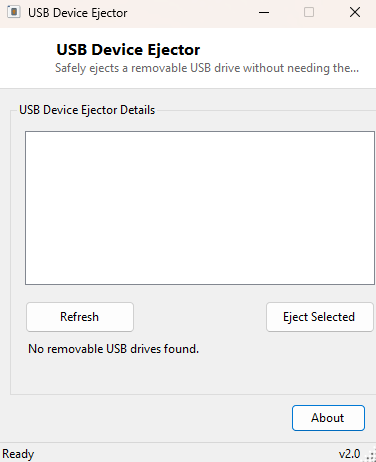
Overview
The "Safely Remove Hardware" tray icon has been part of Windows for decades, and it has also been a source of quiet frustration for almost as long — it hides after a reboot, it sometimes shows the wrong friendly name, and on some systems it disappears from the tray entirely and has to be dug out of the hidden icons overflow menu every single time. USB Device Ejector solves this by putting a direct, always-visible list of removable drives in front of you, with a single button to safely eject the one you select — no tray hunting, no ambiguous device names, no guessing which entry in a crowded tray flyout corresponds to which physical drive.
This tool focuses specifically on removable drives — USB flash drives, external hard drives and SD cards read through a card reader — rather than trying to handle every category of removable hardware Windows recognizes, which keeps the interface simple and the risk of accidentally trying to eject the wrong kind of device low.
Key Features
- Lists every currently connected removable drive by letter and volume label
- One-click eject using the same underlying mechanism Windows itself uses
- Refresh button to re-scan after plugging in a new drive
- Clear status messages confirming success or explaining a failure
- No tray icon hunting or hidden-icons overflow menu required
- Automatically re-scans the drive list immediately after a successful eject
Why You Might Need This Tool
Ejecting a USB drive properly before pulling it out matters because Windows and many applications cache writes rather than committing them to flash storage instantly — yanking a drive mid-write is one of the more common causes of corrupted files and, on cheaper flash media, can occasionally corrupt the filesystem entirely. This tool is aimed squarely at people who got tired of the default tray icon's inconsistent behavior across different Windows builds and just want a reliable, visible list to eject from every time. It is equally handy on systems where the notification area is cluttered with other icons and the removable-hardware icon habitually gets buried out of sight.
How It Works
Rather than reimplementing Windows' internal PnP eject logic, the tool talks
directly to the storage stack using the same low-level technique many
"safe eject" utilities rely on. It opens a handle to the selected volume with the
Win32 CreateFile API using the raw device path (\\.\X:),
then issues the IOCTL_STORAGE_EJECT_MEDIA control code via
DeviceIoControl. This is the same IOCTL the operating system's own
eject pathway ultimately triggers, so a successful call here has exactly the same
effect as using the official tray icon — pending writes are flushed and the volume
is dismounted cleanly. If the device is currently in use by another process (a
file open in an editor, a folder open in Explorer), the call fails and the tool
reports that plainly rather than forcing a disconnect, avoiding the very data-loss
scenario the tool exists to prevent.
How to Use It
Open the program, select the drive you want to remove from the list, and click Eject Selected. A status message confirms success, or explains why the eject failed (most commonly because a file on that drive is still open somewhere). Click Refresh after inserting a new drive if it does not appear automatically.
System Requirements & Notes
Runs on 64-bit Windows 10 and Windows 11. Administrator rights are generally not required to eject a removable drive you have normal access to, since this uses the same standard-user-accessible IOCTL the OS itself uses for the same purpose.
Frequently Asked Questions
Why did the eject fail?
The most common cause is a file, folder window, or background process still
holding something open on that drive. Close any Explorer windows or programs
using files on it and try again.
Does this work for internal hard drives?
No — it is scoped specifically to removable media (USB flash drives, external
drives and SD cards), matching what "safe eject" is actually meant for.