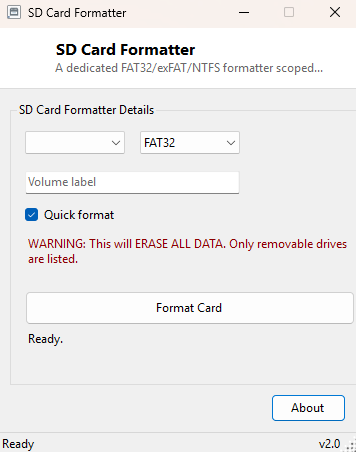
Overview
SD Card Formatter is a narrowly scoped formatting tool built specifically for SD cards and other small removable memory cards, rather than a general-purpose disk formatter repurposed for the job. It supports FAT32, exFAT and NTFS, defaults to a quick format, and — like every formatting tool on this site — deliberately restricts its drive list to removable media only, so there is no risk of accidentally selecting an internal system drive from a dropdown.
Key Features
- Choice of FAT32, exFAT or NTFS filesystem
- Optional custom volume label
- Quick format toggle for near-instant formatting when a full low-level format isn't needed
- Drive list restricted to removable media only, for safety
- Explicit confirmation dialog before any data is erased
Why You Might Need This Tool
SD cards move between an unusually wide range of devices — cameras, dash cams, Raspberry Pi boards, drones, handheld game consoles, dedicated audio recorders — and each device category tends to expect a specific filesystem. Cameras and most consumer electronics still expect FAT32 (or exFAT for cards larger than 32GB, since FAT32 struggles above that size), while a card being repurposed as general Windows storage might be better off as NTFS with its stronger permissions and larger single-file support. A card that has accumulated corruption after being pulled from a device without safely ejecting it, or one showing an unrecognized/RAW filesystem in Explorer, is the other classic reason to reach for a formatter — a clean reformat is often the fastest fix.
How It Works
The tool enumerates only drives Windows reports as DriveType.Removable via
IO.DriveInfo.GetDrives(), which naturally excludes internal fixed drives from
ever appearing in the dropdown. When you click Format, it builds a command line for the
built-in Windows format utility — for example
format E: /FS:exFAT /Q /V:MyCard /Y — and launches it through
cmd.exe with the process's elevation Verb set to runas, which
triggers the standard Windows UAC consent prompt. Using the real format.exe
underneath (rather than reimplementing low-level formatting logic) means the tool
benefits from decades of Windows filesystem-formatting reliability rather than
reinventing something that is genuinely risky to get wrong.
How to Use It
Insert the card, select it from the drive dropdown (only removable drives will appear), choose a filesystem, optionally type a volume label, and click Format Card. Confirm the warning dialog — this step exists specifically because formatting is irreversible — then accept the UAC prompt. The elevated command window will show format's own progress and close when finished.
System Requirements & Notes
Formatting requires Administrator rights, which Windows will prompt for via UAC at the moment you click Format — the tool itself does not need to be launched as administrator in advance. As with any formatting operation, everything on the card is erased; there is no undo.
Frequently Asked Questions
Why isn't my card showing up in the list?
Only drives Windows classifies as removable appear. Some card readers built into laptops
report their slot as a fixed drive rather than removable; if that's the case here, use
Windows' own Disk Management instead, since this tool intentionally will not format a
drive it cannot confirm is removable.
Is this the same as the official SD Association formatter?
No — this is an independent tool built around Windows' own format command, not the SD
Association's specification-compliant formatter. For cards intended for professional
camera or audio equipment with strict SD specification requirements, the official
SD Association tool may format more precisely to spec.