Overview
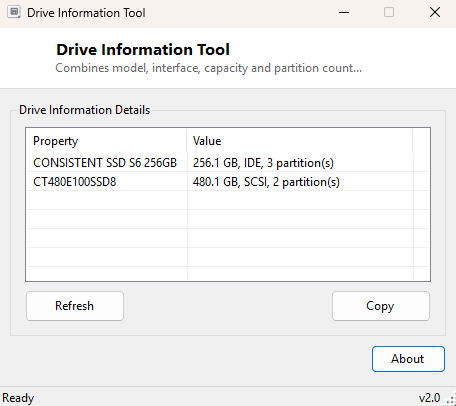
Drive Information Tool is the "all-in-one summary" view of the Disk / Storage category — where most of the other tools here isolate one single fact about a drive (its model, its firmware, its capacity, its interface), this one combines the four most commonly needed facts into a single row per physical disk: model, interface type, capacity, and partition count. It exists for the moments you just want a fast overview of every drive in the system without opening four separate specialized tools one after another.
Think of it as the entry point into the Disk / Storage category — if this summary view raises a specific question (what is this drive's exact firmware revision, or its SMART health), the more focused tools elsewhere in this category are the natural next step.
Key Features
- One row per physical drive combining model, interface and capacity
- Shows partition count per drive at a glance
- Covers every attached disk — internal, external and removable
- No drilling into submenus — the full summary loads in a single window
- Copy-to-clipboard export for quick documentation of a system's storage layout
Why You Might Need This Tool
This is the tool to open first when you need a fast, complete picture of a machine's storage — documenting a system before an upgrade, doing a pre-purchase inspection of a used PC, or simply orienting yourself on an unfamiliar machine you have been asked to troubleshoot. Instead of opening Disk Management and manually correlating physical disks with their partitions across a graphical layout that can get visually cluttered on a multi-drive system, this tool lists exactly the four facts most people actually need first, in plain text, sorted by physical drive.
How It Works
The tool queries WMI's Win32_DiskDrive class for the
Model, InterfaceType, Size and
Partitions properties of every physical disk Windows recognizes. Size is
reported in raw bytes and converted to gigabytes for readability using a base-1000
conversion (matching how drive manufacturers advertise capacity, which is why the
number shown here is typically slightly higher than what Windows' own "This PC" view
reports, since that view uses base-1024 gibibytes instead). The
Partitions count comes directly from the same WMI object and reflects
how many partition entries currently exist on that physical disk's partition table,
regardless of whether each partition has been assigned a drive letter.
How to Use It
Open the tool and every physical drive appears immediately, one row per disk, combining model name, interface, capacity and partition count. Use Copy to export the full summary as text if you need to paste it into documentation, a support ticket, or a spec sheet for a machine you are preparing to sell, donate, or hand off.
System Requirements & Notes
Runs on 64-bit Windows 10 and Windows 11, requires no administrator rights, and reads every physical disk currently attached and recognized by Windows, including external USB drives if connected at the time it runs.
Frequently Asked Questions
Why does the reported capacity not exactly match the number on the box?
Manufacturers advertise capacity in decimal gigabytes (1 GB = 1,000,000,000 bytes),
which is what this tool reports; Windows Explorer instead shows binary gibibytes
(1 GiB = 1,073,741,824 bytes), which is a smaller-looking number for the same
physical capacity — both are correct, just different units.
Does this show SMART health status?
No — for health and reliability data see
Drive SMART Viewer and
SSD Health Percentage Viewer.
Will a drive with no assigned letter still show up?
Yes — this reads physical disks directly, independent of drive letter assignment, so
unallocated or unmounted disks still appear with their partition count.