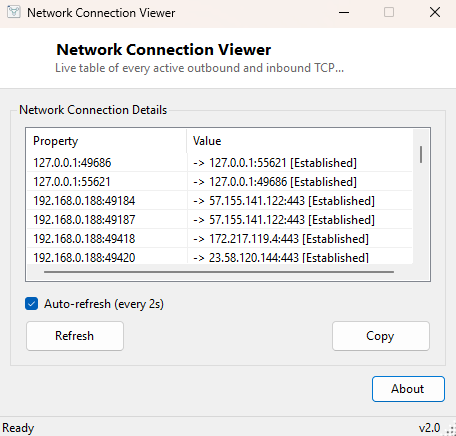
Overview
Network Connection Viewer shows every active TCP connection your PC currently has
open, refreshing automatically so you can watch connections appear and disappear in
real time. This is the same information the command-line netstat
utility exposes, but presented as a live, auto-refreshing window instead of a static
text dump you have to re-run manually every time you want an updated picture. If you
have ever wondered what a piece of software is actually talking to on the network
right now, this is the fastest way to find out without touching a command prompt.
The tool focuses specifically on outbound and inbound TCP connections rather than listening ports — for the complementary view of what your machine is listening for, see Listening Ports Viewer in the same category.
Key Features
- Live table of every active TCP connection, local and remote endpoints side by side
- Shows the current connection state (Established, TimeWait, CloseWait, etc.)
- Auto-refreshes on a timer so the list stays current without manual reloading
- No filtering by default — every connection Windows reports is shown
- Lightweight single-window interface with no background service
Why You Might Need This Tool
A sudden spike in network activity, an application that seems to be phoning home more than expected, or a general "what is my computer doing right now" curiosity are all good reasons to open this tool. It is also genuinely useful during troubleshooting — if a piece of software claims to be connected to a server but is behaving as though it is not, watching the live connection table confirm (or disprove) that a TCP session actually exists and is in the Established state removes a lot of guesswork from the diagnosis. Because it refreshes automatically, you can leave it running in a corner of the screen while you reproduce whatever behavior you are investigating.
How It Works
The tool calls System.Net.NetworkInformation.IPGlobalProperties.GetIPGlobalProperties()
and then GetActiveTcpConnections(), the same managed .NET networking API
that underlies tools like netstat at a lower level. Each returned
connection object exposes a local endpoint, a remote endpoint and a connection state
enumeration value, which the tool lists directly in a table sorted by connection
state so related connections (all the ones currently Established, for instance)
naturally group together. A timer re-queries this same API on an interval — by
default every few seconds — clearing and repopulating the table each cycle, which is
why closed connections disappear and new ones appear without you needing to do
anything.
How to Use It
Launch the tool and the connection table populates immediately, then keeps updating
on its own. Scan the Local Endpoint column for the port your application is using, or
the Remote Endpoint column to see what external hosts your machine is currently
talking to. The State column is worth watching specifically during troubleshooting —
a connection stuck in SynSent for more than a moment usually indicates a
connection attempt that is failing to complete, while large numbers of
TimeWait entries are normal cleanup after connections close and not
something to worry about.
System Requirements & Notes
Runs on 64-bit Windows 10 and Windows 11 and does not require administrator rights — reading the active TCP connection table through the managed IPGlobalProperties API is available to standard user accounts. The tool cannot close or modify any connection it displays; it is a read-only viewer.
Frequently Asked Questions
Does this show which process owns each connection?
Not in this build — it focuses on the connection table itself (local/remote endpoint
and state). For process-level ownership of open resources, see
Handle and Opened Files View
for related but file-focused diagnostics.
Can I use this to block or close a connection?
No — it is intentionally read-only. Use Windows Firewall or a third-party firewall
tool to actually block traffic once you have identified what you want to stop here.
How often does the list refresh?
Every few seconds by default, frequently enough to catch short-lived connections
without generating so much CPU overhead that the tool itself becomes a burden to
leave running in the background.