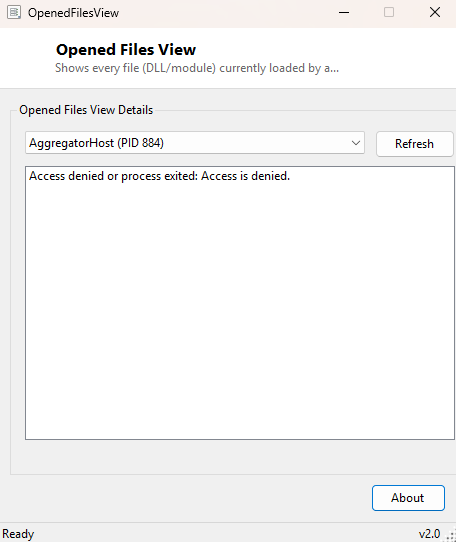
Overview
Opened Files View lets you pick any running process and see the full, exact file paths of every module — every DLL and executable image — it currently has loaded into memory. It answers a more specific question than a general process list: not just "is this process running" but "exactly which files, on which disk, in which folder, is it actually using right now."
Key Features
- Dropdown list of every currently running process, refreshable on demand
- Full file path listing of every loaded module for the selected process
- Instant switch between processes without reopening the tool
- Horizontal scrolling for long file paths that don't fit the window
- Graceful handling of processes you don't have permission to inspect
Why You Might Need This Tool
This is the tool to reach for when you suspect a specific DLL is causing a conflict — for instance, two different applications both shipping their own copy of a common library, one of which is an outdated or incompatible version. Selecting the misbehaving process and scanning its module list often reveals exactly which file, and from which folder, is actually in play, which is far more precise than guessing from an error dialog alone. It is also genuinely useful as a lightweight dependency inspector during software development or troubleshooting a "missing DLL" style crash, letting you confirm whether a required library is actually loaded before assuming it's the cause.
How It Works
The process dropdown is populated with Diagnostics.Process.GetProcesses(),
formatted as "ProcessName (PID NNNN)" so processes sharing the same
name remain distinguishable by their process ID. When you select an entry, the tool
parses the PID back out of that label, calls
Diagnostics.Process.GetProcessById(pid) to get a fresh handle to that exact
process, and enumerates its .Modules collection — a
ProcessModuleCollection the .NET runtime builds directly from the process's
loaded-module table in Windows. For each ProcessModule in that collection,
the tool reads and lists the .FileName property, which is the full, absolute
path Windows resolved that module from — not just a filename, but the exact folder it was
loaded out of, which is often the detail that actually matters when two same-named DLLs
exist in different locations on the same machine.
How to Use It
Pick a process from the dropdown; its full list of loaded module paths appears immediately below. Click Refresh first if the process you're looking for was launched after this tool opened, since the dropdown is populated once at startup and does not watch for new processes automatically.
System Requirements & Notes
No administrator rights are required for inspecting most user-level processes; a handful of protected system processes will report "Access denied or process exited" instead of a module list, which reflects normal Windows process-security boundaries rather than a limitation specific to this tool.
Frequently Asked Questions
Why did a process disappear from the list right after I selected it?
If the process exits between when you refreshed the dropdown and when you select it, the
tool will report it as inaccessible — click Refresh again to get a current snapshot.
Does this show files a process has open for reading/writing, not just loaded DLLs?
No — this tool is specifically about loaded executable modules. For finding which
process is holding a specific arbitrary file open (locked for editing, for example), use
Handle instead.