Overview
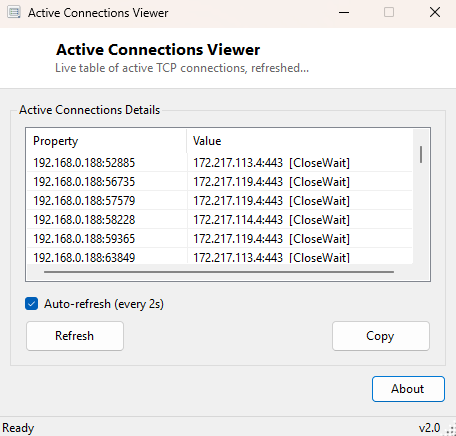
Every application on your PC that talks to the internet or your local network does so through a TCP connection, and at any given moment there can be dozens of them open at once — a browser holding connections to a dozen different content delivery networks, a chat app maintaining a persistent connection to its server, background sync clients, update checkers, and more. Active Connections Viewer gives you a live, continuously refreshing table of every one of those connections: the local endpoint, the remote endpoint it is talking to, and the connection's current TCP state, updated automatically every few seconds without you needing to press a refresh button.
This is the same information the classic command-line netstat utility
exposes, but presented as a live, sortable, auto-updating window instead of a
scrolling wall of text you have to re-run manually every time you want a fresh
snapshot.
Key Features
- Live table of every active TCP connection, local and remote endpoints side by side
- Shows the exact TCP state of each connection (Established, TimeWait, CloseWait, etc.)
- Auto-refreshes automatically on a timer, with a toggle to pause updates
- Manual refresh button for an immediate on-demand snapshot
- No extra drivers or packet capture — reads the same table Windows itself maintains
- Lightweight enough to leave running continuously in a corner of the screen
Why You Might Need This Tool
Watching live connection activity is genuinely useful in several everyday situations: confirming that a piece of software actually finished talking to a remote server rather than hanging in a stuck state, spotting an application that is unexpectedly holding open far more connections than it should, or simply understanding what a new or unfamiliar program is doing on the network the first time you run it. Because the table refreshes on its own, you can start a download, launch a suspicious installer, or open an unfamiliar app and watch connections appear and disappear in real time rather than having to remember to keep re-running a command manually.
How It Works
The tool calls System.Net.NetworkInformation.IPGlobalProperties.GetIPGlobalProperties()
and then GetActiveTcpConnections(), a managed .NET API that wraps the
same underlying system call Windows' own networking stack uses to report the live
TCP connection table — the identical data source netstat reads from,
just exposed through a clean managed interface instead of parsed command-line text.
Each returned connection object carries a local IPEndPoint, a remote
IPEndPoint, and a TcpState enumeration value describing
exactly where that connection sits in the TCP state machine. On a repeating timer
(roughly every three seconds), the tool clears and rebuilds its display list from a
fresh call to this API, which is why the table stays current without you ever
needing to click refresh yourself — though a manual refresh button is provided for
an immediate snapshot outside the timer's cadence.
How to Use It
Simply launch the tool and the connection table populates immediately, then keeps itself current automatically. Sort by clicking any column header — Local Endpoint, Remote Endpoint or State — to group similar connections together, which is especially useful for spotting one process that has opened an unusually large number of connections to the same remote address. Use the auto-refresh checkbox if you want to freeze the current view momentarily to read it more carefully before resuming live updates.
System Requirements & Notes
Active Connections Viewer runs on 64-bit Windows 10 and 11 and requires no
administrator rights — reading the system-wide TCP connection table through
IPGlobalProperties is available to standard user accounts. It does not
show which process owns each connection; for that level of detail, a tool built
around the extended TCP table APIs (with owning PID) would be required.
Frequently Asked Questions
Does this show UDP traffic as well as TCP?
No — this tool focuses specifically on TCP connections, which have a well-defined
connection state to display. For listening UDP endpoints, see
Listening Ports Viewer.
Can I see which application owns a specific connection?
Not in this version — it reports the connection table exactly as
IPGlobalProperties exposes it, which does not include the owning
process ID.