Overview
Any program that wants other machines — or other processes on the same machine —
to be able to connect to it has to open a listening port and wait for incoming
connections. A web server listens on port 80 or 443, a database listens on its own
dedicated port, remote desktop listens on 3389, and a surprising number of
background applications quietly open listening ports you never explicitly asked
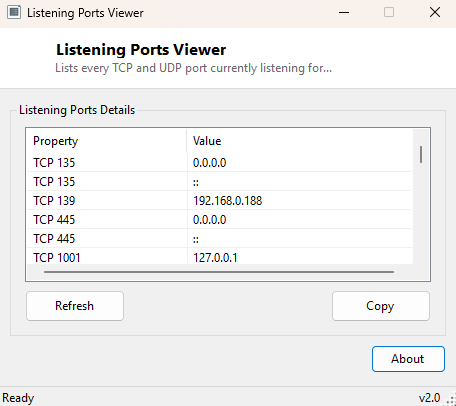
for, for local IPC, update checking, or device discovery. Listening Ports Viewer
gives you a single, clear list of every TCP and every UDP port currently listening
for connections on your machine, right now, without needing to open a command
prompt and parse netstat output by eye.
Key Features
- Lists every currently listening TCP port with its bound IP address
- Lists every currently listening UDP port alongside the TCP list
- Sorted numerically by port number for easy scanning
- Single-window snapshot — no scrolling command-line output to parse
- No packet capture or driver installation required
- Runs instantly with no configuration
Why You Might Need This Tool
Checking listening ports is a routine first step in several situations: confirming a server application (a local web server, a game server, a file-sharing tool) has actually started and bound to the port you expect before troubleshooting further; auditing what a new piece of software has silently opened up on your machine after installation, since an unexpected listening port can be an early sign of either a misconfigured service or something worth investigating further; or simply resolving a "port already in use" error by finding out what is currently occupying the port your own application needs. Because the list refreshes with a single click, it is also a fast way to confirm that stopping a service actually released the port it was using.
How It Works
The tool calls System.Net.NetworkInformation.IPGlobalProperties.GetIPGlobalProperties()
and then two separate methods on the result: GetActiveTcpListeners(),
which returns every IPEndPoint currently in the TCP listening state,
and GetActiveUdpListeners(), which returns every UDP endpoint currently
bound and waiting for datagrams. Both of these managed APIs read from the same
underlying Windows networking tables that the command-line netstat -an
reads from — this tool simply queries them directly through .NET rather than
launching a subprocess and parsing text output, which makes the result faster to
obtain and easier to sort and filter. Each endpoint is added to the results table
labeled with its protocol (TCP or UDP), bound address, and port number, then the
combined list is sorted by port number so related services (which often cluster
around well-known port ranges) are easy to scan together.
How to Use It
Launch the tool and the full list of listening TCP and UDP ports populates immediately. Click any column header to re-sort by protocol, address or port number. If you have just started or stopped a service and want to confirm the change took effect, simply re-launch the tool or use the refresh action to pull a fresh snapshot — there is no need to keep it running continuously the way a live monitor would.
System Requirements & Notes
Listening Ports Viewer runs on 64-bit Windows 10 and 11 and requires no
administrator rights — reading the system's listening-port tables through
IPGlobalProperties is available to standard user accounts. Like Active
Connections Viewer, it does not report which process owns each listening port; it
answers "what is listening" rather than "who is listening."
Frequently Asked Questions
Will this tell me which application is using a specific port?
Not directly — it lists the port and protocol but not the owning process. Combine it
with Task Manager's "Details" tab or a process-level network tool if you need to
identify the exact application.
Does this show ports on remote machines too?
No — it only reports what is listening locally on the machine it is run on. For
checking whether a port on a remote host is open, see
PortQueryUI.