Overview
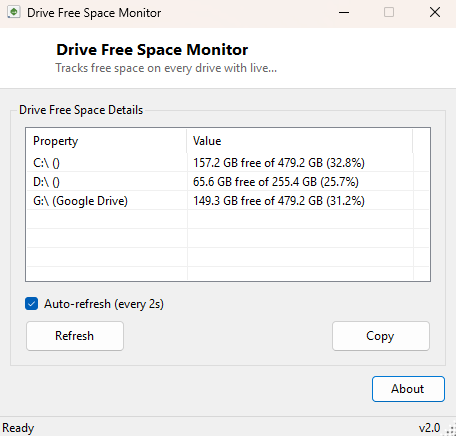
Drive Free Space Monitor keeps a running, auto-refreshing tally of how much space is left on every drive attached to your system, updated automatically rather than requiring you to reopen File Explorer and check each drive's properties one at a time. It lists every ready drive with its volume label, shows free space and total capacity side by side, and calculates the percentage full so a drive quietly creeping toward capacity is obvious well before it becomes a problem.
This tool is intentionally simple — a live table, nothing more. It does not clean up space itself; for that, pair it with Temporary Files Finder or Large File Finder elsewhere in this catalog once you know which drive actually needs attention.
Key Features
- Lists every ready drive with its volume label
- Shows free space and total capacity in gigabytes, side by side
- Calculates and displays percentage-full for an at-a-glance read on capacity pressure
- Auto-refreshes on a timer, controllable with an on/off checkbox
- Skips drives that are not ready (empty optical drives, disconnected network shares) cleanly
- No installation, no configuration file, no persistent footprint
Why You Might Need This Tool
"Low disk space" warnings from Windows tend to arrive at the worst possible moment — mid-download, mid-install, or mid-render — because by the time Windows itself warns you, the drive is already critically full. Keeping this tool open in a corner of the screen while doing disk-heavy work (a large video export, a big game install, an extended download session) gives you a live early warning instead of a last-minute failure. It is equally useful on servers or secondary drives you check only occasionally, where a quick glance tells you immediately whether a scheduled backup job or log accumulation is slowly eating available space.
How It Works
The tool enumerates every drive using .NET's IO.DriveInfo.GetDrives()
collection, filtering to drives where IsReady is true so that empty
optical drives or disconnected network mounts do not throw errors or show meaningless
zero values. For each ready drive it reads AvailableFreeSpace and
TotalSize directly — the same underlying Win32 values File Explorer's
own drive properties dialog uses — converts both to gigabytes for readability, and
computes the percentage-free figure by simple division. A timer re-runs this entire
scan automatically while auto-refresh is enabled, so the numbers stay current as
files are written or deleted elsewhere on the system.
How to Use It
Launch the tool and every ready drive appears immediately with its current free-space figures. Leave auto-refresh enabled to watch space consumption change live during a large operation, or disable it and use the manual refresh if you only need an occasional check rather than a continuously updating display.
System Requirements & Notes
Runs on 64-bit Windows 10 and Windows 11 and does not require administrator rights —
reading free and total disk space through DriveInfo is available to any
standard user account for any drive they have at least read access to.
Frequently Asked Questions
Does it show network drives?
Yes, as long as the mapped network drive is currently connected and reports as ready
— disconnected mapped drives are skipped rather than shown with misleading zero
values.
Can it clean up space automatically?
No, this tool only monitors — for cleanup, see
Temporary Files Finder or
Empty Folder Finder in the File Utilities
category.
How often does it refresh?
By default every few seconds while auto-refresh is checked — frequent enough to
watch space change live during a large copy, without hammering the disk subsystem
with constant polling.