Overview
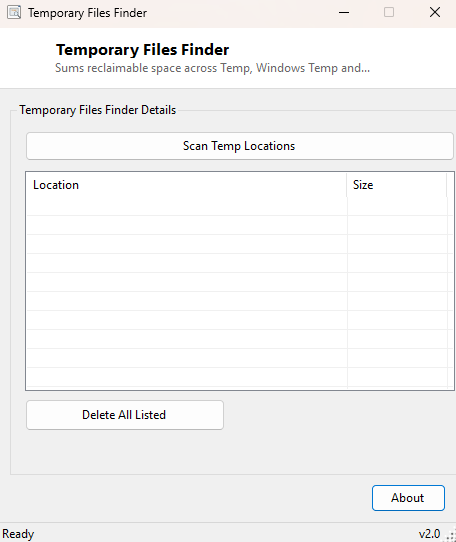
Windows quietly accumulates disposable data in a handful of well-known locations — your personal Temp folder, the system-wide Windows\Temp folder, and the Prefetch folder used to speed up application launches. None of this data is meant to be permanent, and none of it is normally worth keeping, but Windows also does not clean it up aggressively on its own, so it tends to grow for months or years between reboots and manual cleanups. Temporary Files Finder scans exactly these three locations, adds up how much reclaimable space is sitting in each one, and offers a single one-click cleanup rather than making you hunt through Explorer folders that are hidden by default.
Key Features
- Scans the user Temp folder, the system Windows\Temp folder and the Prefetch folder in one pass
- Reports total reclaimable size per location, in megabytes
- One-click "Delete All Listed" cleanup after you review the totals
- Silently skips files currently in use rather than failing the whole cleanup
- Re-scans automatically after cleanup so you can confirm how much space was freed
- No scheduling or background service — runs only when you launch it
Why You Might Need This Tool
The obvious trigger is low disk space with no single large file to blame — a common situation, since temp-folder bloat tends to build up as thousands of small files rather than one obvious culprit, which makes it invisible to size-focused tools that only surface individually large files. It is also a useful habit before running a disk-imaging or backup tool, since there is little point spending time and storage backing up gigabytes of installer leftovers and cached temporary data that serve no purpose once the program that created them has finished running. Developers and testers who install and uninstall a lot of software particularly benefit, since installers are some of the worst offenders for leaving large extracted temp files behind even after a successful, clean installation.
How It Works
The tool targets three fixed paths: IO.Path.GetTempPath() for the
current user's Temp folder, the expanded %WINDIR%\Temp for the
system-wide temp location, and %WINDIR%\Prefetch for cached launch
data. For each location, it recursively enumerates every file with
IO.Directory.EnumerateFiles(..., AllDirectories) and sums their
lengths using LINQ's Sum, wrapping each individual file-size read in a
try/catch so one inaccessible file does not abort the whole tally. The totals are
displayed per location, converted to megabytes, alongside a combined figure. When
you trigger cleanup, the tool iterates the same file lists and calls
IO.File.Delete on each entry inside its own try/catch, so files locked
by a running process are simply skipped rather than causing an error dialog to
interrupt the batch — the deletion count reported afterward reflects only what
actually succeeded.
How to Use It
Click Scan Temp Locations to see the current size of each of the three target folders and the combined total. Review the numbers, then click Delete All Listed to clean everything the scan found; you will be asked to confirm first, since some in-use files may be skipped automatically but the majority of what is listed will genuinely be removed. The tool automatically re-scans afterward so you can see the space you actually reclaimed.
System Requirements & Notes
Runs on 64-bit Windows 10/11. Scanning requires no elevation. Deleting from the user Temp folder never requires administrator rights; deleting from the system-wide Windows\Temp and Prefetch folders may prompt for elevated permission on some systems depending on how those folders' ACLs are configured, and files actively held open by a running process or service are automatically skipped rather than forced closed.
Frequently Asked Questions
Is it safe to delete everything Prefetch contains?
Yes — Prefetch files are performance hints Windows regenerates automatically as you
use applications; deleting them causes, at most, a very slightly slower first
launch of an app afterward while Windows rebuilds the hint, with no data loss.
Will this clean my browser cache too?
No — browser caches live in each browser's own profile folder, not in the three
system-level locations this tool targets. A browser's own "clear browsing data"
option is the right place for that.
Does this replace Windows' Storage Sense?
Not exactly — Storage Sense runs automatically in the background on a schedule;
this tool is a manual, on-demand alternative that shows you the exact numbers
before anything is deleted, which some people prefer over an automatic background
process.