Overview
A drive that was comfortably empty a year ago somehow fills up without any single dramatic event — a handful of old video exports here, a forgotten VM disk image there, a dozen ISO files nobody remembers downloading. Windows' own Storage Sense and disk-cleanup tools are good at sweeping away temp files and recycle-bin leftovers, but they are surprisingly bad at the much more useful question: which individual files, right now, are actually eating the most space? Large File Finder answers exactly that question. Point it at a folder, set a minimum size threshold, and it walks the entire subtree recursively, returning a clean list of every file above that threshold sorted largest-first, so the worst offenders are right at the top rather than buried somewhere in a sea of small files.
Key Features
- Recursive scan of an entire folder tree, not just the top level
- Adjustable minimum size threshold in megabytes, from a few MB up to hundreds of gigabytes
- Results sorted largest-first so the biggest space consumers appear immediately
- Shows the full path of every matching file, not just the file name
- Returns up to 200 results per scan to keep the list fast and readable on very large trees
- Gracefully skips files it cannot access instead of stopping the whole scan
Why You Might Need This Tool
The most common trigger is a Windows low-disk-space warning with no obvious cause. Rather than clicking through Explorer folder by folder watching the properties dialog slowly calculate sizes, you point Large File Finder at C:\Users\YourName or an entire data drive and let it do the recursive walk once, in seconds. It is equally useful before archiving or backing up a project folder, when you want to know in advance whether that "quick backup" is actually going to be four gigabytes because of one abandoned video render nobody deleted. Developers use it to hunt down stray build artifacts, virtual machine snapshots and old Docker layer caches that accumulate silently in project directories; photographers and video editors use it to find duplicate or forgotten raw exports sitting alongside the finished, much smaller deliverables.
How It Works
Internally, Large File Finder uses .NET's IO.Directory.EnumerateFiles
with the AllDirectories search option, which streams file paths
lazily rather than building one enormous array up front — this keeps memory usage
low even when scanning a folder tree containing hundreds of thousands of files.
Each path is wrapped in a FileInfo object inside a try/catch so that a
single inaccessible file (locked, permission-denied, or a broken junction point)
is silently skipped rather than aborting the entire scan. The resulting sequence is
filtered against the byte threshold you set, sorted descending by
Length, and the first 200 matches are rendered into the results list
with their size converted to a human-readable megabyte figure. Because the scan
runs on the UI thread for a folder tree of reasonable size, very large network
drives or multi-terabyte volumes may take a visible moment to complete — that delay
is the trade-off for a tool with no external dependencies and no background
indexing service to maintain.
How to Use It
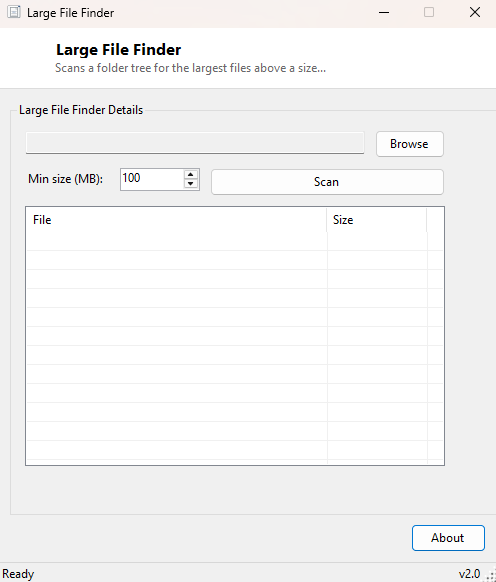
Click Browse and select the folder you want to scan — this can be an entire drive root or a specific subfolder. Set the minimum size threshold in the MB field (100 MB is a reasonable starting point on most systems), then click Scan. Results populate as a sortable list showing full path and size, largest first. Click any column header to re-sort, or simply scroll through the top few entries, which are almost always where the real space savings are hiding.
System Requirements & Notes
Runs on 64-bit Windows 10/11 and does not require administrator rights for normal use, since it only reads file metadata. Scanning folders you do not have read access to (another user's profile, certain protected system folders) will simply skip those files rather than prompting for elevation. No files are ever modified or deleted by this tool — it is strictly a reporting utility.
Frequently Asked Questions
Does it delete files for me?
No. Large File Finder only lists what it finds; deleting or moving anything is a
manual step you take afterward in Explorer, deliberately kept separate so nothing
is ever removed by accident.
Why does the list stop at 200 results?
On a very large drive, thousands of files could technically exceed a low threshold.
Capping at the top 200 by size keeps the tool fast and keeps your attention on the
entries that actually matter — anything past the 200th largest match is rarely
worth manually reviewing anyway.
Can I scan an entire drive at once?
Yes — point it at the drive root (for example D:\) rather than a
specific folder. Expect the scan to take longer on drives with millions of small
files, since every one of them still needs to be enumerated even though only the
large ones are reported.