Overview
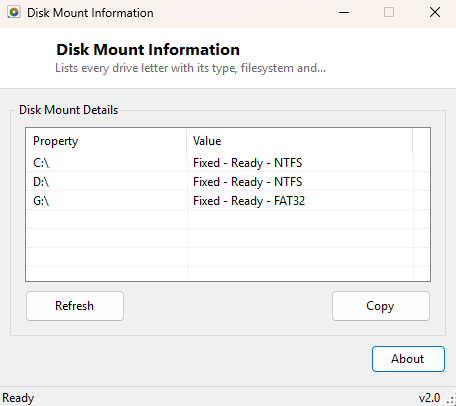
Disk Mount Information gives you a single-glance inventory of every drive letter Windows currently recognizes — fixed, removable, network and optical alike — along with each one's drive type, filesystem, and whether it is actually ready to be read from. It is the kind of information File Explorer's sidebar shows visually but does not let you copy as text, and the kind of thing that becomes surprisingly useful the moment you are troubleshooting a drive letter conflict, confirming a mapped network share actually connected, or documenting a system's storage layout for a support ticket.
This is a companion piece to Drive Letter Manager rather than a replacement for it — this tool reports what currently exists; Drive Letter Manager is the one that lets you change it.
Key Features
- Lists every drive letter Windows currently recognizes, in one pass
- Shows drive type — Fixed, Removable, Network, CD-ROM, RAM disk — for each entry
- Reports filesystem (NTFS, FAT32, exFAT, etc.) for ready drives
- Clearly flags drives that are present but not currently ready (no media, disconnected share)
- Simple, single-scan output — no configuration needed
- Copy-to-clipboard support for documentation and support tickets
Why You Might Need This Tool
Drive letter confusion is a small but recurring annoyance — a USB card reader that reserves several letters for card slots that are currently empty, a VPN client that silently claims a drive letter for a virtual network drive, or a mapped network share that looks connected in File Explorer but is actually stale and unready. Seeing every letter's type and ready state in one flat list makes it immediately obvious which letters are genuinely available for a new mapping and which are already spoken for, even if they currently show no accessible content.
How It Works
The tool enumerates drives through .NET's IO.DriveInfo.GetDrives()
collection, which returns an entry for every drive letter Windows has assigned
regardless of whether media is currently present. For each entry, it reads
DriveType (an enumeration covering Fixed, Removable, Network, CDRom,
RAM and Unknown), checks IsReady to determine whether the drive can
currently be read from, and — only for ready drives, since the property throws for
unready ones — reads DriveFormat to report the filesystem in use. This
mirrors exactly what File Explorer's own drive icons represent, just presented as a
flat, readable table instead of a row of icons.
How to Use It
Launch the tool and every drive letter appears immediately with its type, filesystem and ready state. There is nothing to configure — run it, read the table, and use Copy if you need to paste the report elsewhere. Re-run after plugging in removable media or reconnecting a network share to see the updated state.
System Requirements & Notes
Runs on 64-bit Windows 10 and Windows 11 without administrator rights — enumerating drive letters and their basic properties is a standard-user operation that makes no changes to the system.
Frequently Asked Questions
Why does a drive show as "not ready" when I can see it in File Explorer?
File Explorer sometimes caches an icon for a drive that has since become unavailable
(an unplugged card reader slot, a disconnected network share); this tool always
reports the current live state rather than a cached one.
Can I use this to reassign a drive letter?
Not directly — for that, use Drive Letter
Manager, which wraps the same information with an actual reassignment feature.
Does it show USB drives?
Yes, any USB storage device that Windows has assigned a drive letter to appears with
type "Removable," alongside its filesystem when media is present.