Overview
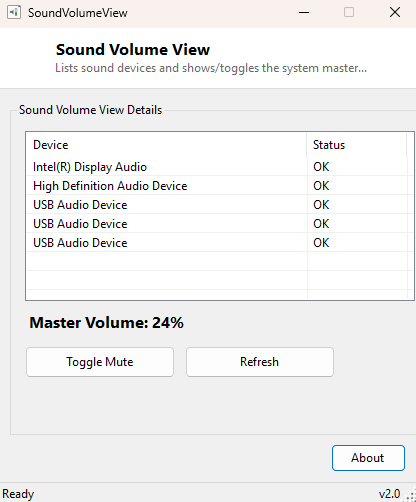
Sound Volume View lists every sound device installed on your PC and, for the system's default audio endpoint, shows the current master volume level as a percentage alongside its mute state — with a one-click button to toggle mute on or off. It bridges two things Windows normally keeps in separate places: the device inventory you would otherwise find buried in Sound settings, and the live volume/mute state that is usually only a click or scroll-wheel away in the system tray, but not something you can read programmatically or confirm at a glance from a single window.
This tool intentionally focuses on the master volume for the default playback device rather than trying to expose full per-application volume mixing, keeping its scope narrow and its interface a single readable screen.
Key Features
- Lists every installed audio playback and capture device with its Windows status
- Shows the default device's current master volume as a percentage
- Shows whether the default device is currently muted
- One-click mute/unmute toggle for the default playback device
- Refresh button to re-poll device list and volume state on demand
- No changes made to any device unless you explicitly click the mute toggle
Why You Might Need This Tool
The most direct use case is exactly what it sounds like: confirming, without hunting through the taskbar's tiny speaker icon, exactly what volume percentage the system is currently set to and whether it has been muted — useful right before a screen-share or recording where you want to be certain audio will actually play. It is equally handy after plugging in a new headset, dock, or external DAC, when Windows silently switches the default playback device and you want quick confirmation of what is now active and at what volume, without opening the full Sound control panel. Because it also lists every audio device with its status, it doubles as a fast way to confirm a device Windows claims to have installed is actually enumerating correctly, rather than sitting disabled or in an error state.
How It Works
The device list comes from a straightforward WMI query against
Win32_SoundDevice, pulling each device's Name and
Status. The live volume and mute reading, however, comes from the Windows
Core Audio API rather than WMI, since WMI has no concept of the current volume level.
The tool defines minimal COM interop declarations for
IMMDeviceEnumerator, IMMDevice and
IAudioEndpointVolume — the same interfaces the Windows Volume Mixer itself
is built on — instantiates the enumerator via its documented CLSID, calls
GetDefaultAudioEndpoint to get the active playback device, activates its
IAudioEndpointVolume interface, and reads
GetMasterVolumeLevelScalar (a 0.0–1.0 float converted to a percentage) and
GetMute directly. The mute toggle calls the matching SetMute
method through that same interface with the current state inverted.
How to Use It
Launch Sound Volume View and the device list plus the default device's current volume and mute state appear immediately. Click "Toggle Mute" to mute or unmute the default playback device — the display updates immediately to reflect the new state. Click Refresh at any time to re-poll both the device list and the current volume/mute reading.
System Requirements & Notes
No administrator rights are required — reading and adjusting master volume through the Core Audio API is a standard-user operation, the same access level the taskbar volume control itself uses. If Core Audio interop fails to initialize (rare, and typically a sign of a deeper audio subsystem problem), the tool reports "unavailable" for the volume reading rather than crashing.
Frequently Asked Questions
Can I set volume to an exact percentage, not just toggle mute?
Not in this version — it focuses on the two things people check most urgently:
the current level and whether it's muted, plus the one-click unmute you need in the
middle of a call.
Does it control per-application volume, like Windows' own volume mixer?
No, it operates on the master/default-device level only. See
ClickMonitorDDC for a related hardware-level
control tool, though for a different device class (monitors, not audio).
Why does the device list show more entries than I have physical speakers?
Windows registers virtual and driver-level audio endpoints (HDMI outputs, Bluetooth
profiles, etc.) as separate devices even when not currently connected, which is
expected and matches what Device Manager itself shows.