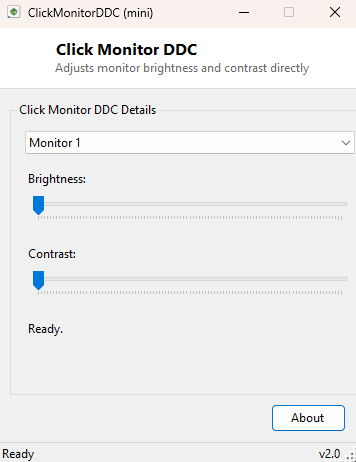
Overview
ClickMonitorDDC adjusts your monitor's brightness and contrast directly from Windows, without ever touching the monitor's physical buttons or navigating its often clunky on-screen display menu. It does this using DDC/CI, a real hardware communication protocol most modern monitors support that lets software query and change display settings the same way the monitor's own buttons would, over the video cable itself rather than through any USB or network connection.
Key Features
- Adjusts brightness and contrast on any DDC/CI-capable monitor from a simple slider interface
- Automatically detects every connected physical monitor and lists it by name
- Reads the monitor's actual current values on selection rather than guessing a starting point
- Changes apply instantly and directly to the monitor's own hardware settings
- No need to ever open the monitor's on-screen display menu
- Clearly reports when a monitor does not support or has disabled DDC/CI
Why You Might Need This Tool
Some monitors bury their on-screen display navigation behind tiny, awkwardly placed physical buttons that make quick brightness adjustments genuinely unpleasant, and multi-monitor setups compound the problem by requiring you to physically walk over to each display to adjust it individually. ClickMonitorDDC solves both problems by moving the adjustment into software, where it takes a slider drag instead of a fumbled button sequence, and where switching between multiple connected monitors is a dropdown selection rather than a physical walk across the desk. It is particularly useful for people who adjust brightness frequently throughout the day as ambient lighting changes.
How It Works
The tool uses the Windows Monitor Configuration API from dxva2.dll. It
enumerates physical monitors attached to each display handle via
EnumDisplayMonitors and GetPhysicalMonitorsFromHMONITOR, then
communicates with each physical monitor using the industry-standard Virtual Control
Panel (VCP) codes defined by the DDC/CI specification — VCP code 0x10 for
brightness and 0x12 for contrast. Reading a slider's starting position
calls GetVCPFeature to retrieve the monitor's current value and its valid
maximum; dragging a slider calls SetVCPFeature to write the new value
directly to the monitor over the same DDC/CI channel. This is the identical mechanism
Windows' own advanced display settings and most monitor manufacturers' own control
utilities use internally — ClickMonitorDDC simply exposes it directly rather than
burying it inside a larger settings application.
How to Use It
Select the monitor you want to adjust from the dropdown — each connected display's current brightness and contrast values load automatically. Drag either slider and the change applies to that physical monitor immediately; there is no separate "apply" step.
System Requirements & Notes
Runs on 64-bit Windows 10 and Windows 11 with no administrator rights required. Not every monitor supports DDC/CI, and some monitors that do support it ship with the feature disabled in their own on-screen menu by default — if a monitor reports no response, check its OSD menu for a DDC/CI enable option before assuming the tool is at fault.
Frequently Asked Questions
Will this work over a USB-to-HDMI or USB-C dock connection?
Usually yes, as long as the underlying video connection and the dock itself both pass
DDC/CI signaling through correctly — some lower-cost adapters and docks do not, which
will show up as the monitor simply not responding.
Can it control other monitor settings besides brightness and contrast?
Not in this version — it is deliberately scoped to the two VCP codes people adjust
most often, brightness and contrast, rather than exposing the full and sometimes
inconsistent range of VCP codes different monitor models support.