Overview
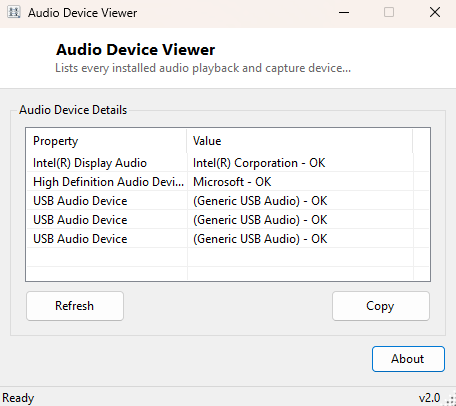
Audio Device Viewer lists every playback and capture device Windows currently recognizes, along with each one's operational status, in a single plain window. It sounds like a small thing until you are staring at a Zoom call where "no sound is coming through" and you need to know, quickly, whether Windows even sees the headset you just plugged in — never mind whether it is set as default. The Sound Control Panel buries this information behind two tabs and a right-click "Show Disabled Devices" toggle that most people have never discovered exists; this tool shows everything at once.
Audio hardware inventories tend to be messier than people expect on a typical Windows PC — built-in motherboard audio, a discrete USB headset, a Bluetooth earbud pairing, an HDMI or DisplayPort audio output tied to a monitor or TV, and a virtual audio cable installed by streaming or conferencing software can all coexist as separate devices simultaneously, several of them disabled or simply not plugged in at the moment. Seeing the full list, not just whatever is currently selected as default, is often the fastest way to spot the actual problem.
Key Features
- Lists every installed audio device, playback and capture alike
- Shows each device's current Windows status (OK, Error, Disabled, etc.)
- Detects devices even when they are not the current default
- No installation, opens directly to the full device list
- Copy-to-clipboard support for support tickets and documentation
- Read-only — makes no changes to device configuration
Why You Might Need This Tool
The most common trigger is troubleshooting "no sound" or "no microphone detected" problems, where the fastest diagnostic step is confirming Windows sees the device at all before chasing driver updates or application-level settings. It is equally useful right after plugging in a new headset, webcam with a built-in mic, or audio interface, to confirm Windows actually enumerated it correctly rather than silently failing. IT support staff often keep a tool like this on a USB stick specifically for remote troubleshooting sessions, where walking someone through several layers of Control Panel over a phone call is slower and more error-prone than reading one list together.
How It Works
The tool queries the Win32_SoundDevice WMI class, requesting the
Name and Status properties for every returned instance.
This class enumerates audio-capable hardware devices as Windows' Plug and Play
subsystem sees them, which is a slightly different (and often more complete) view
than the audio-endpoint list shown in the Sound Control Panel, since it includes
devices that may currently be disabled or not selected as any kind of default. When
no audio devices are returned at all — rare, but it happens on some virtual
machines and freshly-imaged systems missing an audio driver — the tool reports that
plainly rather than showing an empty, unexplained list.
How to Use It
Launch the program and every recognized audio device appears immediately with its status. Click Refresh after plugging in or unplugging a device to confirm Windows registered the change. If a device you expect to see is missing entirely, that points toward a driver installation problem rather than a configuration one — check Device Manager for a missing or conflicted audio driver next.
System Requirements & Notes
Runs on 64-bit Windows 10 and Windows 11 and does not require administrator rights — reading the installed device list through WMI is a standard-user operation with no elevation prompt at any point.
Frequently Asked Questions
A device shows here but doesn't appear in the Sound Control Panel — why?
It is likely disabled. Right-click inside the Playback or Recording tab of the
classic Sound Control Panel and enable "Show Disabled Devices" to see and
re-enable it there.
Can I set a default device from this tool?
No — this tool is intentionally read-only. Use the Sound Control Panel or Windows
Settings to change default playback and recording devices.