Overview
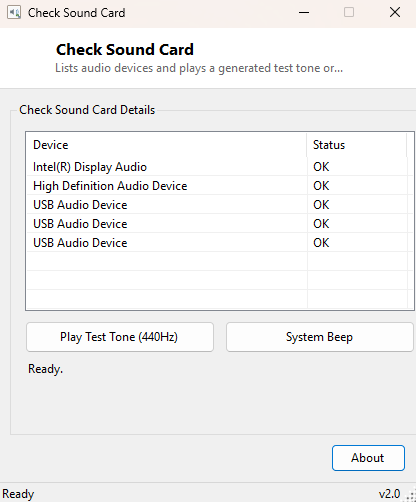
Check Sound Card is a two-part audio verification tool: it lists every audio device Windows currently recognizes, and it gives you two independent ways to confirm sound is actually working — a synthesized 440Hz test tone through your default playback device, and a raw hardware system beep as a fallback that bypasses the normal Windows audio stack almost entirely.
Key Features
- Lists all installed audio playback and capture devices with their status
- Plays a generated pure 440Hz sine-wave test tone through the default device
- Independent system beep button using a completely separate code path
- No bundled audio files — the test tone is generated mathematically at runtime
- Instant feedback with no configuration needed
Why You Might Need This Tool
When troubleshooting "no sound" problems, the first useful diagnostic step is narrowing
down whether the issue is with a specific application, the Windows audio stack generally,
or the hardware itself. Check Sound Card's two independent test methods help split that
apart quickly: if the synthesized tone plays through SoundPlayer but you
still don't hear it, the audio device list confirms whether Windows even sees the expected
output device selected as default; if neither the tone nor the system beep produces sound,
that points toward a hardware, cable or driver-level problem rather than an application
configuration issue.
How It Works
The device list comes from a straightforward WMI query against Win32_SoundDevice,
returning each device's Name and Status. The test tone is more
interesting: rather than shipping a bundled WAV file, the tool synthesizes one entirely in
memory at runtime. It builds a standard 44-byte RIFF/WAVE header by hand with a
BinaryWriter over a MemoryStream — writing the "RIFF" and "WAVE"
chunk markers, format chunk (16-bit PCM, mono, 44100Hz sample rate) and data chunk size —
then fills the data section by computing Math.Sin(2 * π * 440 * t) * 12000
for each of 44,100 samples (one second at 440Hz, the standard concert-pitch A note),
converting each floating-point sample to a 16-bit signed integer. The resulting in-memory
stream is handed directly to System.Media.SoundPlayer for playback — no
temporary file is ever written to disk. The system beep button takes a completely different,
simpler path: a direct call to Console.Beep(800, 300), which on modern Windows
routes through the default audio device but historically bypassed it entirely via the PC
speaker, making it a useful independent sanity check.
How to Use It
Launch the tool to see your installed audio devices listed immediately. Click Play Test Tone (440Hz) to hear the synthesized tone through your default playback device, or System Beep for the simpler independent check.
System Requirements & Notes
No administrator rights are required. The test tone plays through whatever Windows currently has set as the default playback device — if you have multiple audio outputs, confirm the correct one is set as default in Windows Sound settings before assuming a "no sound" result means a hardware fault.
Frequently Asked Questions
I hear the system beep but not the 440Hz tone — what does that mean?
This usually points to an issue with the specific application-level audio path
(SoundPlayer/WinMM) rather than the hardware itself, since the beep and the
tone can take different routes to the speaker on some systems — check your default
playback device and volume mixer settings first.
Can I test a specific non-default audio device?
Not directly in this version — the test tone always plays through whichever device
Windows currently has set as default. Change the default device in Windows Sound settings
first if you need to test a different output.