Overview
Volumouse removes one small, constant annoyance from everyday Windows use: hunting for the volume icon in the system tray, or reaching for a dedicated media-key keyboard, just to nudge the system volume up or down a little. With Volumouse running, holding Ctrl and scrolling the mouse wheel anywhere on the desktop — over a browser tab, a code editor, a game, it does not matter which window has focus — adjusts the master system volume immediately, with a small on-screen readout showing the current level as a percentage.
The tool sits quietly in the system tray and does nothing until you invoke the
Ctrl+wheel gesture, so it never interferes with normal scrolling in any other
application. It is a deliberately minimal reimplementation of an idea that has
existed in various forms for years — global mouse-driven volume control — built
here directly against the same modern Windows Core Audio APIs that the Settings
app's own volume slider uses internally, rather than the older and less reliable
waveOutSetVolume mixer APIs many older tools relied on.
Key Features
- Ctrl+scroll anywhere on the desktop adjusts system master volume instantly
- Live on-screen percentage readout and progress bar showing the current level
- Works regardless of which application currently has keyboard/mouse focus
- Toggle to enable or disable the global hotkey behavior without closing the app
- Tray icon presence with no visible window needed during normal use
- Reads and adjusts the exact same audio endpoint the Windows volume slider controls
Why You Might Need This Tool
Laptops without dedicated volume keys, desktop keyboards without a volume wheel, and any setup where reaching the taskbar tray icon means moving the mouse away from what you are actually doing are all good reasons to want a faster volume control. Gamers in particular benefit from being able to adjust volume without alt-tabbing out of a full-screen game, and anyone doing focused work — writing, coding, video editing — appreciates not having to break concentration and hunt for a tiny speaker icon just to turn a notification sound down. Once the muscle memory of Ctrl+scroll sets in, going back to hunting for the tray icon feels distinctly slower.
How It Works
Volumouse combines two separate Windows mechanisms. First, it installs a low-level
global mouse hook using SetWindowsHookEx with the
WH_MOUSE_LL hook type, which lets the application see mouse wheel
events system-wide rather than only within its own window — the same low-level
mechanism screen-capture and macro tools use to observe input globally. When a
wheel event arrives, it checks whether the Ctrl key is currently held using
GetAsyncKeyState, and if so, adjusts the volume rather than passing
the scroll through untouched. Second, to actually change the system volume, it uses
COM interop against the Windows Core Audio API — specifically
IMMDeviceEnumerator to get the default audio playback device and
IAudioEndpointVolume to read and set the master volume level as a
scalar between 0.0 and 1.0. These are the same low-level COM interfaces Windows'
own audio stack and the Settings app's volume slider are built on top of, accessed
here directly through custom COM interface declarations rather than a third-party
audio library.
How to Use It
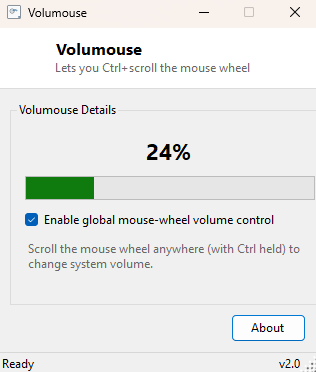
Launch Volumouse; a tray icon appears and the current volume shows in the main window. Make sure "Enable global mouse-wheel volume control" is checked (it is on by default). From then on, hold Ctrl and scroll the mouse wheel up or down anywhere on screen to raise or lower the volume in small steps, watching the percentage update live in Volumouse's window. Uncheck the option at any time to temporarily disable the hotkey without closing the application, useful if another program you are using also wants to respond to Ctrl+scroll for its own purpose.
System Requirements & Notes
Volumouse runs on 64-bit Windows 10 and Windows 11 and does not require administrator privileges — both the low-level mouse hook and the Core Audio volume interfaces are standard-user operations. The mouse hook is automatically removed when the application closes, restoring completely normal scroll-wheel behavior everywhere immediately.
Frequently Asked Questions
Will this interfere with normal scrolling in other apps?
No — only Ctrl+wheel is intercepted for volume control; a plain scroll wheel
without Ctrl held passes through completely untouched to whatever application has
focus.
Does it control per-application volume, or the whole system?
The master system volume, the same level the Windows volume slider in the taskbar
controls. Per-application volume mixing is a separate feature not covered by this
tool.
Can I change which modifier key triggers it?
Not in this version — Ctrl is fixed as the trigger key to keep the tool's
configuration surface as small as its window.