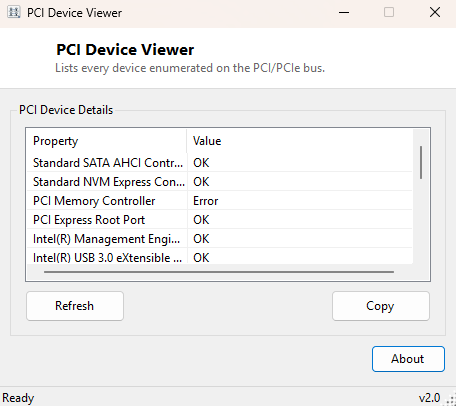
Overview
PCI Device Viewer lists every device Windows has enumerated on the internal PCI and PCIe bus — the same bus your graphics card, network adapter, storage controller, sound chip, USB host controllers and dozens of quieter chipset-integrated components all sit on. Most of these never show up as icons anywhere in Windows; they exist as entries buried in Device Manager's "System devices" node, identified by cryptic manufacturer strings most people never look at unless something stops working. This tool surfaces the full list in one flat, readable window.
Where USB Device Viewer covers external, hot-pluggable hardware, PCI Device Viewer covers the internal backbone almost every other component in the system ultimately connects through, including the USB controllers themselves.
Key Features
- Lists every device enumerated on the internal PCI/PCIe bus in one flat table
- Shows each device's Windows-reported friendly name and status
- Covers chipset, storage controller, network, audio and graphics bus entries together
- One-click Refresh to re-scan after a driver change or hardware reconfiguration
- Copy-to-clipboard export of the full list
Why You Might Need This Tool
PCI-level visibility matters most when something integrated into the motherboard itself is misbehaving — a chipset SATA controller reporting an error status, an integrated network adapter that vanished after a driver update, or confirming that a freshly installed expansion card (a capture card, an additional NVMe controller, a sound card) actually enumerated on the bus at all before troubleshooting further at the driver level. It is also a handy way to get a quick census of exactly what hardware a given motherboard actually exposes, which is not always obvious from the spec sheet alone once you account for every chipset-integrated controller.
How It Works
Just like USB Device Viewer, this tool queries WMI's Win32_PnPEntity
class, but filters on DeviceID LIKE 'PCI%' instead of the USB prefix.
Windows assigns every Plug and Play-managed device a hierarchical DeviceID string
whose prefix identifies the bus it enumerated on; PCI and PCIe devices consistently
carry the PCI\VEN_xxxx&DEV_xxxx\... pattern, so filtering on that
prefix isolates exactly the internal bus devices regardless of what specific
hardware role each one fills. The Name and Status
properties come from the same driver-reported metadata Device Manager itself
displays, just gathered into a single unfiltered list instead of scattered across
multiple category nodes.
How to Use It
Open the tool and the full device list populates on launch. Scroll through to review every entry, or use it as a quick before/after comparison: run it, make a hardware or driver change, click Refresh, and compare the two snapshots (Copy the list before the change if you want a saved reference) to see exactly what appeared, disappeared, or changed status.
System Requirements & Notes
Runs on 64-bit Windows 10 and Windows 11 with no administrator rights required — PCI bus enumeration through WMI is available to any standard user account, the same as Device Manager's read-only view.
Frequently Asked Questions
Will this show my graphics card's exact model?
It will show whatever friendly name Windows assigned it as a PCI device, which is
usually the model name — but for detailed GPU specifics like driver version and VRAM,
GPU Driver Version Checker is more
purpose-built.
Why do I see entries with no obviously meaningful name?
Some chipset-integrated controllers (PCIe root ports, bridges, SMBus controllers)
report generic driver names rather than a consumer-friendly label — that is normal
and reflects how the chipset manufacturer registered the device, not a fault in this
tool.
Does this include devices with a Code 45 or 28 error (not currently
present)?
No — this queries live, currently enumerated PnP entities only, so a device Windows
cannot currently see will not appear.