Overview
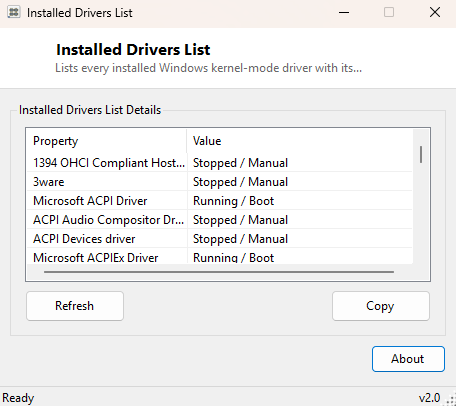
Installed Drivers List answers a question that Device Manager only answers indirectly: exactly which kernel-mode drivers does this copy of Windows currently know about, and what state is each one in? Device Manager organizes hardware by device category and hides the underlying driver service names almost entirely, which is fine for everyday use but useless the moment you are trying to figure out why a specific driver is failing to start, or you are comparing a known-good driver set against a machine that is misbehaving. This tool skips the hardware-tree presentation entirely and gives you the flat, complete list Windows itself works from internally.
Key Features
- Lists every driver Windows has a service entry for, not just currently active hardware
- Shows each driver's display name, current state and configured start type together
- Distinguishes between drivers set to auto-start, manual-start, disabled, or boot-time load
- No filtering by device category — a single flat, sortable list
- Refreshes instantly with no need to reopen Device Manager or navigate its tree
- Read-only — nothing on this page can accidentally disable or remove a driver
Why You Might Need This Tool
Driver problems are some of the hardest Windows issues to diagnose precisely because the symptoms (a device not working, a blue screen, a boot delay) rarely point directly at which driver is responsible. Having a complete, flat list of every driver and its exact state is invaluable when you are following a support forum's troubleshooting steps that say "check whether driver X is running," when you are comparing two machines to see what is different about their driver configuration, or when you simply want to audit what low-level software actually has kernel access on your system before installing something new. It is also a quick sanity check after a Windows Update or a driver package installation — you can immediately confirm the new driver registered correctly and see what state it landed in without hunting through Device Manager's category tree.
How It Works
The tool queries Win32_SystemDriver through Windows Management
Instrumentation, requesting the DisplayName, State and
StartMode properties for every returned instance. This WMI class is
populated directly from the Windows Service Control Manager's internal driver
registry — the same data source Device Manager, the Services console and the
sc query type= driver command line all ultimately read from, just
exposed here without any hardware-category filtering applied on top. Each result row
is displayed exactly as returned: state values like Running, Stopped, or various
intermediate transition states, and start-mode values like Boot, System, Auto,
Manual or Disabled.
How to Use It
Launch the tool and the full driver list populates immediately — there is nothing to configure. Scroll or use your browser-style find shortcut within the list to locate a specific driver by name if you already know what you are looking for. Because the list can be long on a fully-loaded system, sorting by state is often the fastest way to spot anything unexpected, such as a driver stuck in a state other than the one its start-mode configuration would suggest.
System Requirements & Notes
Runs on 64-bit Windows 10 and Windows 11 with no administrator rights required — reading the driver service list through WMI is a standard-user operation. This tool only reads data; it never starts, stops, enables or disables anything.
Frequently Asked Questions
Can I stop or disable a driver from this window?
No — this tool is read-only by design. Driver state changes are a more delicate
operation than this catalog's philosophy of small, single-purpose tools is
comfortable automating without much stronger safeguards.
Why does the list include drivers for hardware I don't have installed?
Windows keeps service registrations for drivers even when the associated hardware is
not currently present, which is why you will see entries with a Stopped state and no
corresponding physical device.