Overview
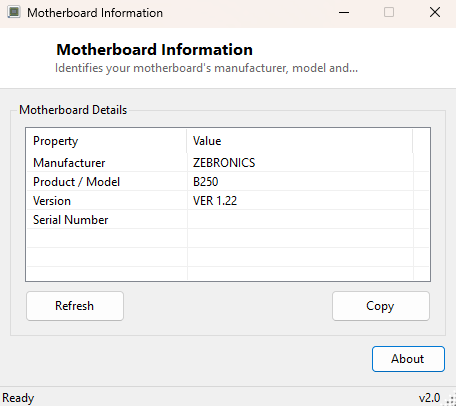
On a prebuilt desktop or a laptop, opening the case to read the motherboard's model silkscreen is inconvenient at best and impossible at worst. Motherboard Information solves that with a single query: it reads the manufacturer, product/model name, hardware revision and serial number that the board's own firmware reports to Windows, and displays all four in one small window. No case-opening, no flashlight, no squinting at tiny printed text near the RAM slots required.
This information comes from the same SMBIOS/DMI data table that tools like
dmidecode on Linux read, just exposed through Windows' own management
interface instead. It is populated by the motherboard manufacturer at the factory and
does not change unless the board itself is physically replaced.
Key Features
- Reports motherboard manufacturer name exactly as programmed by the OEM
- Reports the specific product/model designation, needed for driver and BIOS downloads
- Reports the hardware revision string, useful when a manufacturer released multiple board revisions under one model name
- Reports the motherboard's serial number for warranty and asset-tracking purposes
- One-click Copy button to paste the full identification block as text
- Instant startup, no installation, fully portable
Why You Might Need This Tool
The most common reason to run this tool is needing to find the exact BIOS update or driver package for a system without a paper manual or original box handy — most manufacturer support sites organize downloads by exact board model, and getting that model wrong (which is easy to do when several similarly-named boards exist in a product line) can lead to downloading firmware meant for a different revision entirely. It is equally useful for asset management in a small office, or simply for confirming what hardware a secondhand or inherited PC actually contains before deciding whether it is worth upgrading.
Buyers of used or refurbished desktops also lean on this tool heavily — a listing that simply says "gaming PC, i7, 16GB RAM" tells you nothing about upgrade headroom, but the exact board model looked up on the manufacturer's own specification page will tell you the maximum supported RAM, the number of PCIe and M.2 slots, and whether the board even supports the CPU generation you might want to upgrade to later — all useful negotiating and planning information that a visual inspection alone cannot provide.
How It Works
The tool queries the Win32_BaseBoard WMI class, requesting the
Manufacturer, Product, Version and
SerialNumber properties in a single call. These values originate from
the SMBIOS Type 2 (Baseboard Information) structure that every modern motherboard's
firmware populates and exposes to the operating system at boot — the exact same
underlying data source used by dedicated system-information utilities and by
Windows' own System Information (msinfo32) applet, just presented here in a smaller,
single-purpose window. Any field the firmware left blank is reported as "N/A" rather
than an empty space, since some OEMs genuinely do not populate the serial number
field on consumer-grade boards.
How to Use It
Launch the tool and all four fields populate immediately — there is nothing to configure. Use Copy to paste the full identification block directly into a manufacturer's support-site search box or a forum post when asking for help with a board-specific issue.
System Requirements & Notes
Runs on 64-bit Windows 10 and Windows 11 and requires no administrator privileges — reading baseboard identification through WMI is available to any standard user account.
Frequently Asked Questions
Why does the serial number show "N/A"?
Many consumer motherboards simply never populate this optional SMBIOS field at the
factory, particularly on lower-cost boards. This is a manufacturer decision the tool
cannot work around.
Will this work inside a virtual machine?
Yes, but it will report whatever virtual baseboard identity the hypervisor presents
(often something generic like "Virtual Machine") rather than the physical host's real
motherboard.
Does this also show BIOS version information?
No — for BIOS/UEFI firmware details specifically, see
BIOS Information Tool, its companion utility.
The "Product / Model" field looks cryptic — is that normal?
Yes. Many motherboard manufacturers use an internal model code in the SMBIOS Product
field that does not exactly match the marketing name printed on the retail box —
for example, a board sold as "X670E Pro" might report a slightly different internal
product string. When in doubt, search the manufacturer's support site using both the
reported string and the box name to find the correct download page.
Does this tool show chipset information too?
Not directly — the SMBIOS baseboard structure identifies the physical board itself
rather than the chipset silicon soldered onto it. Chipset identity is usually implied
by the board's product name and can be confirmed via the manufacturer's own
specification page for that model.