Overview
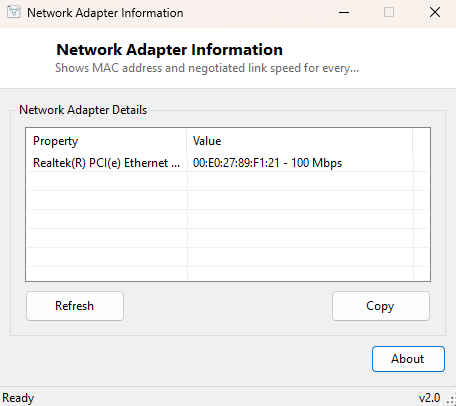
Network Adapter Information lists every physical network adapter in your PC alongside its MAC address and negotiated link speed in one compact table. It sits one level below the addressing tools in this catalog — rather than telling you what IP address an adapter has, it tells you about the adapter as a piece of hardware: what it is called, its burned-in hardware address, and how fast the actual physical link currently is, which is not always the same as the adapter's rated maximum speed.
This is a static hardware-identity view, deliberately kept separate from the live monitoring tools in the catalog (like Network Link Status Viewer) that continuously track connection state — this one answers "what hardware do I have and what is it connected at," queried once and displayed clearly.
Key Features
- Lists every physical (non-virtual) network adapter Windows recognizes
- Shows the hardware MAC address for each adapter
- Reports the currently negotiated link speed in Mbps
- Filters out virtual adapters (VPN tunnels, virtual switches) to focus on real hardware
- One-click Refresh after connecting new hardware or changing a cable/port
Why You Might Need This Tool
The negotiated link speed is the number that matters most here — it is common for a Gigabit-rated port to unexpectedly negotiate down to 100 Mbps because of a damaged cable, a cheap unmanaged switch, or a port configured incorrectly, and that degradation is invisible unless you specifically check the actual negotiated rate rather than assuming the hardware's rated maximum. MAC address lookups matter for a different, equally common reason: configuring MAC-based filtering or reservations on a router, or simply needing a hardware identifier to reference a specific adapter when multiple network interfaces are installed side by side, as is common on workstation-class machines and laptops with both Wi-Fi and Ethernet.
How It Works
The tool queries WMI's Win32_NetworkAdapter class with
WHERE PhysicalAdapter=True, which filters out virtual and software-only
adapters (VPN clients, Hyper-V virtual switches, loopback interfaces) and leaves only
genuine physical network hardware. For each matching adapter it reads the
Name, MACAddress and Speed properties directly
— Speed is reported by WMI in bits per second as a raw integer, so the
tool divides by 1,000,000 to present it as a human-readable Mbps figure. Because this
queries the adapter object itself rather than an active connection state, it reflects
what the adapter driver currently reports as its negotiated rate, which can differ
from the adapter's maximum rated speed if the physical link negotiated down for any
reason.
How to Use It
Open the tool to see every physical adapter listed immediately with its MAC address and current link speed. If you suspect a cable or port problem, compare the displayed speed against what the hardware should be capable of (Gigabit Ethernet should show close to 1000 Mbps; if it consistently shows 100 Mbps, that points toward a cable, port, or switch issue rather than anything wrong with the adapter itself). Click Refresh after swapping a cable or reconnecting hardware to see an updated reading.
System Requirements & Notes
Runs on 64-bit Windows 10 and Windows 11 with no administrator rights required. Wi-Fi adapters will also appear in this list alongside wired Ethernet adapters, with their speed reflecting the current wireless link rate rather than a fixed cable rating.
Frequently Asked Questions
Why is my adapter missing from the list?
If an adapter is disabled in Windows or its driver failed to load, WMI may not report
a valid speed or may exclude it depending on driver behavior — check Device Manager
for the adapter's actual status if it does not appear here.
Does this show my public or local IP address too?
No — this tool is scoped to hardware identity only. See
Local IP Viewer for IPv4/IPv6 addressing per
adapter.
Can I use this to spoof or change my MAC address?
No — it is read-only. Changing a MAC address requires adapter-specific driver
settings or registry changes outside the scope of this tool.