Overview
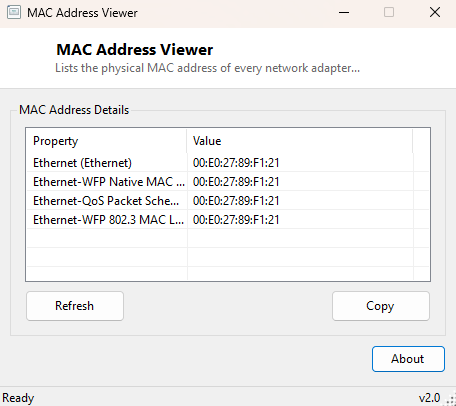
MAC Address Viewer lists the physical hardware (Media Access Control) address burned into every network adapter on your PC, formatted in the standard colon-separated hex notation networking equipment expects. Unlike an IP address, which changes depending on the network you connect to, a MAC address is tied to the physical network interface itself and rarely changes — which is exactly why so many router configuration screens, corporate network access-control lists and device-whitelisting tools ask for it specifically.
Key Features
- Lists the MAC address of every network adapter, wired and wireless
- Labels each address with its adapter name and interface type
- Formats addresses in standard colon-separated hex (AA:BB:CC:DD:EE:FF)
- Automatically excludes the loopback interface
- Refreshes instantly if an adapter is added or removed
- One-click copy of the full list to the clipboard
Why You Might Need This Tool
Router-level MAC address filtering, DHCP reservations that always hand the same IP to
the same device, corporate network access control, and parental-control device
whitelisting all require entering a device's exact MAC address somewhere in a router
or admin console. Finding that address through Windows' built-in tools usually means
parsing several screens of ipconfig /all output; this tool isolates
exactly the addresses you need and nothing else, adapter by adapter.
How It Works
The tool enumerates adapters through
System.Net.NetworkInformation.NetworkInterface.GetAllNetworkInterfaces(),
skipping the loopback interface, and calls each adapter's
GetPhysicalAddress() method to retrieve its raw hardware address bytes.
Those bytes come back as an unformatted hex string, which the tool then splits into
byte pairs using LINQ's Enumerable.Range and rejoins with colon
separators to produce the familiar AA:BB:CC:DD:EE:FF format every router
admin panel and networking tool expects, rather than leaving it in Windows' internal
unseparated form.
How to Use It
Open the tool and every adapter's MAC address is listed immediately, labeled with its adapter name and type. Click Refresh if you connect a new USB network adapter or enable a previously disabled one. Use Copy to place the full list on the clipboard when entering an address into a router's MAC filtering or DHCP reservation screen.
System Requirements & Notes
Runs on 64-bit Windows 10 and Windows 11 and needs no administrator rights — reading an adapter's hardware address is a standard, unprivileged operation available to any user account.
Frequently Asked Questions
Can a MAC address change?
The physical hardware address is fixed by the manufacturer, but Windows and some
network adapters do support software-level MAC address spoofing/randomization for
privacy — this tool always shows the address currently in effect, which is normally
the true hardware address unless spoofing has been explicitly enabled.
Why do I see a different MAC on my phone versus this list?
Every device has its own independent MAC address; this tool only reports addresses for
network adapters physically or virtually present inside the PC it is running on.
Is a MAC address the same on Wi-Fi and Ethernet for the same PC?
No — each physical network interface has its own unique MAC address, so a laptop with
both Wi-Fi and Ethernet will show two different addresses, one per adapter.