Overview
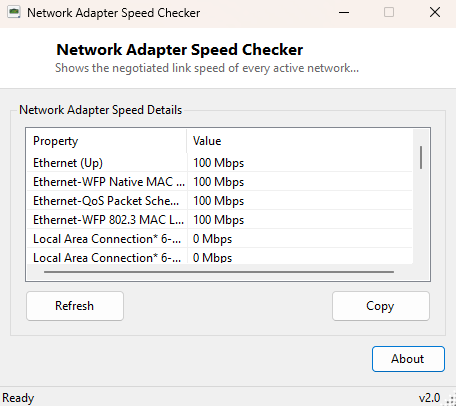
A file transfer that "should" take thirty seconds but takes five minutes is almost always a link-speed problem in disguise — a Gigabit-capable adapter negotiated down to 100 Mbps because of a bad cable, an old switch port, or a driver that reverted to a conservative default after a sleep cycle. The catch is that Windows buries the negotiated link speed several clicks deep in Network Connection status properties, and it is easy to overlook entirely unless you already suspect it. Network Adapter Speed Checker puts that one number front and center for every active adapter, so a mismatched link speed is obvious at a glance rather than something you stumble onto after ruling out everything else.
The tool deliberately reports the adapter's operational status alongside its speed, because a "Down" adapter reporting 0 Mbps and a "Up" adapter stuck at a fraction of its rated speed are two very different problems that look similar at first glance without that extra context.
Key Features
- Shows the negotiated link speed of every non-loopback network adapter
- Displays each adapter's current operational status alongside its speed
- Covers Ethernet, Wi-Fi and virtual adapters uniformly
- Refresh button to re-check speeds after a cable swap or driver update
- Copy button for exporting results as plain text
- Fast, synchronous scan — results appear the moment the window opens
Why You Might Need This Tool
This tool shines whenever real-world network performance does not match expectations. A user copying files to a NAS at a fraction of expected Gigabit speed can check this tool in seconds rather than opening Control Panel's adapter status dialog, which requires several more clicks to reach the same number. It is equally useful for confirming a Wi-Fi upgrade actually took effect — after swapping to a newer router or adapter, seeing the negotiated speed jump from, say, 72 Mbps to 866 Mbps is concrete confirmation the new hardware is actually being used at its intended capability rather than falling back to a legacy protocol.
How It Works
The tool enumerates every network interface using .NET's
System.Net.NetworkInformation.NetworkInterface.GetAllNetworkInterfaces()
method, skipping loopback interfaces since those are not physical or virtual
network paths in any meaningful sense. For each remaining interface, it reads the
Speed property — which reflects the interface's currently negotiated
link rate in bits per second, sourced from the underlying network driver — and
divides by 1,000,000 to present it in the more familiar Mbps unit. The
OperationalStatus property is read from the same interface object and
displayed alongside the speed, giving a combined view (name, status, speed) in a
single pass without needing separate WMI queries or command-line tool output
parsing. This is the identical property Windows itself uses internally to populate
the "Speed" field you would otherwise have to dig for manually.
How to Use It
Open the program and every adapter's status and speed appear immediately. After changing a cable, driver or router, click Refresh to re-read the current negotiated speeds. Use Copy to export the list as text.
System Requirements & Notes
Runs on 64-bit Windows 10 and Windows 11 with no administrator rights required — reading interface speed and status through the .NET networking API is a standard-user operation. No settings are changed.
Frequently Asked Questions
My adapter shows a much lower speed than its rated maximum — why?
Link speed is negotiated between the adapter and whatever it is connected to (a
switch, router or access point), and both ends must support the higher speed. A
damaged cable, an older switch port, or interference on Wi-Fi can all force a
lower negotiated rate even when the adapter itself is fully capable of more.
Does this measure actual throughput, like a speed test?
No — this shows the negotiated link capacity, not real achieved throughput. For
actual measured download speed, see DownTester.