Overview
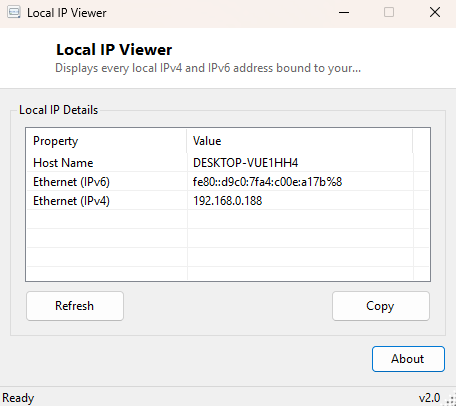
Local IP Viewer lists every IPv4 and IPv6 address bound to every active network
adapter on your PC, organized by adapter name so you can immediately see which
address belongs to which connection. Modern Windows machines routinely carry more
than one active network path at once — Wi-Fi and Ethernet both connected, a VPN
adapter layered on top, virtual adapters from Hyper-V or Docker — and the built-in
ipconfig command, while accurate, presents all of that as a wall of
scrolling text that is easy to misread. This tool organizes the same underlying data
into a clean, sortable list.
Key Features
- Lists every IPv4 address on every currently active (Up) adapter
- Lists every IPv6 address alongside IPv4, clearly labeled
- Groups addresses under their owning adapter name
- Automatically excludes the loopback adapter and inactive interfaces
- Refreshes instantly when you reconnect or change networks
- One-click copy of the full address list to the clipboard
Why You Might Need This Tool
Configuring port forwarding on a router, setting up a local server for testing, connecting two machines directly, or troubleshooting why a device on the network cannot see your PC all start with the same basic fact: knowing your machine's actual local IP address on the interface that matters. When a system has multiple active adapters, guessing which one is the "real" one can send you down the wrong troubleshooting path entirely — this tool removes the guesswork by showing every address next to its adapter name in one glance.
How It Works
The tool enumerates every network interface using
System.Net.NetworkInformation.NetworkInterface.GetAllNetworkInterfaces(),
filters out the loopback adapter and anything not currently
OperationalStatus.Up, then walks each remaining adapter's
GetIPProperties().UnicastAddresses collection, separating IPv4 addresses
(AddressFamily.InterNetwork) from IPv6 addresses
(AddressFamily.InterNetworkV6) and labeling each accordingly. This is
the same managed networking API layer .NET itself uses internally for connection
handling, so the addresses shown here are guaranteed to match what Windows considers
each adapter's currently assigned addresses.
How to Use It
Open the tool and every active adapter's addresses populate immediately. If you have just connected to a new Wi-Fi network or plugged in an Ethernet cable, click Refresh to pick up the change. Use Copy to place the full report on the clipboard when configuring a router, a firewall rule, or a remote-access tool that needs your exact local address.
System Requirements & Notes
Runs on 64-bit Windows 10 and Windows 11 and needs no administrator rights — reading adapter address information is a standard, unprivileged networking operation.
Frequently Asked Questions
Is this the same as my public IP address?
No — this shows your private, local-network address only. For the address the
internet actually sees, use Public IP Viewer
instead.
Why do I see multiple IPv6 addresses on one adapter?
IPv6 commonly assigns several addresses per adapter simultaneously — a link-local
address, a temporary privacy address, and sometimes a stable global address — this is
normal and expected behavior, not an error.
Why don't I see a VPN adapter I have connected?
If the VPN client creates its own virtual adapter, it should appear here like any
other active interface; if it uses a different connection method that Windows does
not report as a standard network interface, it may not be listed.