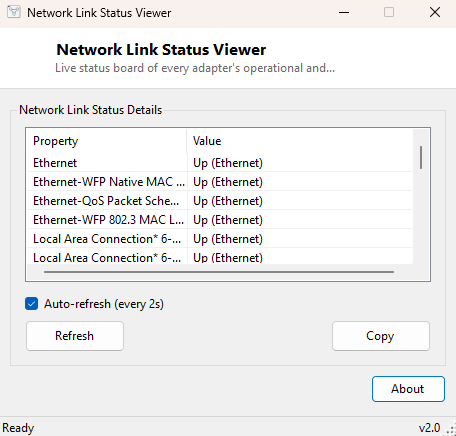
Overview
Windows' own Network Connections panel gives you a status for one adapter at a time, in a window you have to open, click into, and read one line from before closing again. Network Link Status Viewer turns that single-adapter click-through into a live, always-updating table covering every adapter on the system at once — Ethernet, Wi-Fi, virtual and tunnel interfaces alike — so you can watch link state change in real time instead of re-opening a dialog every time you want a fresh read.
This is one of the "monitor" tools in the catalog rather than a one-shot checker: it includes an auto-refresh option so the status board updates itself continuously while it is open, which matters for the specific class of problem it is built for — intermittent link flapping that a single snapshot would completely miss.
Key Features
- Live table of every non-loopback adapter's operational status and type
- Optional auto-refresh (every few seconds) to catch changes as they happen
- Manual Refresh button for an on-demand single update
- Covers Ethernet, Wi-Fi, tunnel and virtual adapters in one unified list
- Copy button to export the current snapshot as plain text
- No configuration required — starts monitoring the moment it opens
Why You Might Need This Tool
Intermittent connectivity — a connection that drops for a few seconds every so often rather than failing outright — is notoriously hard to catch with one-shot diagnostic tools, because by the time you open a status dialog to check, the link has often already recovered. Leaving this tool open with auto-refresh enabled while reproducing a flaky-network complaint lets you actually witness the moment an adapter transitions from Up to Down and back, which is often the single most useful clue in diagnosing a failing cable, a marginal Wi-Fi signal, or a driver that is silently resetting the adapter. It is also a convenient at-a-glance view for systems with several active adapters — a laptop with both Wi-Fi and a docked Ethernet connection, for instance — to confirm which one is actually carrying traffic at any given moment.
How It Works
On each refresh cycle, the tool calls
System.Net.NetworkInformation.NetworkInterface.GetAllNetworkInterfaces()
and iterates every returned interface except loopback, reading its
OperationalStatus and NetworkInterfaceType properties.
These come directly from the underlying network driver layer through .NET's
managed networking API, the same data source Windows itself relies on internally,
so the status shown here is authoritative rather than inferred or estimated. When
auto-refresh is enabled, a UI timer re-runs this same enumeration on a short
interval and repopulates the list, which is enough to catch link transitions that
last more than a couple of seconds without placing a noticeable load on the
system.
How to Use It
Open the program and the current status of every adapter appears immediately. Leave Auto-refresh checked to keep watching for changes, or uncheck it and use Refresh manually for occasional spot checks. Use Copy to export the current snapshot.
System Requirements & Notes
Runs on 64-bit Windows 10 and Windows 11 with no administrator rights required. Auto-refresh has a negligible performance impact since it is simply re-reading already-available interface state rather than performing any network activity of its own.
Frequently Asked Questions
Will leaving auto-refresh running use my data or slow anything down?
No — this tool never sends network traffic itself. It only reads the adapter
status Windows already maintains locally, so there is no bandwidth cost.
Can this tell me why a link keeps dropping, not just that it did?
Not directly — it confirms the timing and pattern of the drop, which is valuable
context, but diagnosing the root cause (cable, driver, interference) still requires
further investigation with tools like Device Manager or your adapter's own
diagnostics.