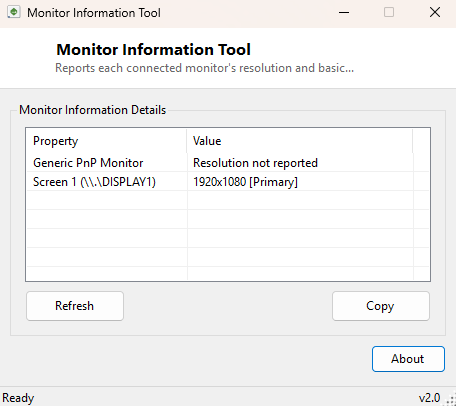
Overview
Monitor Information Tool answers a question that sounds trivial until you actually need the answer precisely: what displays are connected to this PC right now, and what resolution is each one actually running? Windows' own Display settings page shows you a live preview and lets you drag monitors around, but it does not give you a clean, copyable, textual summary you can paste into a support ticket, a system inventory spreadsheet, or a remote-desktop session note. This tool exists specifically to produce that summary — one row per connected display, with its resolution and basic parameters laid out plainly, refreshable with a single click.
It is a deliberately narrow tool. It does not manage display arrangement, does not change resolution, and does not touch color calibration — those jobs already belong to Windows Settings and to the more specialized Monitor Asset Manager (MonInfo) and ClickMonitorDDC utilities elsewhere in this catalog. Monitor Information Tool's entire job is reporting what is currently attached and running, quickly and honestly.
Key Features
- Lists every monitor Windows currently recognizes as connected
- Reports each display's screen width and height where the driver exposes it
- Cross-checks against .NET's own Screen.AllScreens collection for a second, independent resolution reading
- Flags which screen is the current Windows primary display
- One-click Refresh for re-scanning after plugging or unplugging a monitor
- Copy button to place the full report on the clipboard as plain text
Why You Might Need This Tool
Multi-monitor setups fail in quietly frustrating ways — a display that Windows sees but reports at the wrong resolution, a docking-station monitor that only shows up after a specific cable is reseated, or a remote-support session where you need to describe someone else's screen configuration over the phone without being able to see it yourself. Monitor Information Tool gives you a fast, text-based snapshot for exactly those moments, and it is equally useful for simple inventory purposes — if you manage more than a handful of PCs, being able to quickly confirm "this workstation has two 1920x1080 displays" without opening Settings and counting icons saves real time over a fleet of machines.
How It Works
The tool queries two independent sources and shows both, because they occasionally
disagree in informative ways. First, it runs a WMI query against
Win32_DesktopMonitor, reading the ScreenWidth and
ScreenHeight properties where the display driver populates them — some
drivers leave these fields empty, which is itself useful diagnostic information about
driver quality. Second, it walks .NET's own Screen.AllScreens collection,
which reflects what the Windows desktop compositor is actually rendering to, including
the Primary flag that marks the main display and each screen's
DeviceName. Combining both sources means a monitor that WMI fails to
describe fully will still show up correctly through the Screen.AllScreens path, and
vice versa.
How to Use It
Open the tool and it scans automatically on launch, listing every detected display in a simple two-column table. If you change your monitor configuration — plugging in a second screen, disconnecting a projector, changing a resolution — click Refresh to re-scan rather than restarting the tool. Use Copy to place the full report on the clipboard, ready to paste into an email, a support ticket, or a chat window.
System Requirements & Notes
Runs on 64-bit Windows 10 and Windows 11 and does not require administrator rights — both the WMI query and the Screen.AllScreens collection are readable by any standard user account. No registry or system changes are made; this is a pure read-only reporting tool.
Frequently Asked Questions
Why does it show two different resolutions for the same monitor?
This can happen when a driver reports its native panel resolution through WMI while
Windows is actually rendering at a different scaled resolution — both numbers are
accurate, they are just describing different layers of the display pipeline.
Does it work with docking stations and USB-to-HDMI adapters?
Yes, as long as Windows itself recognizes the resulting display as a monitor, both
detection methods this tool uses will pick it up.
Can I use this to change my resolution?
No — this tool is read-only by design. Use Windows Display Settings, or pair this
report with ClickMonitorDDC if you need to adjust
brightness or contrast instead.