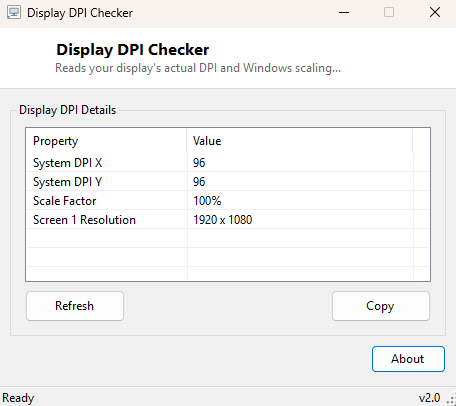
Overview
Windows scaling has quietly become one of the most consequential settings on any modern high-resolution display, and yet it hides behind a single vague percentage slider in Settings that most people never open unless something already looks wrong. Display DPI Checker reads the actual, effective DPI value Windows is using for the current display right now and translates it into the plain scaling percentage — 100%, 125%, 150%, 200% and so on — that determines how large text, icons and UI elements render across every application on screen.
Key Features
- Reads the system's actual effective DPI along both the X and Y axis
- Converts raw DPI into the familiar Windows scaling percentage
- Reports resolution for every connected screen alongside its scaling
- Built with per-monitor DPI awareness so the reading is accurate on mixed-DPI setups
Why You Might Need This Tool
Blurry text, oddly-sized dialog boxes, and applications that render UI elements at the wrong size are almost always a DPI scaling problem rather than a resolution problem, and the two get confused constantly because their symptoms look similar at a glance. This is especially common on laptops with high-resolution 4K panels running at less-than-100% native scaling perception, or on multi-monitor desks mixing an old 96-DPI monitor with a newer high-DPI one, where Windows has to make a per-display scaling decision that not every application respects correctly. Knowing the exact DPI value in play, rather than the rounded percentage shown in Settings, is often the missing piece when troubleshooting a specific application's rendering complaint.
How It Works
The tool queries the DPI value directly from a Graphics object bound
to the desktop window handle using the standard .NET Graphics.DpiX and
Graphics.DpiY properties, which reflect exactly what the Windows
display subsystem reports for the current monitor. Because DPI reporting can behave
inconsistently for applications that have not explicitly opted in to accurate
per-monitor awareness, the application itself is built with
PerMonitorV2 DPI awareness declared in its manifest — the same
opt-in modern Windows applications use — ensuring the number shown here matches
what Windows' own Display Settings page reports rather than a stale, cached value
inherited from whichever monitor the process happened to start on.
How to Use It
Open the program and the current DPI, computed scaling percentage, and each screen's resolution appear immediately. If you have a multi-monitor setup with different scaling per display, move the window to each monitor in turn and hit Refresh to read that specific display's value.
System Requirements & Notes
Runs on 64-bit Windows 10/11 with no administrator rights required. Per-monitor DPI awareness is a Windows 10 and later feature; on older systems the tool will still report a value, but it may reflect only the primary display's scaling.
Frequently Asked Questions
What does 96 DPI mean?
96 DPI is Windows' baseline "100% scaling" reference value; a reading of 144 DPI
corresponds to 150% scaling, and 192 DPI corresponds to 200% scaling.
Why does an application still look blurry even though scaling is correct?
Some older applications are not DPI-aware at all and get scaled by Windows using
bitmap stretching rather than rendering natively at the higher resolution, which
produces a blurry result regardless of what the system-level DPI setting says.
Can this tool change my scaling setting?
No, it is read-only. Change scaling through Windows Settings → System → Display,
then use this tool to confirm the new value took effect.