Overview
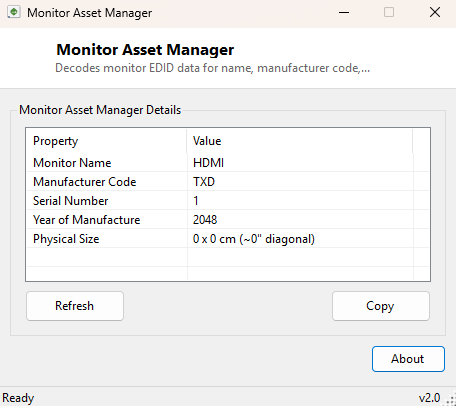
Monitor Asset Manager decodes the raw EDID (Extended Display Identification Data) block every monitor broadcasts to Windows, extracting the display's actual name, manufacturer code, serial number and physical screen size — information manufacturers embed at the firmware level that Windows itself uses internally but rarely surfaces anywhere in its own Settings UI.
Key Features
- Decodes the monitor's user-friendly name directly from EDID data
- Extracts the manufacturer code and hardware serial number
- Reports physical screen dimensions in centimeters with an estimated diagonal size in inches
- Reads the manufacture year where the EDID block includes it
- Works without any monitor driver or manufacturer software installed
Why You Might Need This Tool
Asset tracking in an office or lab environment is the most common practical use — being able to confirm a monitor's exact model and serial number without physically checking a label on the back of the panel (which is often impossible once it's wall-mounted or pushed against a wall) saves real time. It is equally useful when buying a used monitor and wanting to confirm its actual manufacture date, or when a monitor is misbehaving and you need its exact identification to search for a firmware update or support article — Windows' own Device Manager often just shows a generic "Generic PnP Monitor" entry that tells you nothing useful.
How It Works
The tool queries the WmiMonitorID class in the root\WMI
namespace, which exposes several of the monitor's raw EDID fields as arrays of 16-bit
unsigned integers rather than plain strings — Windows stores them this way because EDID
itself is a binary format, and each array element corresponds to one character code. The
tool's DecodeEdidString helper filters out zero-padding values and converts
each remaining number back to its character with Convert.ToChar, reassembling
the array into a readable string for UserFriendlyName,
ManufacturerName and SerialNumberID. Separately, it queries
WmiMonitorBasicDisplayParams for MaxHorizontalImageSize and
MaxVerticalImageSize — the panel's physical width and height in centimeters —
and calculates an estimated diagonal size in inches using the Pythagorean theorem
(√(width² + height²) / 2.54), giving you the familiar "24 inch" style figure
monitors are usually marketed by, derived directly from the physical panel dimensions
rather than trusted from a label.
How to Use It
Launch the tool; it immediately reads and displays EDID data for the connected monitor(s). Click Refresh after connecting a different display or docking to a new monitor to re-read the current EDID data.
System Requirements & Notes
No administrator rights are required. Accuracy depends entirely on what the monitor's own firmware chooses to populate in its EDID block — some cheaper or older displays omit the user-friendly name or serial number fields, in which case those specific rows will show "N/A" rather than a fabricated value.
Frequently Asked Questions
Why does it show "N/A" for my monitor's name?
Not every monitor's firmware populates every optional EDID field — some budget or older
displays only include the mandatory manufacturer and timing data, omitting the
human-readable name and serial fields entirely.
Does this work over a docking station or KVM switch?
Generally yes, since EDID is read at the display-connection level Windows itself manages,
though some older KVM switches are known to pass through a cached or generic EDID rather
than the real monitor's data.