Overview
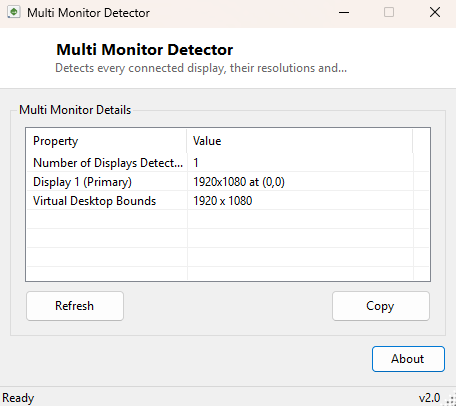
Multi Monitor Detector gives you an instant, accurate snapshot of every display Windows currently recognizes as part of your desktop — how many there are, what resolution each one is running, where each one sits relative to the others, and which one is currently set as primary. It is a small, purpose-built alternative to opening Settings → Display and manually clicking through each numbered monitor to build the same picture yourself.
The tool is particularly handy immediately after connecting or disconnecting a monitor, docking or undocking a laptop, or troubleshooting a window that mysteriously opened off-screen on a display that is no longer connected — a common annoyance after unplugging a second monitor without first moving open windows back to the primary screen.
Key Features
- Lists every currently connected display with its exact resolution
- Shows each display's position relative to the others (X/Y desktop coordinates)
- Clearly marks which display is set as the Windows primary monitor
- Reports the combined virtual desktop bounding size across all displays
- Instant re-scan any time a display is connected or disconnected
- Zero configuration, single-window interface
Why You Might Need This Tool
Multi-monitor setups are notoriously fiddly to reason about from memory, especially once you have three or more displays at different resolutions arranged in an L-shape or with one rotated to portrait orientation. When a window opens in the wrong place, when a game or presentation software picks an unexpected "primary" display, or when you are remotely helping someone describe their monitor arrangement over a phone call, having an exact, unambiguous readout of positions and resolutions removes all the guesswork from the conversation.
How It Works
The tool uses the .NET System.Windows.Forms.Screen class, specifically
Screen.AllScreens, which internally wraps the Win32
EnumDisplayMonitors API that Windows itself uses to build the desktop
layout. For each screen object it reports the Bounds rectangle (giving
both resolution and X/Y position within the overall virtual desktop), and checks the
Primary flag to identify which display Windows treats as the main one.
It additionally reads SystemInformation.VirtualScreen to report the
total bounding rectangle that spans every display combined — the same coordinate
space application windows are positioned within.
How to Use It
Launch the tool and every connected display appears immediately with its resolution, position and primary status. After changing your monitor arrangement in Windows Settings, or physically connecting/disconnecting a display, simply reopen or refresh the tool to see the updated layout reflected instantly.
System Requirements & Notes
Runs on 64-bit Windows 10 and 11 with no administrator rights required — display enumeration is standard, unprivileged desktop information available to any application.
Frequently Asked Questions
Does this work with displays connected via a docking station?
Yes — any display Windows itself recognizes as part of the desktop, regardless of
connection method (direct, docking station, or USB-C hub), appears in the list.
Can I use this to fix a window stuck off-screen?
This tool identifies the problem precisely (confirming a display is no longer
connected), but moving the stuck window back is done through Windows itself — right-click
its taskbar icon and choose Move, then use arrow keys, or hold Shift and right-click
for more options.