Overview
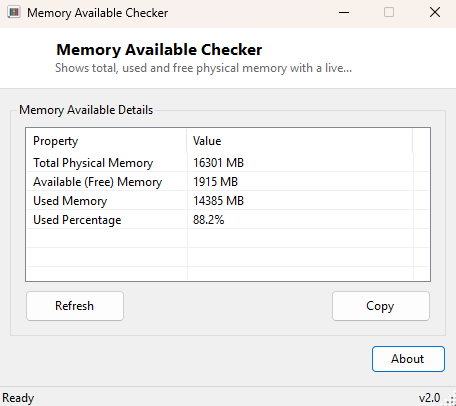
Memory Available Checker gives you a single, clear snapshot of total, used and free physical memory, plus a calculated usage percentage — the same core numbers Task Manager's Performance tab shows, but presented as a static, easily-read report rather than a live graph you have to interpret visually. It is the simplest possible tool for the simplest possible question: how much RAM is actually free right now?
Key Features
- Shows total physical memory installed, in megabytes
- Shows currently available (free) memory
- Calculates and shows currently used memory
- Displays a used-memory percentage figure
- No scanning delay — reads instantly on launch
- One-click copy of the full report to the clipboard
Why You Might Need This Tool
Sometimes you just need one clean number rather than Task Manager's full graph and process list — confirming a system genuinely has enough free memory before starting a memory-hungry task, checking whether a reported "out of memory" error from another application is plausible, or simply satisfying curiosity about how much of your installed RAM is actually in use at a quiet moment, all fit this tool's single-purpose scope better than opening the full Task Manager.
How It Works
The tool queries Win32_OperatingSystem through WMI for
FreePhysicalMemory and TotalVisibleMemorySize, both reported
in kilobytes by WMI's convention. The tool converts both to megabytes for readability,
calculates used memory as the difference between the two, and computes the used
percentage as usedKB / totalKB * 100, rounded to one decimal place. This
is the same underlying data source Task Manager itself draws from, so the numbers will
always agree.
How to Use It
Open the tool and the full memory report appears immediately. Click Refresh to re-check after closing a memory-heavy application, to see the immediate effect on free memory. Use Copy to place the report on the clipboard for a support ticket or troubleshooting note.
System Requirements & Notes
Runs on 64-bit Windows 10 and Windows 11 and needs no administrator rights — memory usage totals are readable by any standard user account through WMI.
Frequently Asked Questions
Why does "used" memory seem higher than what my open programs should need?
Windows itself, background services, and file system caching all consume physical
memory beyond what your visibly open applications use — a certain amount of "used"
memory at idle is completely normal and does not indicate a problem.
Is having very little free memory always bad?
Not necessarily — Windows is designed to use available RAM for caching to improve
performance, and will release it instantly if an application needs it, so a high usage
percentage at idle is not automatically a sign of trouble.
Does this show virtual memory or only physical RAM?
Only physical RAM installed in the system — for page file (virtual memory) usage, see
Page File Usage Monitor instead.