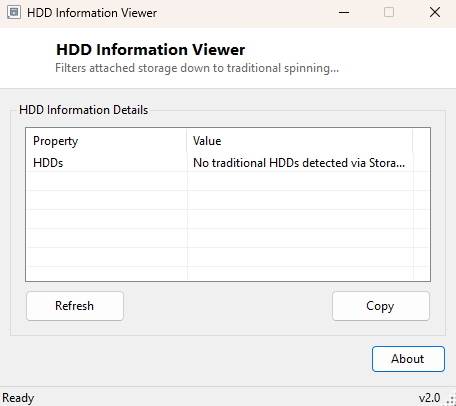
Overview
HDD Information Viewer is the mirror image of SSD Information Viewer — it filters your system's attached drives down to traditional spinning hard disks only, showing model, bus type, capacity and health for each one. Even in an SSD-dominated world, spinning disks are far from extinct: they remain the most cost-effective option for bulk storage, network-attached storage boxes, media servers and archival backups, where raw capacity per dollar still matters more than the latency advantage a solid-state drive offers. This tool exists for anyone who still has one or more of these drives in active use and wants a clean, filtered view of exactly those devices.
Mechanical hard disks age and fail differently than solid-state drives — they are vulnerable to physical shock, bearing wear, and the kind of slow degradation that SMART attributes were originally designed to catch decades before SSDs existed. Being able to isolate exactly which drives in a system are spinning media is the first step toward monitoring them appropriately and planning replacement before a mechanical failure takes irreplaceable data with it.
Key Features
- Automatically filters the system's drive list to spinning hard disks only
- Shows friendly model name, bus type and total capacity
- Reports a live health status from the drive's own controller
- Uses the modern Storage Management provider, not legacy disk-drive APIs
- Instant, no-scan results
- Read-only — makes no changes to any drive
Why You Might Need This Tool
NAS and home-server builders reach for a tool like this constantly when confirming that every bay in a multi-drive array is correctly recognized before configuring RAID or a storage pool — a drive that silently fails to enumerate at the expected capacity is much easier to catch before data goes onto the array than after. It is equally useful for anyone maintaining an older desktop that still boots from or stores data on a mechanical drive, where periodically checking health status is a genuinely worthwhile habit given how much more failure-prone spinning media is compared to flash storage. And when a system mixes drive types, filtering the list down to just the spinning disks removes the noise of scrolling past SSDs that aren't the one you're actually investigating.
How It Works
The tool queries the same modern Storage Management provider used by
SSD Information Viewer —
MSFT_PhysicalDisk in the root\Microsoft\Windows\Storage
WMI namespace — but filters with MediaType=3, the value Windows uses
internally to mean rotational (spinning) media, rather than the solid-state value
of 4. For each matching disk it reads FriendlyName,
Size (converted to gigabytes), BusType and
HealthStatus, exactly mirroring the SSD tool's field set so the two
programs' output is directly comparable side by side.
How to Use It
Launch the program and every spinning hard disk currently attached appears immediately. An empty result on an all-SSD system is expected and correct — check SSD Information Viewer instead. If a drive you know is mechanical does not appear, its controller may be reporting a media type Windows doesn't cleanly classify as rotational; Drive Information Tool shows the full unfiltered list for comparison.
System Requirements & Notes
Runs on 64-bit Windows 10 and Windows 11 and does not require administrator rights.
Frequently Asked Questions
Can this tell me a specific drive's RPM?
Not directly — for spindle speed specifically, use
Drive Rotation Speed Viewer, which
reads that field explicitly.
Why does my drive show here instead of in the SSD tool?
Windows classified its reported media type as rotational rather than solid-state.
This is occasionally seen with certain external USB enclosures that don't pass
through accurate media-type reporting from the drive inside them.