Overview
Drive Rotation Speed Viewer answers a question that used to require opening the case and reading a sticker: is this drive a traditional spinning hard disk, and if so, how fast does its platter spin — 5400 RPM, 7200 RPM, or something faster? On a modern system with a mix of SSDs and HDDs, being able to instantly tell which drive letter maps to which physical technology, without shutting down and physically inspecting anything, is genuinely useful — especially on prebuilt systems and laptops where the exact drive model is not always documented anywhere accessible.
Key Features
- Reports rotational speed in RPM for every physical disk, when the drive exposes it
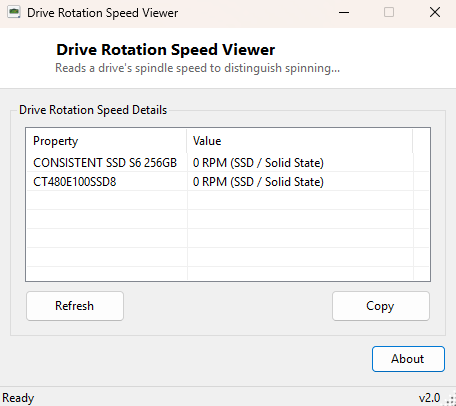
- Clearly labels solid-state drives as "0 RPM (SSD / Solid State)" rather than an ambiguous zero
- Falls back to "Unknown" cleanly when a drive doesn't report spindle speed data at all
- Uses the same friendly drive name shown elsewhere in Windows Storage Management
- Copy-to-clipboard for the full drive list
Why You Might Need This Tool
The clearest use case is confirming drive technology on a system you did not personally build — inheriting a used laptop, buying a prebuilt desktop, or managing a fleet of office PCs where the original purchase specs have long since been lost. A second, closely related use is planning a storage upgrade: knowing definitively that your secondary drive is a spinning 5400 RPM disk (rather than assuming, based on the system feeling generally fast, that everything is already SSD) tells you exactly where the next upgrade dollar will have the biggest impact on real-world responsiveness. It is also a fast sanity check after cloning a drive or replacing a failed one, confirming the new hardware is what you actually ordered.
How It Works
The tool queries the modern Storage Management WMI provider — specifically
MSFT_PhysicalDisk in the root\Microsoft\Windows\Storage
namespace, the same provider behind PowerShell's Get-PhysicalDisk
cmdlet — reading the FriendlyName, SpindleSpeed and
MediaType fields. A SpindleSpeed value of exactly 0 is
interpreted as a solid-state drive reporting itself correctly rather than an error; a
value of 0xFFFFFFFF (the maximum 32-bit unsigned value) is the storage
driver's explicit "unknown/not reported" sentinel, which the tool displays plainly as
"Unknown" rather than as a nonsensical multi-billion RPM figure. Any other value is
shown directly as the reported RPM. Because this newer Storage Management namespace is
not present or populated identically on every system, the tool wraps its query in
error handling and reports a clear status message if the namespace itself is
unavailable, rather than crashing.
How to Use It
Launch the tool and every physical disk appears with its friendly name and rotation reading. A drive showing "0 RPM (SSD / Solid State)" is confirmed solid-state; a drive showing a specific number like "7200 RPM" is a traditional spinning hard disk running at that speed. "Unknown" simply means the drive's controller did not report this particular field — this is common on some external USB enclosures and does not indicate a problem with the drive itself.
System Requirements & Notes
Runs on 64-bit Windows 10 and Windows 11, no administrator rights required. The Storage Management WMI namespace this tool depends on has been present since Windows 8 and Windows Server 2012 and is standard on all supported Windows 10/11 builds.
Frequently Asked Questions
My external USB hard drive shows "Unknown" instead of an RPM — why?
Many USB-to-SATA/USB-to-NVMe bridge chipsets do not pass the underlying drive's
spindle speed field through to Windows' storage provider, so "Unknown" here usually
just reflects a limitation of the enclosure's bridge chip rather than the drive
itself.
Is a higher RPM always better?
For traditional hard disks, yes — 7200 RPM drives generally offer faster sequential
and random access than 5400 RPM drives — but any spinning drive is still dramatically
slower than even an entry-level SATA SSD, let alone NVMe.