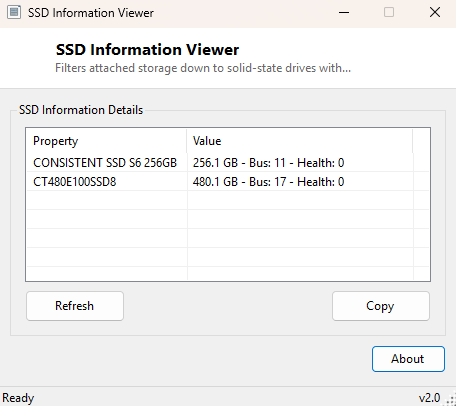
Overview
SSD Information Viewer filters your system's full drive list down to solid-state drives only, showing exactly the details that matter for that specific class of storage — bus type, capacity and a live health status pulled from the drive's own controller. On a system with a mix of an NVMe boot drive, a SATA SSD, and maybe an older spinning hard disk for bulk storage, digging through Disk Management to find just the solid-state devices means reading model numbers and guessing. This tool does the filtering for you and shows only what actually is solid-state.
The distinction matters because SSDs and HDDs are genuinely different devices that deserve different maintenance approaches — SSDs should never be defragmented the way a traditional hard disk benefits from it, TRIM matters enormously for sustained write performance, and endurance is measured in total bytes written rather than mechanical wear. Knowing at a glance which of your drives fall into this category is the first step toward treating each one correctly.
Key Features
- Automatically filters the system's drive list to solid-state media only
- Shows friendly model name, bus type (NVMe, SATA, USB) and capacity
- Reports a live health status pulled directly from the drive controller
- Uses the modern Storage Management provider rather than legacy disk APIs
- Instant results, no scanning delay
- Read-only — makes no changes to any drive
Why You Might Need This Tool
People building or upgrading a PC often want a quick confirmation that a newly-installed NVMe or SATA SSD is recognized correctly at its full rated capacity and bus speed before trusting it with an operating system install. It is equally useful when triaging a "system feels slow" complaint, since confirming whether the boot drive genuinely is solid-state (rather than assuming) is one of the first things worth checking — a surprising number of budget prebuilt PCs still ship with a small SSD cache paired with a much larger, much slower spinning disk as the primary volume. Health status at a glance also matters before a big data migration or a system rebuild, since starting that work on a drive already showing degraded health is asking for trouble partway through.
How It Works
The tool queries the modern Storage Management WMI provider at
root\Microsoft\Windows\Storage, requesting the
MSFT_PhysicalDisk class with a filter of MediaType=4,
which is the enumeration value Windows uses internally to mean solid-state media —
the same provider PowerShell's Get-PhysicalDisk cmdlet and the modern
Settings storage pages both use. For each matching disk it reads
FriendlyName, Size (converted from bytes to gigabytes),
BusType and HealthStatus. This is a meaningfully more
modern and more reliable data source than the legacy Win32_DiskDrive
class older tools rely on, since the Storage Management provider was purpose-built
with SSD-aware fields from the start rather than retrofitted onto a spinning-disk
era API.
How to Use It
Launch the program and every solid-state drive currently attached appears immediately. If the list comes back empty on a system you know has an SSD, that usually means the Storage Management provider itself is unavailable (uncommon, but seen on some older Windows builds or storage driver combinations) — the tool reports that condition explicitly rather than silently showing nothing.
System Requirements & Notes
Runs on 64-bit Windows 10 and Windows 11 and does not require administrator rights — the Storage Management WMI provider is readable by standard users.
Frequently Asked Questions
My SSD isn't showing up here — what's wrong?
Confirm it appears at all in Disk Management first. If it does but is missing
here, the drive may be reporting a media type Windows doesn't classify as
solid-state — check HDD Information Viewer
to see if it was categorized there instead.
Does "Health Status" here mean the same as SMART data?
It draws from a related but higher-level source — the Storage Management
provider's own health assessment. For raw SMART attribute detail, use
Drive SMART Viewer.