Overview
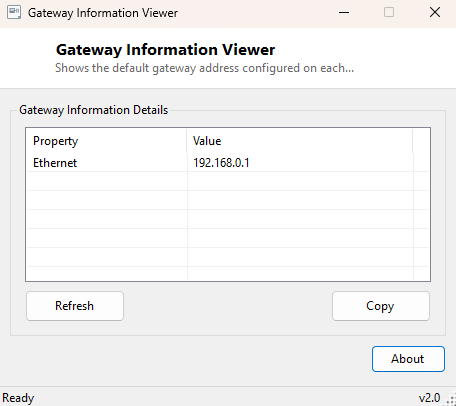
Gateway Information Viewer shows the default gateway address — the router your PC sends all non-local traffic through — configured on each active network adapter. On a machine with a single Wi-Fi connection this is a one-line answer, but on machines with multiple adapters active at once (Ethernet and Wi-Fi both connected, a VPN layered on top, a virtual adapter from a hypervisor) it becomes genuinely useful to see exactly which adapter is pointing at which gateway, since routing problems often trace back to the wrong adapter winning that competition.
Key Features
- Lists the default gateway address for every currently active network adapter
- Labels each gateway entry with its owning adapter name
- Automatically filters out adapters with no valid gateway (0.0.0.0)
- Clearly reports when no active gateway is found at all
- Refreshes instantly when network connections change
- One-click copy of the full report to the clipboard
Why You Might Need This Tool
Accessing a router's admin panel almost always starts with typing its gateway address into a browser, and on a machine with several active adapters it is easy to type the wrong one, or the wrong router entirely if you have recently switched networks. This tool is also useful for diagnosing routing confusion — if internet access unexpectedly stops working after connecting a VPN or a second network adapter, seeing every adapter's gateway side by side quickly reveals whether two adapters are both claiming a default route, which is a common cause of intermittent connectivity problems.
How It Works
The tool loops through every adapter from
System.Net.NetworkInformation.NetworkInterface.GetAllNetworkInterfaces(),
keeping only adapters with OperationalStatus.Up, and for each one reads
GetIPProperties().GatewayAddresses. Any gateway entry equal to
0.0.0.0 — which Windows uses to represent "no gateway configured" on
that particular adapter — is filtered out, since displaying it would just add noise
for connections that are active but not actually routing traffic anywhere.
How to Use It
Open the tool and every active adapter's real gateway address is listed immediately. If a message reading "No active gateway found" appears, it means none of your current adapters have a default route configured, which is unusual outside of an offline machine or one connected only to an isolated local network. Copy the report before typing an address into your browser to log into a router.
System Requirements & Notes
Runs on 64-bit Windows 10 and Windows 11 and needs no administrator rights, since gateway configuration is readable by any standard user account.
Frequently Asked Questions
Why do I see two different gateway addresses?
This is normal on a machine with more than one active network connection — each
adapter can have its own independent gateway, and Windows decides which one handles
general internet traffic based on route metrics, not simply which was configured last.
My gateway is 192.168.1.1 but the admin page won't load — why?
Confirm you are typing http:// rather than https:// unless
your router specifically supports HTTPS admin access, and confirm the adapter showing
that gateway is actually the one currently in active use.
Can this tool change my gateway setting?
No — it is read-only by design. To change adapter IP or gateway settings, use Windows'
own network adapter properties dialog or DNS Changer
for DNS-specific changes.