Overview
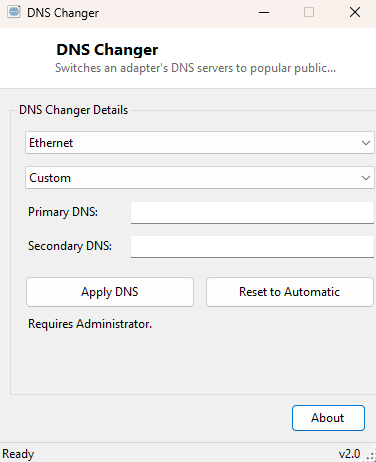
By default, most home internet connections use whatever DNS servers your ISP hands out through DHCP — and while that works, it is rarely the fastest or most private option available. Independent public DNS resolvers from Google, Cloudflare and Quad9 are frequently faster, sometimes offer built-in malware or phishing domain filtering, and in Quad9's case specifically avoid logging query data tied to your IP address. Switching to one of them normally means opening adapter properties, finding IPv4 settings, selecting "Use the following DNS server addresses," and typing two numeric addresses by hand — a fiddly process worth automating. DNS Changer reduces the whole thing to picking a preset from a dropdown and clicking Apply.
Key Features
- One-click presets for Google (8.8.8.8/8.8.4.4), Cloudflare (1.1.1.1/1.0.0.1) and Quad9 (9.9.9.9/149.112.112.112)
- Custom mode for entering any primary and secondary DNS address manually
- Per-adapter selection so only the connection you choose is affected
- One-click Reset to Automatic restores DHCP-assigned DNS servers
- Status message confirms exactly which adapter and servers were applied
- No changes persist beyond what you explicitly apply — nothing runs in the background
Why You Might Need This Tool
Slow or unreliable DNS resolution is a surprisingly common, easily overlooked cause of web browsing feeling sluggish even when raw download speed tests look perfectly fine — every new domain name has to be resolved before the browser can even start connecting, and a slow or overloaded ISP resolver adds that delay to every single site the first time you visit it in a session. Switching to a fast, well-provisioned public resolver often produces an immediately noticeable improvement. Some public resolvers also add value beyond raw speed: Cloudflare emphasizes minimal logging and published third-party privacy audits, while Quad9 actively blocks resolution of domains known to host malware and phishing, functioning as a free extra layer of protection that requires no client software at all.
How It Works
The tool enumerates active adapters through
NetworkInterface.GetAllNetworkInterfaces(), filtering to those that
are up and not the loopback interface. Applying a change runs
netsh.exe interface ip set dns name="<adapter>" static
                    <primary> primary
to set the first server, followed by
netsh.exe interface ip add dns name="<adapter>" <secondary>
                    index=2
to add the second, both launched through an elevated process since
modifying adapter IP configuration is an administrative operation in Windows.
Resetting to automatic runs the single command netsh.exe interface ip set
dns name="<adapter>" dhcp, which discards the static entries and
instructs the adapter to resume accepting whatever DNS servers its DHCP lease
provides. This is precisely the same netsh syntax IT administrators have scripted
for years — the tool's only real contribution is removing the need to remember or
type it.
How to Use It
Choose the target adapter from the dropdown, pick a preset (or select Custom and type your own primary/secondary addresses), and click Apply DNS. Approve the UAC prompt. To revert to your ISP's default servers at any point, select the adapter and click Reset to Automatic.
System Requirements & Notes
Changing DNS settings requires administrator rights. Changes apply only to the specific adapter selected — if your PC has both Wi-Fi and Ethernet active simultaneously, remember to change both if you want consistent behavior regardless of which connection is currently in use.
Frequently Asked Questions
Will this slow down or speed up my internet connection itself?
DNS only affects how quickly domain names resolve to IP addresses, not your raw
bandwidth — actual page load and download speed depend on your connection and the
server you're reaching, not which DNS resolver answered the initial lookup.
Does Quad9's blocking affect legitimate sites by mistake?
Rarely, but it can happen with any blocklist-based filtering; if a specific known-
safe site suddenly fails to resolve after switching, that preset's filtering is the
first thing worth testing against by temporarily switching to a different preset.
Is a custom DNS setting saved permanently until I change it?
Yes — like any adapter IP setting, it persists across reboots until you either
apply a different value or use Reset to Automatic.