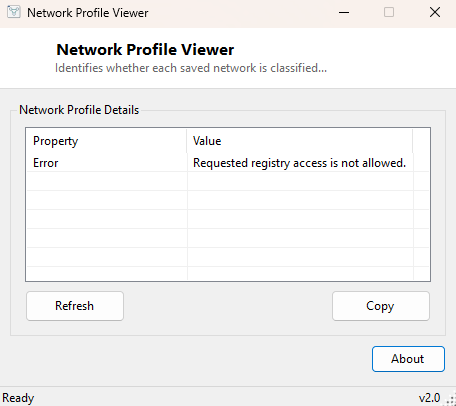
Overview
Every network Windows connects to gets silently classified as Public, Private or Domain, and that classification quietly controls a surprising amount of behavior — how aggressively the firewall filters incoming connections, whether file and printer sharing is offered, whether the PC is discoverable to other devices on the same network. Most people never see this classification directly; it happens once, automatically, the first time you connect to a new network, and from then on it is buried in Settings behind more clicks than most people bother with. Network Profile Viewer surfaces that hidden classification for every network profile Windows has ever saved, in one glance.
This matters more than it sounds. A network mistakenly left classified as Public when it should be Private (or the reverse) is one of the most common causes of "why can't I see other computers on my home network" and "why does file sharing not work" support requests — and the fix is often as simple as recognizing the misclassification exists in the first place.
Key Features
- Lists every saved network profile with its current classification
- Distinguishes Public, Private and Domain categories clearly
- Reads directly from the same store Windows itself maintains
- Refresh button to pick up profiles for newly connected networks
- Copy button exports the list as plain text
- Read-only — never changes a network's classification
Why You Might Need This Tool
The most direct use case is troubleshooting file sharing or network discovery that "used to work" and mysteriously stopped — often traced back to a network profile that got reclassified as Public after a router firmware update or a Windows update reset network settings. IT technicians setting up a new PC on a home network also use this to confirm the profile was correctly detected as Private (or Domain, on a managed network) before assuming file sharing should be working. It is a quick, no-guesswork way to check the one setting that most people do not even know exists, but that governs an entire category of "it should be discoverable but isn't" problems.
How It Works
Windows stores its network profile classifications in the registry under
HKEY_LOCAL_MACHINE\SOFTWARE\Microsoft\Windows NT\CurrentVersion\NetworkList\Profiles,
with one subkey per saved network profile. The tool opens this key and iterates
each profile subkey, reading the ProfileName value for a
human-readable network name and the Category value, a small integer
(0 for Public, 1 for Private, 2 for Domain) that the tool maps to its plain-English
label using a lookup table. This is the same registry location the Network List
Manager and Windows Settings ultimately read from, so the classification shown
here is exactly what Windows itself is currently enforcing — there is no
separate, potentially stale data source involved.
How to Use It
Open the program and every saved network profile appears with its classification. After connecting to a new network for the first time, click Refresh to pick up its newly created profile entry. Use Copy to export the list.
System Requirements & Notes
Runs on 64-bit Windows 10 and Windows 11 with no administrator rights required — reading the NetworkList\Profiles registry key is a standard-user operation. To actually change a network's classification, use Windows Settings' network properties page.
Frequently Asked Questions
Can I change a profile from Public to Private here?
No — this tool is read-only by design. Change it through Windows Settings →
Network & Internet → your connection's properties.
Why do I see profiles for networks I no longer use?
Windows retains a profile entry for every network it has ever connected to unless
you explicitly "forget" that network, so old entries can accumulate over time —
this is normal and not something to worry about.