Overview
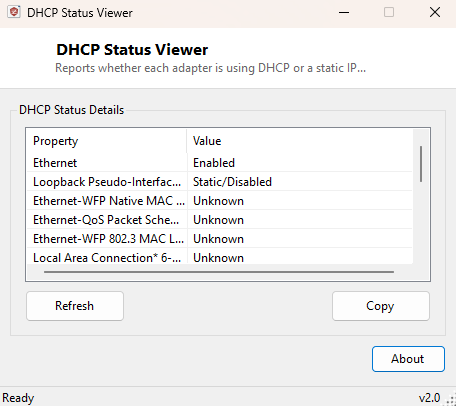
One of the most common self-inflicted network problems is a static IP address left behind after a router change, a VPN configuration, or a "quick fix" from months ago that nobody remembered to undo. When two devices on the same network end up with conflicting static addresses, or a static address falls outside a router's new subnet range after a network upgrade, the symptoms — intermittent connectivity, being unable to reach certain devices, or losing internet access entirely after a router reboot — rarely point directly back to the real cause. DHCP Status Viewer answers the first and most important diagnostic question in that scenario immediately: is this adapter getting its address automatically, or is it configured with a fixed one?
The tool checks every adapter with an active IP configuration, not just the one currently in use for internet traffic, which is useful on machines with multiple active network paths — a wired connection and Wi-Fi both enabled, for example — where only one of them might be silently misconfigured.
Key Features
- Reports DHCP-enabled versus static configuration for every active adapter
- Covers every IP-enabled adapter, not just the primary connection
- Refresh button to re-check after changing adapter settings
- Copy button exports the results as plain text
- Fast, synchronous check with no waiting
- Purely diagnostic — never changes an adapter's configuration itself
Why You Might Need This Tool
This tool is most useful the moment a "why can't this PC get online" ticket lands on your desk and the cause is not obvious. A device configured with a leftover static IP from an old network will often show a full-strength Wi-Fi or Ethernet link — because the physical connection is fine — while being completely unable to reach the internet, because its address, gateway or DNS server no longer make sense on the current network. Checking DHCP status takes seconds here and rules out (or confirms) that entire class of problem before you go looking anywhere else. It is equally useful during IT audits, confirming that machines which are supposed to be using DHCP-issued addresses from a central pool have not drifted onto ad-hoc static configurations set by a well-meaning but undocumented change.
How It Works
The tool enumerates active network interfaces via .NET's
NetworkInterface.GetAllNetworkInterfaces(), filtering to those
reporting an OperationalStatus of Up. For each one, it retrieves the
interface's IP properties and calls GetIPv4Properties(), reading the
IsDhcpEnabled flag this returns — the same underlying configuration
state Windows' own Network Connection Details dialog reads to populate its "DHCP
Enabled" field. Because this comes directly from the adapter's live IP
configuration rather than a registry snapshot, the result reflects the adapter's
actual current state, including any manual override applied after the last DHCP
lease was obtained.
How to Use It
Open the program and the DHCP status of every active adapter appears immediately. After changing an adapter's IP settings, click Refresh to confirm the change took effect. Use Copy to export the results.
System Requirements & Notes
Runs on 64-bit Windows 10 and Windows 11 with no administrator rights required — reading an adapter's DHCP status is a standard-user operation, unlike changing it.
Frequently Asked Questions
Can this tool switch an adapter to DHCP for me?
No, it is read-only by design. To change an adapter's DNS configuration, see
DNS Changer; for full IP address changes, use
Windows' own adapter settings or netsh.
Why does one adapter show DHCP and another shows static?
That is common and often intentional — a wired connection is sometimes given a
fixed address for a specific reason (port forwarding, a static-IP-only service)
while Wi-Fi remains on automatic DHCP. Verify this matches what you expect for
each adapter's purpose.