Overview
Drive Temperature Monitor keeps a live eye on how hot your storage is running. Modern NVMe SSDs in particular are notorious for thermal throttling under sustained write loads — copy a large file, watch transfer speed crater partway through, and heat is very often the reason. This tool polls drive temperature on a timer and updates its display automatically, so you can watch the number climb (or plateau, or thankfully stay flat) while a heavy operation runs in the background, rather than guessing after the fact why a copy slowed down.
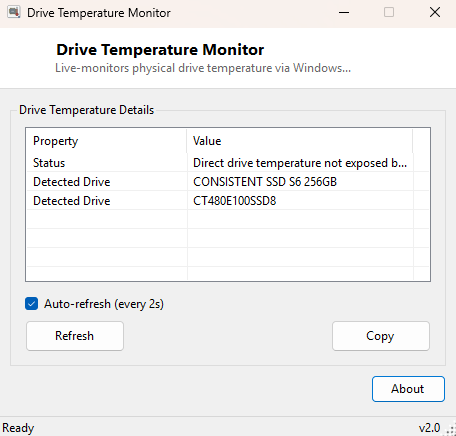
Not every drive reports temperature the same way, and not every system exposes it at all — this tool is upfront about that rather than inventing a number when none is actually available.
Key Features
- Live-updating temperature readout with an auto-refresh checkbox
- Configurable-feeling default polling interval tuned for storage (every few seconds, not aggressively fast)
- Falls back gracefully with a clear message on drives or systems that do not expose temperature data
- Lists the detected drive model alongside its temperature reading
- Manual Refresh button for an on-demand single reading
- No installation, no background service outside the app's own runtime
Why You Might Need This Tool
Anyone doing sustained large-file work — video editing off an external NVMe drive, large game installs, big backup jobs, or database restores — benefits from watching drive temperature the same way overclockers watch CPU temperature. An SSD that starts a transfer fast and then visibly slows down partway through is very often thermal throttling in action, and confirming that with a live temperature readout turns a vague "my drive feels slow" complaint into a concrete, actionable diagnosis (usually: improve airflow around the drive, or avoid running it without a heatsink under sustained load).
How It Works
The tool uses the modern Windows Storage Management API rather than the older,
less-reliable SMART temperature attribute. Specifically, it enumerates physical disks
through the root\Microsoft\Windows\Storage WMI namespace's
MSFT_PhysicalDisk class, then invokes each disk object's
GetStorageReliabilityCounter method — the same mechanism PowerShell's
Get-StorageReliabilityCounter cmdlet uses internally — to retrieve a
Temperature value directly from the drive's own controller. This is
generally more consistent across NVMe and SATA drives than parsing raw SMART
attribute 194 by hand, though it still ultimately depends on the drive's controller
actually reporting the value, which is where the "not available" message comes from
on drives or virtual disks that do not.
How to Use It
Launch the tool and leave "Auto-refresh" checked to watch temperature update automatically every few seconds — ideal for keeping visible in a corner of the screen during a large file operation. Uncheck it and use the manual Refresh button instead if you only want an occasional spot check rather than a continuously updating display.
System Requirements & Notes
Runs on 64-bit Windows 10 and Windows 11 without administrator rights — the Storage Management WMI provider exposes reliability counters to standard user accounts. Not every drive controller populates the temperature field; virtual disks, some older SATA HDDs, and certain USB storage bridges commonly do not.
Frequently Asked Questions
Why does it say temperature is unavailable on my drive?
The drive's controller simply is not reporting that value through the Storage
Management API — this is a limitation of the drive or its enclosure, not the tool.
Is a high temperature reading dangerous?
Most consumer NVMe drives are rated to operate safely up to 70–85°C, with
throttling kicking in as a protective measure before real damage occurs — the number
itself is a performance signal more often than a safety emergency.
Does this replace a full SMART health tool?
No — pair it with Drive SMART Viewer for the
complete attribute table, or SSD Health
Percentage Viewer for wear-out data.