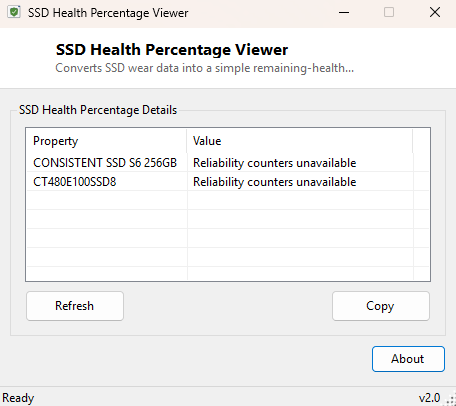
Overview
SSD Health Percentage Viewer takes the same underlying wear data that SSD Wear Level Checker reports and flips it around into the number most people actually want to see at a glance: remaining health, not consumed wear. Rather than reading "12% worn," which requires a moment of mental arithmetic to translate into how much life is left, this tool does that subtraction for you and presents a clean "88% health remaining" figure instead — the same framing used by the health percentage displayed in Windows' own Optimize Drives tool and most consumer SSD vendor utilities.
Like its sibling tool, it works across any SSD brand that populates the standard Windows Storage Management reliability counters, without needing a manufacturer-specific application or an online account.
Key Features
- Converts raw drive wear data into an intuitive remaining-health percentage
- Automatically filters to SSDs only, labeling other drive types clearly
- Universal — works with any SSD controller that reports standard reliability counters
- No vendor account, cloud service, or bundled software required
- One-click Copy to clipboard
- Instant startup, single-window interface
Why You Might Need This Tool
A single, easy-to-interpret health percentage is often exactly what you need when deciding whether a drive is safe to keep relying on for another year, when documenting the condition of a machine before selling or retiring it, or when comparing several SSDs in a multi-drive workstation to decide which one to prioritize for replacement first. Presenting the figure as remaining health rather than consumed wear also makes it far easier to explain to someone less technical — "88% healthy" is immediately understandable in a way "12% worn" requires a beat of translation for.
How It Works
Exactly like SSD Wear Level Checker, the tool enumerates physical disks through
MSFT_PhysicalDisk in the root\Microsoft\Windows\Storage
namespace, filters to drives whose MediaType equals 4 (solid-state), and
invokes each disk's GetStorageReliabilityCounter WMI method to retrieve
its Wear field. The one difference is presentation: rather than showing
the raw wear percentage directly, the tool computes 100 - wear and
labels the result "health remaining," which is simply the same underlying,
firmware-reported number expressed the other way around. Because both figures come
from the identical reliability counter, they will always add up to exactly 100%
between the two tools.
How to Use It
Launch the tool and every SSD in the system appears with its remaining-health percentage. Non-SSD drives are clearly labeled rather than assigned a misleading figure. Re-check periodically — quarterly or after any unusually write-heavy period, such as a large video-editing project — to track the trend over time rather than relying on a single reading in isolation.
System Requirements & Notes
Runs on 64-bit Windows 10 and 11. As with SSD Wear Level Checker, some systems require Administrator rights to successfully invoke the underlying WMI reliability-counter method; relaunch elevated if a drive reports counters as unavailable.
Frequently Asked Questions
Is this the same number Windows' Optimize Drives tool shows?
It reads from the same underlying reliability counter mechanism, so the figures should
match closely, though exact presentation can vary slightly between tools depending on
rounding.
My SSD shows 100% health but I've had it for years — is that normal?
Yes, for a lightly-used drive. Wear accumulates from total bytes written, not simply
time elapsed, so a drive used mostly for light everyday tasks can show minimal wear
even after years in service.