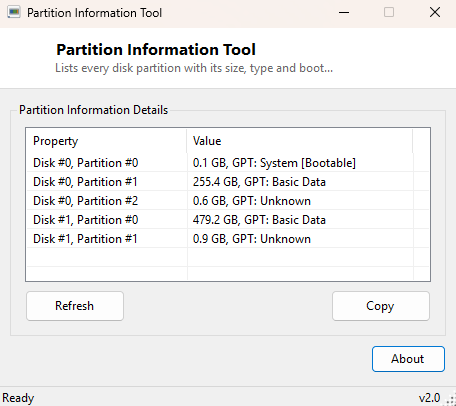
Overview
Partition Information Tool lists every disk partition on your system in a single sortable table, showing size, partition type and whether each entry is flagged bootable. Windows' own Disk Management console shows this information visually as colored blocks on a bar, which is fine for a quick glance but painful when you actually need to read exact byte counts, compare partition types across drives, or confirm which single partition on a multi-boot system carries the active boot flag. This tool strips that down to a plain table you can scan top to bottom in seconds.
It complements rather than replaces the other disk tools in this catalog — where Drive Information Tool reports on whole physical disks and Disk Mount Information reports on drive letters, Partition Information Tool sits at the layer in between: the partition table entries that map physical disk space into the volumes Windows actually mounts.
Key Features
- Lists every partition across every physical disk in one combined table
- Shows exact partition size in gigabytes, not a rounded approximation
- Displays the partition type string as Windows itself classifies it
- Flags which partition(s) are marked bootable
- No filtering or hiding of system/recovery partitions — sees everything Windows sees
- Read-only — makes no changes to partition tables or disk structure
Why You Might Need This Tool
Partition-level detail matters most when something about a disk's layout looks wrong or unexpected. Maybe a drive that should have one large partition shows three small ones after a failed resize operation; maybe you are trying to figure out which of several partitions on a dual-boot machine is actually marked active before running a repair tool; maybe you inherited a machine with an unfamiliar disk layout and need to document it before making any changes. In all of these cases, seeing the raw partition table laid out as data — rather than as colored bars you have to hover over one at a time — makes the picture click into place immediately.
How It Works
The tool queries the Win32_DiskPartition WMI class, requesting the
DeviceID, Size, Type and Bootable
properties for every partition instance Windows currently recognizes across all
physical disks. The raw byte-count Size value is converted to a
human-readable gigabyte figure using standard decimal (1,000,000,000 bytes per GB)
conversion, rounded to one decimal place so drive-size comparisons line up cleanly.
The Bootable boolean is rendered directly as part of each row's label
so an active/bootable partition is visually obvious without needing a separate
column filter. Because this queries WMI's live disk enumeration rather than reading
raw partition table bytes off the disk directly, results always reflect Windows'
current understanding of the disk layout — including any changes made moments
earlier by Disk Management or diskpart.
How to Use It
Launch the tool and the full partition table populates immediately — there is no configuration step. Each row shows the partition's device identifier, its size in GB, its reported type, and a bootable flag where applicable. If you have just made a change with Disk Management, diskpart or a third-party partitioning tool, simply relaunch Partition Information Tool (or use its refresh control if you keep it open) to see the updated layout, since it always queries live WMI data rather than a cached snapshot.
System Requirements & Notes
Runs on 64-bit Windows 10 and Windows 11 and does not require administrator privileges — reading partition metadata through WMI is a standard-user operation. The tool never writes to any partition table and cannot resize, delete or modify a partition; for that, use Disk Management or diskpart directly, ideally after confirming the current layout here first.
Frequently Asked Questions
Does this show hidden and recovery partitions?
Yes. It reports every partition WMI enumerates, including EFI system partitions and
OEM recovery partitions that Windows Explorer normally keeps hidden from view.
Can I use this to resize or delete a partition?
No — this is a read-only reporting tool by design. Use Disk Management or diskpart
for any structural changes; Partition Information Tool is meant to help you
understand the current layout before you touch it with those tools.
Why does the size not exactly match what the drive label says?
Manufacturers advertise capacity in decimal gigabytes while some display
conventions use binary (GiB) rounding; this tool reports the raw WMI byte count
converted to decimal GB, which is the more precise of the two common conventions.