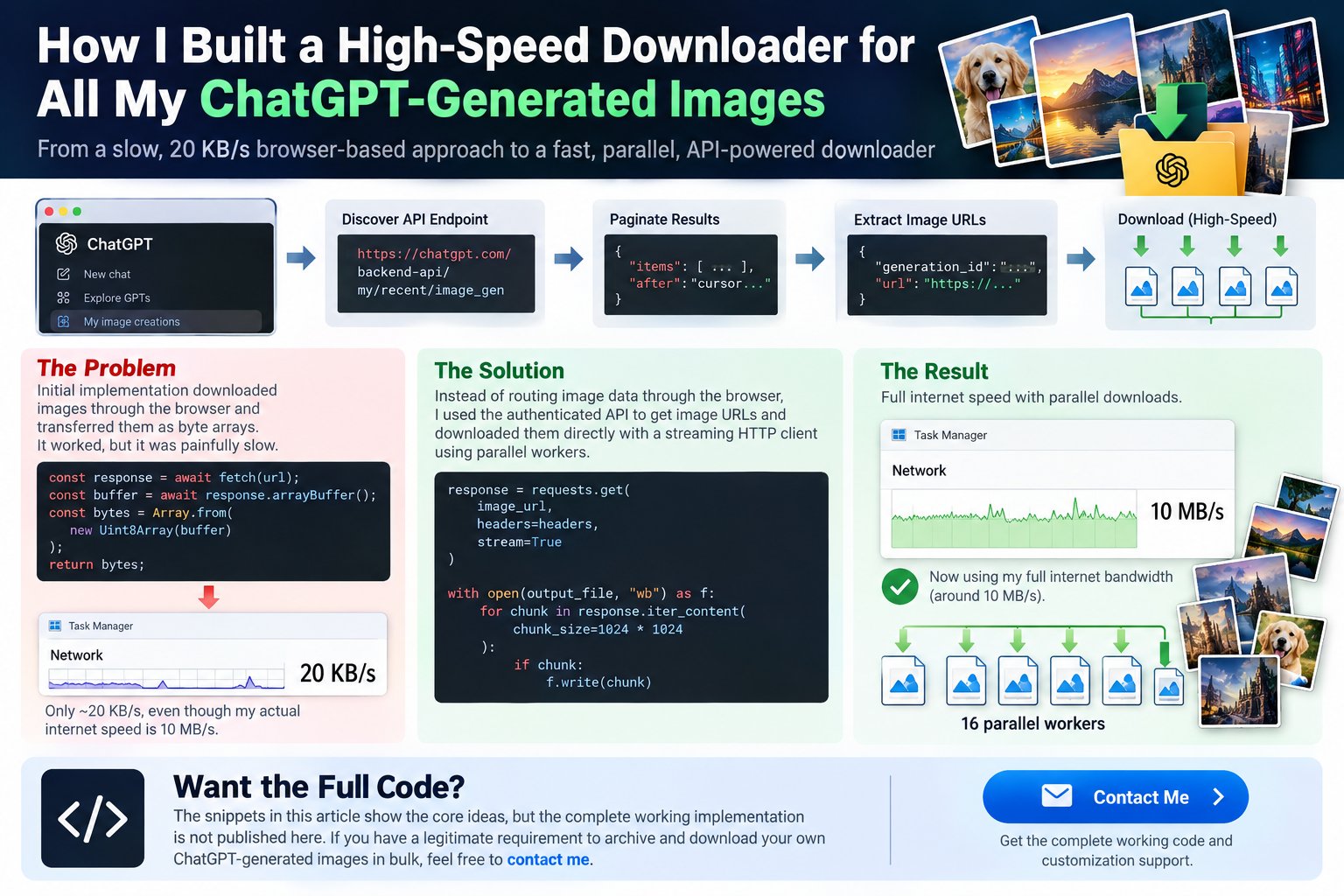
A Real-World Engineering Case Study in API Discovery, Authentication, Pagination, Virtualized UIs and Parallel Downloads
There is a point in every software project where a seemingly simple problem turns into a surprisingly interesting engineering challenge.
For me, that happened with something that initially sounded almost trivial:
“I have generated a huge number of images in ChatGPT. How can I download all of them efficiently to my local computer?”
At first glance, the problem seems simple.
Open the ChatGPT Images page.
Find the images.
Download them.
Done.
Except it wasn’t.
The ChatGPT Images interface is designed as a modern, dynamic, virtualized application. The browser does not simply contain thousands of <img> elements waiting to be scraped. Authentication is not as straightforward as copying a public URL. And even after discovering the underlying image data API, a naïve implementation produced download speeds of only around 20 KB/s, despite having an Internet connection capable of roughly 10 MB/s.
That turned a simple downloader into an interesting engineering exercise.
This article documents that journey.
Not as a generic “scraping tutorial,” but as a real-world case study in debugging a modern web application.
The final architecture became dramatically faster by separating the problem into two completely different jobs:
- Browser: authentication and API discovery
- Python: high-speed direct image downloading
The result was a downloader capable of processing the image history in batches and downloading multiple images concurrently.
I am intentionally not publishing the complete production code in this article. I will show selected implementation concepts and code fragments, but the complete working implementation is something I can provide separately to people who have a genuine technical requirement.
1. Why Would Anyone Need a Bulk ChatGPT Image Downloader?
If you generate images occasionally, downloading them manually is perfectly reasonable.
Generate an image.
Click it.
Save it.
Move on.
But that workflow becomes painful when you have hundreds or thousands of generated images.
In my own case, the requirement was essentially:
I have a large collection of generated images inside ChatGPT and want to maintain a local archive of them.
The destination was a normal Windows directory:
C:\WORKS\chatgpt imagesThe requirements were simple:
Requirement 1 — Download everything
Not just the images currently visible on the screen.
Requirement 2 — Don’t download duplicates
The downloader should be able to run again without downloading everything from scratch.
Requirement 3 — Don’t rely on manually clicking images
That would defeat the entire purpose.
Requirement 4 — Work with a large image library
The solution should not assume that there are only 20 or 50 images.
Requirement 5 — Be fast
This became particularly important.
There is little point in automating a download if the automated system downloads at a tiny fraction of the available network speed.
2. The First Idea: Scrape the Images From the Page
The obvious first approach was browser automation.
Open:
https://chatgpt.com/imagesThen inspect the page.
A first attempt looks conceptually like this:
images = page.locator("img")

for image in images:
    url = image.get_attribute("src")
This is the standard approach people use for many image galleries.
And it works surprisingly often.
But here it didn’t solve the problem.
3. The Virtualized Gallery Problem
The first major discovery was that the Images gallery is not a traditional static HTML gallery.
Modern web applications frequently use virtualization.
Instead of creating thousands of DOM elements:
<img>
<img>
<img>
<img>
...
<img>
for every item in a large collection, the application may create only the elements necessary for the current viewport.
As you scroll:
Current viewport

[Image A]
[Image B]
[Image C]
[Image D]
[Image E]
those elements are recycled.
Then you scroll:
[Image F]
[Image G]
[Image H]
[Image I]
[Image J]
The browser may reuse the same DOM nodes.
This is excellent for application performance.
It is terrible for a naïve DOM scraper.
4. Why Scrolling Alone Didn’t Solve It
The next logical idea was:
Fine. I’ll scroll through the entire gallery and collect every image URL.
That sounds reasonable.
The browser could be instructed to scroll the gallery container:
container.evaluate(
    "el => el.scrollTop = el.scrollHeight"
)
Or scroll repeatedly:
for _ in range(100):
    container.evaluate(
        "el => el.scrollTop += 1000"
    )
    time.sleep(1)
The gallery did indeed continue loading more content.
So initially this looked promising.
But another problem appeared.
The DOM was still virtualized.
Images that had previously been visible could disappear from the DOM.
The same handful of <img> elements were being recycled.
Therefore:
The number of images visible in the DOM was not equal to the number of images in the user’s image library.
This was the first major lesson from the project:
Never assume that a modern web application’s DOM represents the complete underlying dataset.
The UI is a presentation layer.
The data often lives somewhere else.
5. Looking Beyond the DOM
At this point, the correct question became:
Where is the browser getting the image information from?
The browser obviously knows what images to display.
Therefore some form of application data must be arriving from the server.
That led to network inspection.
Instead of asking:
“What images are currently in the DOM?”
the better question was:
“What network request gives the application the list of images?”
This was the breakthrough.
6. Discovering the Image History API
During network inspection, an interesting request appeared:
https://chatgpt.com/backend-api/my/recent/image_gen?limit=25&after=...This was the turning point.
The endpoint was returning JSON.
And the JSON contained records resembling:
{
    "id": "s_58995b7487448191a406e1ad728127ea",
    "kind": "media_generation",
    "generation_id": "s_58995b7487448191a406e1ad728127ea",
    "generation_type": "image_gen",
    "url": "https://chatgpt.com/backend-api/estuary/content?...",
    "width": 1672,
    "height": 941
}
This was much more useful than scraping the HTML.
We now had structured data.
The record contained:
- an image/generation ID
- generation type
- dimensions
- a content URL
Most importantly, the result was not limited to whatever happened to be mounted in the current DOM.
7. The limit=25 Confusion
The first time I saw:
?limit=25it was tempting to think:
“So ChatGPT is only giving me 25 images?”
No.
This is pagination.
The API returns a batch.
Conceptually:
Request #1
     ↓
25 records
     ↓
after cursor
     ↓
Request #2
     ↓
next 25
     ↓
after cursor
     ↓
Request #3
     ↓
next 25
So the actual data structure is more like:
Image history
│
├── Page 1
│   └── 25 images
│
├── Page 2
│   └── 25 images
│
├── Page 3
│   └── 25 images
│
├── Page 4
│   └── 25 images
│
└── ...
The after value acts as a cursor for the next page.
This is a much better architecture than attempting to scrape thousands of dynamically rendered DOM elements.
8. But Then We Hit Authentication
At this point, it seemed like the hard part was solved.
We knew the API.
We knew the JSON structure.
We knew the pagination mechanism.
So the next step was simply:
requests.get(api_url)Unfortunately:
HTTP 401The response was essentially:
{
    "detail": {
        "message": "Unauthorized - Access token is missing"
    }
}
This was another important discovery.
Finding an endpoint does not mean that endpoint is publicly accessible.
The ChatGPT frontend was making an authenticated request.
Our independent HTTP request wasn’t carrying the same authentication information.
9. Why a Normal Browser Cookie Wasn’t Enough
The next attempt was to use the logged-in browser itself.
The idea was:
fetch(url, {
    credentials: "include"
})
But that still produced:
401 Unauthorizedwith a message indicating that an access token was missing.
This told us something important about the authentication architecture:
The frontend request was carrying authentication information beyond simply relying on ordinary cookies.
So the next step was not to guess.
Instead, we inspected the browser’s own request.
10. Capturing the Browser’s Own API Request
The browser was already successfully talking to the API.
Therefore the cleanest diagnostic approach was:
- Open the authenticated ChatGPT Images page.
- Listen to outgoing requests.
- Identify the
image_genrequest. - Inspect the authentication information attached to that request.
- Reuse that authenticated context for our own downloader.
Conceptually, the browser automation layer watches for:
/backend-api/my/recent/image_genand captures the authorization information associated with that request.
For security, the actual token is never printed or stored in the blog post.
The diagnostic output simply confirms:
AUTHENTICATION CAPTURED.
(Token hidden for security.)
That solved the API authentication problem.
11. The First Working Downloader
Once authentication was understood, the downloader could successfully retrieve:
HTTP: 200
Records returned: 25
Then the image records contained URLs such as:
/backend-api/estuary/content?id=file_...The downloader could request those URLs and save the returned image bytes.
At this point, technically, we had a working bulk downloader.
But then we encountered the most interesting performance problem.
12. The Downloader Was Extremely Slow
The first working version was downloading successfully.
But it was painfully slow.
The strange part was that my Internet connection was much faster.
Task Manager showed network utilization around:
~20 KB/swhile the available connection was around:
~10 MB/sThat immediately suggested that the problem wasn’t the Internet connection itself.
The bottleneck was in our software architecture.
13. The Hidden Performance Bottleneck
The first downloader was essentially doing this:
ChatGPT API
      ↓
Browser JavaScript
      ↓
fetch()
      ↓
ArrayBuffer
      ↓
Uint8Array
      ↓
Array.from(...)
      ↓
Playwright
      ↓
Python
      ↓
File
The image data was being transferred through the browser’s JavaScript environment and then serialized back into Python.
For small JSON responses, this is perfectly reasonable.
For large image files, it is a terrible data path.
Imagine a 3 MB image.
Instead of simply streaming:
Network → Filewe were effectively doing something closer to:
Network
  ↓
Browser
  ↓
JavaScript memory
  ↓
byte array
  ↓
automation bridge
  ↓
Python
  ↓
disk
And this was happening repeatedly.
That explained why the network graph was barely moving.
14. The Crucial Architectural Change
The solution was to separate two completely different responsibilities.
Browser responsibility
Use Chromium for:
- maintaining the authenticated ChatGPT session
- opening the Images page
- obtaining the required authorization information
- accessing the image history API
Python responsibility
Use Python for:
- requesting the image list
- following pagination
- downloading the actual image files
- streaming image data directly to disk
- running multiple downloads concurrently
The architecture became:
                  CHATGPT
                     │
                     ▼
             Authenticated Browser
                     │
                     ▼
             Authentication Data
                     │
                     ▼
               Python API Client
                     │
                     ▼
            Image Metadata / URLs
                     │
          ┌──────────┼──────────┐
          ▼          ▼          ▼
       Download    Download   Download
          │          │          │
          └──────────┼──────────┘
                     ▼
              Local Disk
That was the major performance breakthrough.
15. Direct Streaming Instead of Browser Byte Transfer
The new downloader uses normal HTTP streaming for the actual image files.
The basic concept is:
response = requests.get(
    image_url,
    headers=headers,
    stream=True
)
Then the data is written directly to disk in chunks:
with open(output_file, "wb") as f:
    for chunk in response.iter_content(
        chunk_size=1024 * 1024
    ):
        if chunk:
            f.write(chunk)
This is fundamentally different from transferring the entire image through a JavaScript array.
The data path is now:
ChatGPT CDN
     ↓
HTTP stream
     ↓
Python
     ↓
Disk
Much simpler.
Much more efficient.
16. Parallel Downloads
There was another obvious optimization.
Why download one image at a time?
Suppose the API returns:
25 imagesA serial downloader does:
Image 1 → wait
Image 2 → wait
Image 3 → wait
...
Image 25 → wait
Instead, the final implementation uses multiple workers.
For example:
DOWNLOAD_WORKERS = 16The architecture becomes:
             25 image URLs
                   │
        ┌──────────┼──────────┐
        │          │          │
        ▼          ▼          ▼
      Worker     Worker     Worker
        │          │          │
       ...        ...        ...
        │          │          │
        └──────────┼──────────┘
                   ▼
                 Disk
This allows the available network connection to be utilized much more effectively.
17. Why 16 Workers?
There is no universal magic number.
You could theoretically use:
4
8
16
32
64
or more.
But more concurrency isn’t automatically better.
Too many simultaneous requests can cause:
- unnecessary server load
- throttling
- connection overhead
- memory consumption
- increased failure rates
So the practical approach is to start with a reasonable concurrency level and measure.
In this project, 16 simultaneous direct downloads provided the desired performance improvement.
18. The Difference Was Dramatic
This was probably the most satisfying part of the experiment.
The first implementation was showing approximately:
20 KB/sin Windows Task Manager.
The Internet connection itself was capable of roughly:
10 MB/sAfter changing the architecture to direct streaming plus parallel HTTP downloads, the downloader finally behaved like a normal high-speed downloader.
The important lesson is:
A slow downloader does not necessarily mean a slow server or slow Internet connection.
Sometimes the bottleneck is the path your own software creates between the network and the disk.
19. Duplicate Detection
A bulk downloader should also be safe to run repeatedly.
Imagine downloading 2,000 images today.
Tomorrow you run the program again.
You don’t want:
image001
image001-1
image001-2
image001-3
etc.
The API gives each generated item a stable identifier such as:
s_471111528048819197dd063e35a8f555That makes an excellent basis for the filename.
For example:
s_471111528048819197dd063e35a8f555.pngBefore downloading, the program checks whether a file corresponding to that generation ID already exists.
If it does:
SKIPOtherwise:
DOWNLOADThis makes the downloader effectively resumable.
20. Why I Don’t Use the Prompt as the Filename
It might seem attractive to save images using their prompts:
A cinematic portrait of...But prompts can contain:
- punctuation
- Unicode
- very long text
- characters invalid on Windows
- duplicate descriptions
The generation ID is much safer.
For example:
s_471111528048819197dd063e35a8f555.pngisn’t pretty, but it is:
- unique
- stable
- filesystem-safe
- easy to compare
- excellent for duplicate detection
A separate metadata database could always map the ID back to the prompt later if required.
21. Handling Different Image Formats
The generated content doesn’t necessarily need to be assumed to be one particular format.
The downloader examines:
Content-Typeand determines the extension accordingly.
For example:
image/png  → .png
image/jpeg → .jpg
image/webp → .webp
image/avif → .avif
This is preferable to blindly adding .webp to everything.
22. Pagination Is the Key to the Entire System
The complete workflow is essentially:
Request page 1
     ↓
Receive 25 records
     ↓
Download them
     ↓
Read "after" cursor
     ↓
Request page 2
     ↓
Receive next records
     ↓
Download them
     ↓
Read next cursor
     ↓
...
     ↓
No cursor
     ↓
Finished
This means the downloader doesn’t need to know beforehand whether there are:
100 imagesor:
1,000 imagesor:
10,000 imagesIt simply keeps following the pagination mechanism until the server indicates that there is no next page.
23. What Didn’t Work
One of the most valuable parts of this project wasn’t what worked.
It was what didn’t work.
Attempt 1 — DOM scraping
❌Problem:
The gallery is virtualized.
Attempt 2 — Scroll and collect <img> elements
❌Problem:
DOM elements are recycled.
Attempt 3 — Listen for individual image responses
❌Problem:
The gallery’s underlying data loading wasn’t equivalent to simply receiving every image as a normal <img> network response.
Attempt 4 — Direct API request without authentication
❌ HTTP 401Problem:
The API requires authenticated access.
Attempt 5 — Browser fetch() with cookies only
❌ HTTP 401Problem:
The required access token was missing.
Attempt 6 — Browser-based image download through JavaScript
✅ Works
❌ Very slow
Problem:
The actual image bytes were being pushed through the browser automation bridge.
Final architecture
✅ API discovery
✅ Authenticated request
✅ Cursor pagination
✅ Direct HTTP streaming
✅ Parallel downloads
✅ Duplicate detection
That was the solution.
24. A Small Piece of the Final Code
I don’t want to publish the complete production downloader here, but the central idea is surprisingly simple.
The API request is conceptually:
response = session.get(
    api_url,
    headers=api_headers
)

data = response.json()

items = data.get("items", [])
Then each record gives us the actual content URL:
image_url = item["url"]And the direct downloader uses streaming:
response = requests.get(
    image_url,
    headers=headers,
    stream=True
)

with open(filename, "wb") as f:
    for chunk in response.iter_content(
        chunk_size=1024 * 1024
    ):
        if chunk:
            f.write(chunk)
And multiple workers perform those downloads concurrently.
That’s the core idea.
The complete implementation has additional handling for:
- authentication
- pagination
- duplicate detection
- filename safety
- HTTP failures
- content types
- retries
- existing files
- progress reporting
- download statistics
- browser profile management
Those details are what turn a proof-of-concept into a practical tool.
25. The Browser Is No Longer the Downloader
This is probably the most important architectural lesson from the project.
Initially, the browser was doing everything:
Browser
 ├── Login
 ├── API
 ├── Image retrieval
 └── File transfer
That isn’t necessary.
The browser is excellent at:
Authentication
Session management
Modern web application interaction
Python is excellent at:
HTTP
Concurrency
Streaming
File I/O
Automation
So the final architecture assigns each job to the tool best suited for it.
Chromium
   │
   └── Authentication

Python
   │
   ├── API
   ├── Pagination
   ├── Downloads
   ├── Concurrency
   └── Storage
That separation is what made the final solution practical.
26. Why This Was More Interesting Than Just Writing a Downloader
At the beginning, the task sounded like:
“Download my ChatGPT images.”
But the actual engineering problem turned out to contain several layers:
Layer 1 — UI analysis
Understand how the gallery behaves.
Layer 2 — DOM analysis
Determine whether the images are actually represented in the page.
Layer 3 — virtualization
Understand why scrolling doesn’t produce a complete DOM dataset.
Layer 4 — network analysis
Identify the API responsible for the image history.
Layer 5 — pagination
Understand the limit and after cursor mechanism.
Layer 6 — authentication
Understand why a direct HTTP request receives HTTP 401.
Layer 7 — performance profiling
Determine why a successful downloader is still extremely slow.
Layer 8 — architecture
Move actual file transfer outside the browser.
Layer 9 — concurrency
Download multiple files simultaneously.
Layer 10 — reliability
Add duplicate detection and resumability.
That is a much more interesting engineering problem than simply writing:
requests.get(url)27. What This Teaches About Modern Web Applications
There is a broader lesson here.
When dealing with a modern web application, the visible page is often not the data source.
The architecture frequently looks more like:
Frontend UI
     │
     ▼
Application API
     │
     ▼
Database / Storage
The HTML is simply the rendering layer.
If you try to reconstruct the entire dataset from the HTML, you may end up fighting:
- virtualization
- lazy loading
- infinite scrolling
- dynamic components
- client-side state
- placeholders
- hydration
- framework-specific DOM structures
Sometimes the much cleaner approach is to understand the application’s own data flow.
28. A General Debugging Principle
One of the principles I keep coming back to in software engineering is:
When the obvious interface becomes difficult to automate, look one layer underneath it.
In this case:
Layer 1
Visible Images gallery.
Didn’t work.
Layer 2
DOM elements.
Didn’t work reliably.
Layer 3
Network requests.
Worked.
Layer 4
API data.
Worked even better.
Layer 5
Direct authenticated HTTP transfer.
Solved the performance problem.
This pattern applies far beyond image galleries.
29. Measuring the Right Thing
Another important lesson was the importance of measurement.
Without looking at Task Manager, it would have been easy to conclude:
“The ChatGPT server is slow.”
But the network graph told a different story.
The connection was barely being used.
That suggested:
Internet capacity
       ≠
Application throughput
The actual throughput depends on the entire pipeline:
Server
 ↓
Network
 ↓
HTTP client
 ↓
Browser
 ↓
Serialization
 ↓
Automation framework
 ↓
Python
 ↓
Disk
Any one of those layers can become the bottleneck.
In our case, the bottleneck was our own transfer architecture.
30. The Final Architecture
The final system can be summarized in one diagram:
                    CHATGPT
                       │
                       ▼
              ┌─────────────────┐
              │ Dedicated       │
              │ Chromium        │
              │ Profile         │
              └────────┬────────┘
                       │
                 Authentication
                       │
                       ▼
              ┌─────────────────┐
              │ image_gen API   │
              └────────┬────────┘
                       │
                  25 records
                       │
                       ▼
              ┌─────────────────┐
              │ Python API      │
              │ Client          │
              └────────┬────────┘
                       │
                image URLs
                       │
          ┌────────────┼────────────┐
          │            │            │
          ▼            ▼            ▼
       Worker 1     Worker 2    Worker 3
          │            │            │
          │          ...           │
          └────────────┼────────────┘
                       │
                       ▼
              ┌─────────────────┐
              │ Windows Folder  │
              │                 │
              │ C:\WORKS\       │
              │ chatgpt images  │
              └─────────────────┘
The system continues requesting subsequent API pages until the image history is exhausted.
31. What the Final Tool Can Do
The resulting downloader is designed around several practical requirements:
Bulk retrieval
Process large image histories without manually downloading individual images.
Pagination
Automatically move from one API page to the next.
Duplicate protection
Existing images are skipped.
Direct streaming
Image data is streamed directly to disk.
Parallel downloading
Multiple images can be downloaded simultaneously.
Resume-friendly operation
If the process stops, it can be run again and existing files will be skipped.
Local archive
The final result is a normal Windows folder containing the image files.
32. Why I’m Not Publishing the Full Code
There is a reason I am showing the architecture and selected snippets rather than dumping the entire working implementation into this article.
A production implementation contains considerably more than the few lines shown here.
It includes:
- browser profile handling
- authentication discovery
- API pagination
- error handling
- concurrency
- streaming
- duplicate detection
- filename management
- retry handling
- progress tracking
- session handling
- browser lifecycle management
Publishing a 300–500 line script without context would also make the article much less useful.
I’d rather show how the problem was solved.
If someone has a legitimate personal or development requirement for the complete implementation, they can contact me.
33. A Note About Authentication and Responsible Use
There is also an important security consideration.
Authentication information should be treated as sensitive.
A downloader should never:
- publish access tokens
- log authorization headers
- upload session information
- store credentials unnecessarily
- expose browser profiles
- share authenticated request data
In my implementation, the authentication information is used only during the active authenticated session and is deliberately hidden from console output.
The principle is simple:
Automate your own authenticated session without exposing your credentials.
34. Final Results
What started as:
“I want to download my ChatGPT images.”
eventually became a complete engineering exercise involving:
Virtualized UI analysis
→
Network inspection
→
API discovery
→
Authentication handling
→
Cursor-based pagination
→
Direct HTTP streaming
→
Parallel downloading
→
Duplicate detection
→
Performance optimization
The most satisfying part wasn’t discovering the API.
It was identifying the real performance bottleneck.
The first successful downloader proved that the concept worked.
But the network graph showing only approximately 20 KB/s made it clear that the architecture itself needed to change.
Once the browser was removed from the actual image-transfer path and Python handled the downloads directly, the situation changed completely.
Conclusion
The biggest lesson from this project is not about ChatGPT specifically.
It is about how to approach difficult automation problems.
When a web page doesn’t expose the data you need:
Don’t immediately write a more complicated scraper.
First understand how the application itself gets the data.
When the API works but the downloader is slow:
Don’t immediately blame the server.
Profile the entire data path.
When a browser can perform an operation but your HTTP client receives 401:
Don’t guess at authentication.
Observe how the authenticated application performs the request.
And when the browser is good at authentication but bad at bulk file transfer:
Don’t force the browser to do everything.
Use the browser for what it is good at.
Use a dedicated HTTP client for what it is good at.
In this case, that separation transformed a frustrating 20 KB/s downloader into a practical high-speed bulk downloader.
And perhaps the most interesting part is that the final solution is actually quite simple once the architecture is understood:
Authenticate with the browser.
Get the data through the API.
Download directly.
Download in parallel.
Write directly to disk.
Follow the cursor until there is nothing left.
Sometimes the hardest part of software engineering isn’t writing the code.
It’s discovering the right place to write it.
Want the complete implementation?
The full working implementation used in this case study is intentionally not published here.
If you have a genuine requirement for a bulk ChatGPT image archival/downloading solution, including the complete Python implementation, authentication/session handling, pagination, parallel downloading, duplicate detection and performance optimizations, you can contact me.
Debmedia Technologies LLP
Debmedia Labs
Custom automation and software engineering solutions for real-world workflows.
Selected Code From the Working Implementation
Below are selected excerpts from the working implementation. They illustrate the core architecture and techniques used in the project, but the complete production implementation is intentionally not published. The full version contains additional authentication handling, pagination logic, retry mechanisms, duplicate detection, error handling, concurrency management and filesystem safeguards.
1. API endpoint discovery
প্রথমে খুব ছোট snippet:
API_URL = (
    "https://chatgpt.com/backend-api/"
    "my/recent/image_gen"
)

params = {
    "limit": 25
}
তারপর লিখবেন:
The first important discovery was the image-generation history endpoint. The API returns image records in batches rather than exposing the entire collection through the DOM.
2. API response থেকে image URL নেওয়া
এখানে পুরো processing logic না দিয়ে শুধু মূল অংশ:
data = response.json()

for item in data.get("items", []):
    generation_id = item.get("generation_id")
    image_url = item.get("url")

    print(generation_id, image_url)
তারপর ব্যাখ্যা:
Each record contains a generation identifier and an authenticated content URL. This was the point where the project moved from DOM scraping to structured API-based retrieval.
3. Pagination
এটা দেখানো খুব ভালো হবে, কারণ 25 images মানে total 25 নয়—এটাই আপনার discovery-এর একটা গুরুত্বপূর্ণ অংশ।
after = None

while True:

    params = {"limit": 25}

    if after:
        params["after"] = after

    # request API ...

    items = data.get("items", [])

    if not items:
        break

    # process current batch ...

    after = data.get("after")

    if not after:
        break
তার নিচে একটা diagram:
25 images
    ↓
after cursor
    ↓
next 25
    ↓
after cursor
    ↓
next 25
    ↓
...
4. Authentication অংশে বেশি code নয়
এখানে আমি actual token capture code publish করব না।
বরং ছোট conceptual snippet:
def capture_request(request):

    if "/image_gen" in request.url:
        headers = request.all_headers()
        authorization = headers.get(
            "authorization"
        )
তারপর লিখবেন:
The endpoint could not be accessed with an ordinary unauthenticated HTTP request. The browser’s own authenticated request contained additional authorization information. For security reasons, the complete authentication-handling implementation is not included here.
এতে technical credibility থাকবে, আবার sensitive authentication implementation প্রকাশও হবে না।
5. প্রথম slow implementation-এর snippet
এটা article-এর সবচেয়ে interesting code section হতে পারে।
দেখাতে পারেন:
const response = await fetch(url);

const buffer =
    await response.arrayBuffer();

const bytes =
    Array.from(
        new Uint8Array(buffer)
    );

return bytes;
তারপর লিখবেন:
This approach worked, but it introduced a serious performance problem. The image was being downloaded into the browser, converted into a JavaScript byte array, transferred through the automation layer, and only then written by Python.
তারপর Task Manager-এর:
~20 KB/sversus:
~10 MB/s available bandwidthএই contrast দেখালে article অনেক বেশি interesting হবে।
6. Final high-speed downloader-এর মূল অংশ
এখানে full downloader না দিয়ে core streaming concept দেখান:
response = requests.get(
    image_url,
    headers=headers,
    stream=True
)

with open(output_file, "wb") as f:

    for chunk in response.iter_content(
        chunk_size=1024 * 1024
    ):

        if chunk:
            f.write(chunk)
তারপর:
The browser was now responsible primarily for authentication and API access. The actual image transfer was moved to a direct streaming HTTP client.
7. Parallel download-এর ছোট snippet
এটাও খুব সুন্দর দেখাবে:
with ThreadPoolExecutor(
    max_workers=16
) as executor:

    futures = [
        executor.submit(
            download_one,
            job
        )
        for job in jobs
    ]
তারপর diagram:
25 image URLs<br> │<br> ┌────────────┼────────────┐<br> ↓ ↓ ↓<br> Worker 1 Worker 2 Worker 3<br> ↓ ↓ ↓<br> ... ... ...<br> 16 workers<br> ↓<br> Disk
The final result:
==============================================================================
API PAGE 97
API HTTP: 200
Records returned: 6
New images to download: 6
[01/06] OK s_91ec5836e46c8191a4061eccc268dd83.png (2.6 MB)
[02/06] OK s_6acbe5be4a048191807a8f5d00fd3687.png (1.9 MB)
[03/06] OK s_41d2e5c1ab1481919934b93bd4a237a6.png (2.9 MB)
[04/06] OK s_b5ed8644cef48191a4a89cfcbbd5a0b5.png (2.7 MB)
[05/06] OK s_d7443a03703481919b08b7d7ae2487c3.png (2.4 MB)
[06/06] OK s_988308beba448191a3dda8f83f946ba5.png (2.9 MB)
Batch speed: 1.54 images/sec
Overall speed: 2.66 images/sec
No next cursor.
Reached end of image history.
==============================================================================
DOWNLOAD COMPLETE
Found: 2406
Downloaded: 2399
Skipped: 6
Failed: 1
Time: 15.1 minutes
Average: 2.66 images/sec
Saved to:
C:\WORKS\chatgpt images
==============================================================================
Press ENTER to close Chromium…
Want the Full Code?
The examples above show the core techniques used in the project, but they are only selected parts of the complete working implementation.
The full source includes the complete workflow for:
- Authentication handling
- API pagination
- Automatic image discovery
- High-speed direct downloads
- Parallel downloading
- Duplicate detection
- Error handling and retries
- File naming and organization
- Resume-safe downloading
Want the complete working code?
If you have a legitimate requirement to archive and download your own ChatGPT-generated images in bulk, feel free to contact me.
I can provide the complete implementation and, if required, help customize it for your workflow.
Want the Full Code?
This project started as a simple idea, but getting it to work reliably required quite a bit of experimentation—from dealing with the virtualized image gallery to discovering the underlying API, handling authentication, and finally optimizing the download architecture.
The snippets in this article demonstrate the important parts, but the complete production-ready implementation is not published here.
If you want the full working source code, including the authentication flow, pagination, high-speed downloader, parallel processing, duplicate detection, retries, and other supporting code:
Want the full code? Contact me.
Tell me what you’re trying to build, and I’ll be happy to discuss the complete implementation and possible customization.
— Debasis Bhattacharjee