Overview
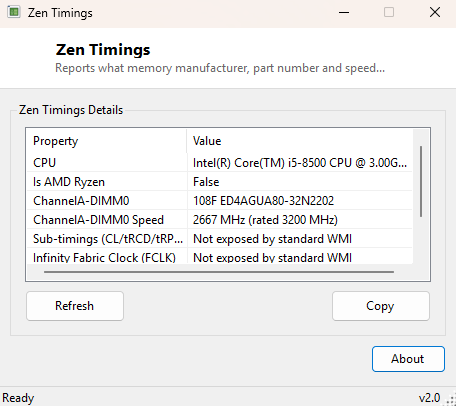
Memory overclockers and Ryzen enthusiasts know the original ZenTimings well: a tool that reads AMD Ryzen platforms' exact memory sub-timings and Infinity Fabric clock directly from the SMU (System Management Unit) over a low-level hardware interface. This Debmedia utility takes the same name and the same underlying curiosity — what is my memory actually running at, down to the finest detail — but is deliberately built around what standard, documented Windows APIs can report safely, rather than loading a low-level SMBus driver to reach hardware registers directly. It reports processor identity, RAM manufacturer, part number and both rated and configured clock speed, and is upfront about the specific data that genuinely requires deeper hardware access it intentionally does not attempt.
Key Features
- Identifies the installed CPU and flags whether it is an AMD Ryzen part
- Reports manufacturer and part number for every installed memory module
- Shows both the rated (SPD) speed and the currently configured running speed per module
- Clearly labeled, honest notes on exactly what this tool can and cannot see
- No kernel driver installation, no SMBus access, nothing that risks system stability
- Instant startup with no background service or scheduled task
Why You Might Need This Tool
Before diving into a full memory-overclocking session with dedicated SMBus-level tools, it is genuinely useful to have a fast, completely safe way to confirm the basics: which memory kit is actually installed, what its rated speed is according to its SPD data, and whether Windows currently has it running at that rated speed or something lower due to an unstable XMP/DOCP profile falling back to a safe default. This tool answers exactly those questions in seconds, without installing anything that touches hardware registers directly — useful as both a quick sanity check before troubleshooting memory stability and as a simple inventory tool when you just want to confirm what RAM is physically in a machine you did not build yourself.
How It Works
ZenTimings queries Win32_Processor via WMI for the CPU name and checks
whether it contains "Ryzen" to flag AMD platform detection, then queries
Win32_PhysicalMemory for each installed module's
Manufacturer, PartNumber, Speed (the rated
SPD speed) and ConfiguredClockSpeed (what Windows currently has it
running at). These are all values the SMBIOS memory-device table exposes through
standard, documented WMI, requiring no special driver or elevated access. What this
tool deliberately does not attempt is reading DRAM sub-timings (CAS latency, tRCD,
tRP, tRAS and the dozens of secondary and tertiary timings real memory overclockers
tune) or the Infinity Fabric clock, because that data lives inside the SMU and is
only reachable by talking directly to hardware over the SMBus using a low-level
kernel driver such as WinRing0. Loading a driver like that carries real risk —
incorrect access can destabilize the system, and such drivers are also a common and
understandable target of antivirus heuristic detection precisely because the same
low-level access pattern is shared with malicious rootkit techniques. Rather than
bundle that risk into a small utility meant to be trustworthy by default, this tool
reports honestly what it cannot see instead of faking a plausible-looking number.
How to Use It
Launch ZenTimings and it immediately populates its report — CPU identity, then one row per installed memory module showing manufacturer, part number, and rated versus configured speed. Click Refresh after changing BIOS memory settings and rebooting to confirm the new configuration took effect, and check whether the configured speed now matches the rated speed you expect.
System Requirements & Notes
Runs on 64-bit Windows 10/11 and requires no administrator rights, since it only reads standard WMI data available to any user. Sub-timing and Infinity Fabric clock data is not available in this tool by design — see the FAQ below.
Frequently Asked Questions
Why doesn't this show CAS latency or tRCD like the real ZenTimings?
That data is only accessible via direct SMBus register access through a low-level
kernel driver, which this project intentionally avoids loading for safety reasons.
This tool reports everything standard Windows WMI can see honestly, and says so
plainly where it cannot go further.
Does this work on Intel systems too?
Yes for the manufacturer/part number/speed reporting, which is standard SMBIOS data
available on any platform — only the Ryzen-specific detection flag is AMD-specific.
My configured speed is lower than rated — is that a problem?
Not necessarily. It commonly means the memory is running at its default JEDEC
profile rather than an enabled XMP/DOCP overclock profile, which is easy to change
in BIOS if a higher speed was intended.