Overview
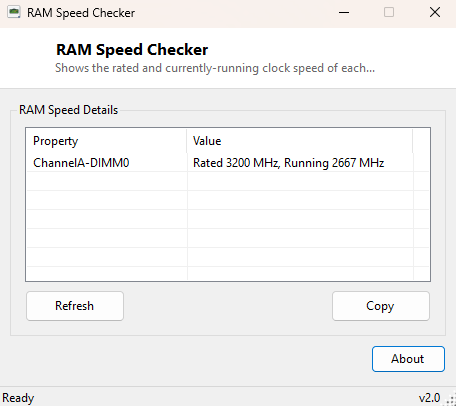
RAM Speed Checker shows the two numbers that matter most when someone asks "what speed is your RAM actually running at" — the rated speed printed on the module's spec sheet, and the speed it is genuinely running at right now, per installed stick. Those two numbers do not always match: memory can, and often does, run below its rated speed if XMP/DOCP is not enabled in firmware, if it is paired with an incompatible motherboard, or if the CPU's memory controller cannot hit the rated frequency with the installed module count. This tool exists to make that mismatch visible in ten seconds instead of requiring a trip into BIOS.
Key Features
- Lists every installed memory module by its DIMM slot location
- Shows the manufacturer-rated speed of each module
- Shows the actual configured/running clock speed of each module
- Makes speed mismatches (rated vs. running) immediately visible
- No configuration or setup — results appear the moment it opens
- Safe, read-only reporting with zero risk to memory stability
Why You Might Need This Tool
After building or upgrading a PC, confirming memory is actually running at its advertised speed rather than a JEDEC fallback speed is one of the first sanity checks worth doing — a stick rated for 6000 MT/s quietly running at 4800 MT/s because XMP was never enabled is a common, easy-to-miss performance loss. It is also useful evidence when troubleshooting instability after enabling an XMP/DOCP profile, or when confirming a newly purchased matched kit is actually being recognized correctly by the system rather than falling back to mismatched per-stick speeds.
How It Works
The tool queries WMI's Win32_PhysicalMemory class, which Windows
populates from SMBIOS/SPD data reported by the motherboard firmware for every
populated memory slot. Two properties are read per module: Speed,
the module's rated maximum transfer speed in MT/s, and
ConfiguredClockSpeed, the speed the memory controller is actually
driving that module at right now. When ConfiguredClockSpeed is
unavailable or reports zero on a particular system, the tool falls back to
displaying the rated speed alongside a note rather than showing a blank or
misleading value, so the difference between "not reported" and "genuinely
running slower" stays clear.
How to Use It
Open the tool and read the table — each row is one populated DIMM slot with its rated and running speed shown side by side. If the two numbers do not match, check your motherboard's BIOS for an XMP, DOCP or EXPO profile setting and enable it, then re-run the tool to confirm the change took effect after rebooting.
System Requirements & Notes
Runs on Windows 10 and 11 x64 and does not require administrator rights, since WMI memory queries are available to standard user accounts. Accuracy depends entirely on what the motherboard firmware reports through SMBIOS — a very small number of boards under-report configured speed even when the memory is genuinely running correctly, which the related SPD-level tools in this catalog can help cross-check.
Frequently Asked Questions
Why does it show a different speed than what CPU-Z-style tools report?
Both read from the same underlying firmware-reported SMBIOS data, so results
should normally agree; small discrepancies can occur if a motherboard's firmware
reports slightly different values to different query paths.
Can I use this to overclock my RAM?
No — it is a read-only reporting tool. Actual memory frequency and timing changes
are made in your motherboard's BIOS/UEFI setup screen.