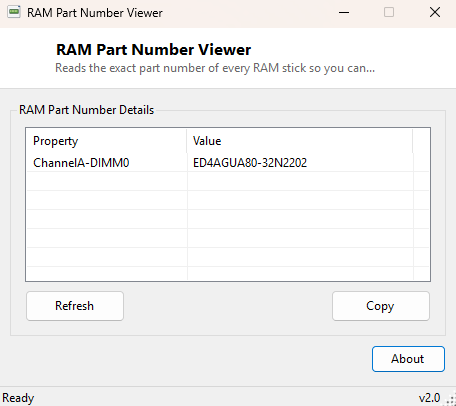
Overview
RAM Part Number Viewer reads the exact manufacturer part number stamped into each installed memory module's SPD data, one entry per populated DIMM slot. A part number is the single most precise way to shop for a matching upgrade stick — far more reliable than trying to match capacity and speed alone, since two modules can share identical headline specifications while differing in timings, voltage requirements or PCB revision in ways that occasionally matter for stable dual-channel operation.
Key Features
- Lists the exact manufacturer part number of every populated memory slot
- Labels each entry with its physical DIMM slot location
- Trims whitespace padding some modules include in their SPD data
- No scanning delay — reads instantly on launch
- One-click copy of the full report to the clipboard
- Works identically on desktops and laptops
Why You Might Need This Tool
Adding a matching memory stick to an existing kit, or replacing a single failed module in a multi-stick configuration, works best when the replacement is either identical to or explicitly certified compatible with what is already installed. Searching a memory manufacturer's exact part number directly usually surfaces the specific product page for that stick, including its precise timings and voltage — information that "8GB DDR4-3200" alone does not guarantee, since many different products share that same generic description.
How It Works
The tool queries Win32_PhysicalMemory through WMI for
DeviceLocator and PartNumber on each populated slot. The
PartNumber field is read directly from the module's SPD EEPROM, the same
small chip every DDR memory stick carries that stores its own manufacturer-assigned
identification string — Windows itself has no independent knowledge of this value
beyond what the module reports about itself. The tool trims trailing whitespace some
manufacturers pad their part number field with, since raw SPD strings are
fixed-length and often include blank padding characters.
How to Use It
Open the tool and every populated slot's part number appears immediately. Copy the exact part number and search it directly on the manufacturer's website or a retailer to find an identical or certified-compatible replacement or matching upgrade stick.
System Requirements & Notes
Runs on 64-bit Windows 10 and Windows 11 and needs no administrator rights — SPD part number data is readable through WMI by any standard user account.
Frequently Asked Questions
Why is my part number blank or unreadable?
A small number of memory modules, particularly some pre-installed OEM sticks in
laptops, do not populate this SPD field consistently — this is a limitation of the
specific module, not of how this tool reads the data.
Should I always buy the exact same part number for an upgrade?
It is the safest option for guaranteed compatibility, but modules with matching
capacity, speed, timings and voltage from a compatible kit will often work fine even
with a different part number — check your motherboard's memory compatibility list for
confirmation either way.
Where do I search a part number once I have it?
Search it directly on the memory manufacturer's own website first, since that
typically surfaces the exact original product page with full specifications.