Overview
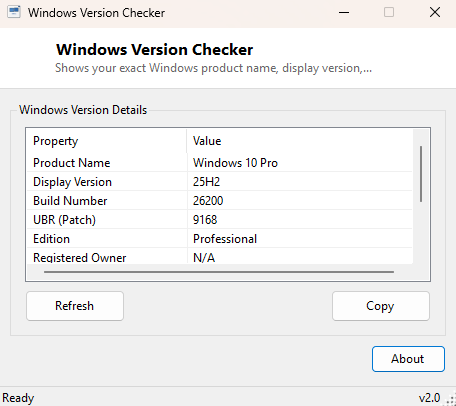
Windows Version Checker answers a question that sounds simple and almost never is: exactly what version of Windows is this? The Settings app buries the real answer behind several taps, phrases it inconsistently between Windows 10 and Windows 11, and still leaves out details like the exact patch level that support staff, software installers and troubleshooting guides frequently ask for by name. This tool reads all of that directly from the same registry location Windows itself uses internally and lays it out in one flat, copyable list.
It is intentionally the simplest possible way to answer "what Windows version am I on" — no diagnostics, no health checks, just an accurate, complete version snapshot you can read in five seconds or paste into a support ticket in one click.
Key Features
- Shows the official product name exactly as Windows reports it internally
- Displays the marketing "Display Version" (for example 23H2) alongside the raw build number
- Reports the UBR (Update Build Revision) — the precise patch level within that build
- Shows the registered owner name stored on the system
- Confirms whether the operating system is 32-bit or 64-bit
- One-click Copy button that copies the entire report as plain text
Why You Might Need This Tool
Software vendors, IT support teams and troubleshooting forums routinely ask for a Windows build number and UBR before they will help with a problem, because behavior genuinely does change between patch levels and generic version numbers like "Windows 11" are not specific enough to diagnose anything. Rather than opening Settings, navigating to System → About, and manually transcribing three or four separate fields, this tool gives you the entire block in one window, ready to copy. It is equally handy for confirming a fresh install actually landed on the version you expected, or for quickly checking whether a fleet of machines is patched to the same build before rolling out software that depends on a specific minimum version.
How It Works
All of the information on this page comes from a single registry key:
HKEY_LOCAL_MACHINE\\SOFTWARE\\Microsoft\\Windows NT\\CurrentVersion,
read directly through Microsoft.Win32.Registry. The tool pulls
ProductName, DisplayVersion (falling back to the older
ReleaseId value on systems where DisplayVersion is not yet present),
CurrentBuildNumber, UBR, EditionID and
RegisteredOwner straight out of that key — this is exactly the same
registry location the Settings app itself reads from, so the numbers you see here
will always match what Windows considers authoritative. Architecture (32-bit vs.
64-bit) is read separately through Environment.Is64BitOperatingSystem
rather than the registry, since that is the more reliable managed-code source for
that specific fact.
How to Use It
Open the tool and the full report populates immediately — there is nothing to configure or scan for. If you have just installed a Windows Update and want to confirm the new build took effect, click Refresh to re-read the registry without restarting the tool. Click Copy to place the entire report on the clipboard as plain text, ready to paste into an email, a support ticket or a chat window.
System Requirements & Notes
Runs on 64-bit Windows 10 and Windows 11 and requires no administrator rights — every value it reads is available to a standard user account under normal registry permissions.
Frequently Asked Questions
Why does my Display Version show differently than what I expected?
Display Version reflects the last feature update your system actually installed;
Windows Update sometimes delays a feature update rollout even when smaller monthly
patches continue to apply, so it is normal for this value to lag slightly behind the
newest release Microsoft has announced.
What does UBR actually mean?
Update Build Revision is the specific cumulative-update revision applied on top of the
base build number — the two together (for example 22631.3527) form the complete,
precise build identifier that support staff usually want.
Is this the same information as winver?
Very close, but more complete — the built-in winver dialog omits the
registered owner and edition ID fields this tool includes.