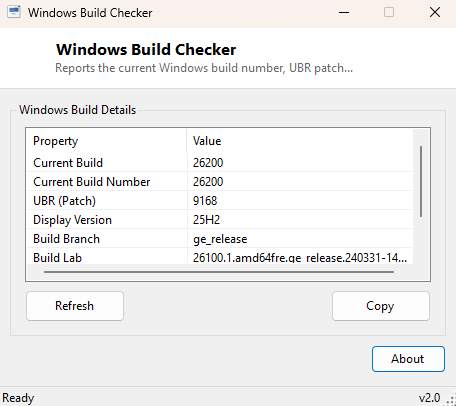
Overview
Windows Build Checker goes one level deeper than a general version summary and focuses purely on the build identity of your installation — the current build number, its exact patch revision, and the internal branch and lab strings Microsoft uses during compilation. Where Windows Version Checker gives you the friendly, human-facing summary, this tool is built for the moments you need the raw, unambiguous build identifiers that a specific KB article, a compatibility matrix, or a support engineer is asking for by exact number.
Every value shown here comes straight from the registry, with no rounding, simplification or reformatting — what you see is exactly what Windows itself considers the build to be.
Key Features
- Shows Current Build and Current Build Number side by side
- Displays the UBR (Update Build Revision) patch level
- Reports the internal Build Branch string used during Windows compilation
- Shows the Build Lab or Build Lab Extended string, when present
- Displays the Display Version (feature update label) for cross-reference
- Assembles a combined "Build.UBR" string in the exact format most support tickets expect
Why You Might Need This Tool
Compatibility documentation for drivers, enterprise software and even some games increasingly lists minimum supported builds rather than just "Windows 11," because meaningful platform changes ship inside cumulative updates between feature releases. Being able to read your exact build and UBR in one glance lets you check that documentation accurately instead of guessing from the friendlier version label. It is also the fastest way to confirm that a specific security patch has actually installed — Microsoft's own KB articles for cumulative updates list the exact build number and UBR the patch brings a system to, and this tool shows you both numbers in the same format.
How It Works
Like its sibling version tool, this program reads directly from
HKEY_LOCAL_MACHINE\\SOFTWARE\\Microsoft\\Windows NT\\CurrentVersion
using Microsoft.Win32.Registry, but pulls a different, more granular
set of values: CurrentBuild, CurrentBuildNumber,
UBR, BuildBranch, and either BuildLabEx or the
older BuildLab string as a fallback, since not every Windows release
populates both keys. The tool then concatenates CurrentBuildNumber and
UBR with a period to produce the combined build string (for example
22631.3527) in the exact format Microsoft's own release-health
documentation and KB articles use, so you can copy it directly into a search or a
support form without reformatting anything by hand.
How to Use It
Launch the tool and the full build report appears immediately with no scanning delay. Click Refresh after installing a Windows Update to confirm the new build and UBR took effect (a restart may be required first, depending on the update type). Use Copy to place the full report on the clipboard for a support ticket or forum post.
System Requirements & Notes
Runs on 64-bit Windows 10 and Windows 11 without administrator rights — all values read here are accessible under standard registry permissions for any signed-in user.
Frequently Asked Questions
What is the difference between Current Build and Current Build Number?
On most modern Windows releases they are identical; the two separate registry values
exist for historical compatibility reasons dating back to earlier Windows versions,
and this tool shows both so nothing is hidden.
My Build Lab field is empty — is that a problem?
No — some Windows builds, particularly certain Insider or OEM-customized images, do
not populate this optional string. Its absence has no effect on system functionality.
How often does the UBR change?
Typically every month, whenever a cumulative security update installs — the base
build number stays the same between feature updates, but the UBR increments with each
patch.