Overview
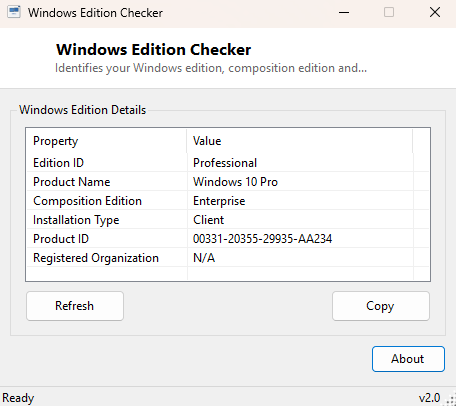
Windows Edition Checker exists because "which edition of Windows am I running" is a much more layered question than most people expect. Home, Pro, Pro for Workstations, Enterprise, Education, and various regional and OEM variants all carry different licensing terms and different feature sets — Group Policy, BitLocker management, and Remote Desktop hosting are just a few examples of features that quietly depend on edition. This tool reads the exact edition identifiers straight from the registry and shows all of them together, rather than the single simplified label Settings displays.
Key Features
- Shows the internal Edition ID exactly as Windows records it (for example "Professional" or "Core")
- Displays the full marketing Product Name string
- Reports the Composition Edition ID for systems where it differs from the base edition
- Shows the Installation Type (Client, Server, IoT, and similar classifications)
- Displays the Product ID associated with the current license
- Reports the Registered Organization field where one has been set
Why You Might Need This Tool
Software installers and enterprise deployment tools frequently check edition before allowing certain features to run, and troubleshooting a "this feature requires Windows Pro" message is much easier when you can see your exact edition string rather than guessing from the Settings summary. Buyers of used or refurbished PCs also use this kind of tool to confirm the edition actually installed matches what a listing claimed — a machine advertised as "Windows 11 Pro" that turns out to be Home once you look closely is a common and frustrating surprise this tool catches in seconds.
How It Works
The tool reads five specific values from
HKEY_LOCAL_MACHINE\\SOFTWARE\\Microsoft\\Windows NT\\CurrentVersion:
EditionID, ProductName, CompositionEditionID,
InstallationType and ProductId, plus
RegisteredOrganization, all through
Microsoft.Win32.Registry. These are the same authoritative values the
Windows activation and licensing stack itself relies on internally, which is why this
tool's output is considered a reliable source when reconciling a listing or invoice
against what is actually installed.
How to Use It
Open the tool and every field populates immediately with no scanning required. Use Refresh if you have just changed edition through a Windows edition-upgrade key, and Copy to place the full report on the clipboard for comparison against a purchase listing or a support ticket.
System Requirements & Notes
Runs on 64-bit Windows 10 and Windows 11 and needs no administrator rights, since all values read here are available under standard registry permissions.
Frequently Asked Questions
Why is my Composition Edition ID different from my Edition ID?
Some Windows 10 and 11 configurations use a "composed" image where a base edition has
an additional feature pack layered on top — Composition Edition ID reflects that
combined result, while Edition ID reflects the base image alone.
Can this confirm whether my Windows license is genuine?
It shows edition and product ID information but not activation status — for that,
see Windows Activation Checker, which
reads live licensing status directly.
What does "Installation Type: Client" mean?
It confirms this is a standard desktop/client Windows installation rather than a
Server, IoT or other specialized installation type.