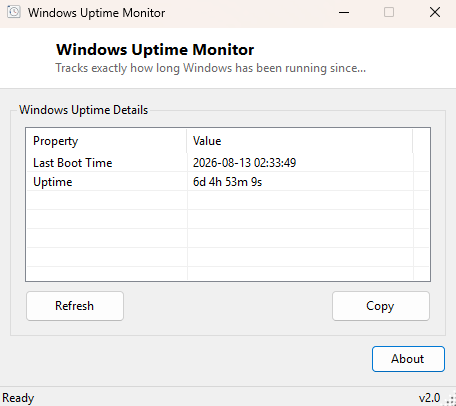
Overview
Windows Uptime Monitor tracks exactly how long the machine has been running since its last boot, expressed as a clean days/hours/minutes/seconds readout rather than Task Manager's more buried uptime figure. It is one of the simplest tools in this catalog by design — one clear number, refreshed live, with the exact boot timestamp shown alongside it for reference.
Key Features
- Shows exact last-boot timestamp down to the second
- Calculates and displays running uptime in days, hours, minutes and seconds
- Live-updating so the figure stays accurate while the window stays open
- No configuration required — accurate the moment it opens
- Read-only, makes no changes to power or startup settings
Why You Might Need This Tool
Confirming a server or workstation genuinely restarted after applying a patch, checking whether a "randomly slow" machine has simply been running for 40 straight days without a restart, or just satisfying curiosity about how long a reliable PC has stayed up — uptime is one of those numbers that is oddly useful across a wide range of unrelated troubleshooting situations, and Windows does not make it easy to check at a glance.
How It Works
The tool queries WMI's Win32_OperatingSystem class and reads its
LastBootUpTime property, which is returned in the WMI CIM datetime
format rather than a standard .NET DateTime. It is converted using
System.Management.ManagementDateTimeConverter.ToDateTime(), and the
difference between that converted timestamp and the current local time is
calculated to produce the displayed uptime duration.
How to Use It
Open the tool and the last boot time and running uptime appear immediately. Leave it open and the uptime figure continues counting upward in real time for as long as the window stays open.
System Requirements & Notes
Runs on Windows 10 and 11 x64 without administrator rights. Sleep and hibernate do
not reset this figure the way a full restart does — LastBootUpTime
reflects the last genuine cold or warm boot, not a resume from sleep.
Frequently Asked Questions
Does putting the PC to sleep reset the uptime counter?
No — sleep and hibernate preserve session state and do not count as a reboot, so
uptime continues accumulating from the last true restart.
Is a very high uptime number a problem?
Not inherently, though Windows Update often needs a restart to fully apply
security patches, so an unusually long uptime is worth checking against your
update history.