Overview
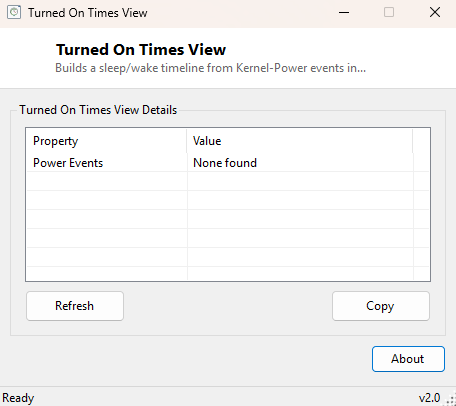
Turned On Times View reconstructs a timeline of when your PC went to sleep and woke back up by reading Kernel-Power events directly from the Windows System event log — the same low-level power-transition events Windows itself records every single time, whether the transition was triggered manually, by an idle timeout, or by closing a laptop lid.
Key Features
- Lists sleep and wake events with exact timestamps, most recent first
- Distinguishes sleep events from wake events by their event ID
- Reads directly from the Kernel-Power provider for accuracy
- Shows up to the 40 most recent matching power-transition events
- No configuration needed — works immediately using existing System log history
Why You Might Need This Tool
Confirming exactly when a machine actually went to sleep overnight — versus staying awake and burning power unnecessarily — is a common reason to check this history, especially when troubleshooting a laptop's battery drain complaint. It's also useful evidence when investigating an unexpected reboot or crash: the sleep/wake timeline surrounding the incident often clarifies whether the system was actively in use, idle, or transitioning between power states at the time something went wrong. IT support scenarios benefit too — confirming a remote machine actually slept and woke as scheduled, rather than staying powered on all night, is exactly the kind of question this timeline answers directly.
How It Works
The tool builds an EventLogQuery against the "System" log using an XPath
filter that targets events specifically from the
Microsoft-Windows-Kernel-Power provider with event ID 42 (system entering
sleep), ID 1 (system resuming from sleep) or ID 107 (a related wake-trigger event), reading
them through the same EventLogReader class used elsewhere in this catalog for
Event Log access. For each matching event, it reads the TimeCreated timestamp
and maps the numeric event ID to a plain-English label — "Sleep", "Wake" or "Wake
(Trigger)" — via a straightforward Select Case on the event's
.Id property, building up to 40 of the most recent matching entries into a
readable chronological table. Using the Kernel-Power provider specifically (rather than a
more general System log scan) keeps the results accurate and free of unrelated noise, since
this is the exact provider Windows' own power-management subsystem uses to record these
transitions.
How to Use It
Launch the tool; the timeline of recent sleep and wake events populates automatically, newest first. Click Refresh after the system wakes from a new sleep cycle to pull that latest transition into the list.
System Requirements & Notes
Reading the System event log as the current user does not require administrator rights on a standard Windows configuration. The available history depends on the System log's configured maximum size — very old events may have already rotated out on a system that has been running for a long time without a log size increase.
Frequently Asked Questions
Why don't I see any events at all?
If your PC rarely or never sleeps (for example, a desktop configured to never suspend), the
Kernel-Power provider simply won't have logged any matching sleep/wake transitions to show.
Does this also show full shutdown and startup events, not just sleep/wake?
No — this tool focuses specifically on sleep and wake transitions via Kernel-Power. For boot
timing specifically, see Windows Boot Time
Checker and Windows Uptime Monitor.